
How to Use LUTs in Premiere Pro: Install, Apply and Fix Grades
LUTs are one of the quickest ways to change the look of footage in Premiere Pro, and one of the quickest ways to make it look worse. Drop the wrong one on a clip and the shadows crush, the colors go strange, and it's not obvious why.
Most of the confusion comes from mixing up two kinds of LUT: technical ones that convert flat log footage to normal contrast, and creative ones that add a look on top. Below is what a LUT does, how to install your own, how to dial back the strength, how to fix common problems, and how to handle log footage.
Because Lumetri's Input LUT slot is the primary spot where you manage these color adjustments, you'll either browse for files manually or drop them into the shared Common directory so they appear across every project.
You'll often find that the default effect is too harsh, so the intensity slider helps you dial back the strength until the grade looks right. The distinction matters because manual browsing doesn't persist across projects the way the shared directory does.
What a LUT Does
A Look-Up Table is just a math transform that remaps every pixel color to a new value, which allows you to change the mood of your video without editing every single frame. Technical LUTs convert flat log footage back to Rec.709, so the colors look normal once again. Creative LUTs add a specific look to your clips, which helps you tell a story through color alone. Both live inside the Lumetri Color panel under the Basic Correction and Creative tabs.
When you use the Input LUT slot in the Basic Correction section, you fix the flat look of log footage before you even start to apply your own custom color grade.
The Creative tab also has an intensity slider, which lets you dial back the effect if it looks heavy. Using these tools saves you time, because you don't have to manually adjust every shade and hue. That keeps the workflow simple and your shots consistent across the project.
Start by exploring the tools already inside the Lumetri Color panel, because these presets help you learn how color works before you'll start downloading external files.
The Creative tab features a dropdown menu, which contains a set of pre-made looks for your clips. These looks include things like Fuji-style film stocks, which change the mood of your footage quickly. Test different styles to see which fits your goal without any extra software.
When you pick a look from the list, you can use the intensity slider to dial back the effect if the colors feel too strong or unnatural for your specific project. This slider moves from zero to one hundred and controls how much of the grade applies.
Most editors find that keeping the level at around fifty percent looks much better than using the full power. Adjusting this value prevents the shadows from looking crushed, while you still get that nice pop of color. The simple workflow gets you professional looks while you learn the interface.
How to Install Your Own Custom LUTs
To test a look without moving files, go to the Lumetri panel and click Browse in the Input LUT slot to find any .cube file on your drive. This method works well for quick tests, but it won't save your choice when you start a new project.
You'll have to pick the file again every time you open the clip, because the link stays temporary. It's a bit of a chore, yet it keeps your system folders clean while you play around.
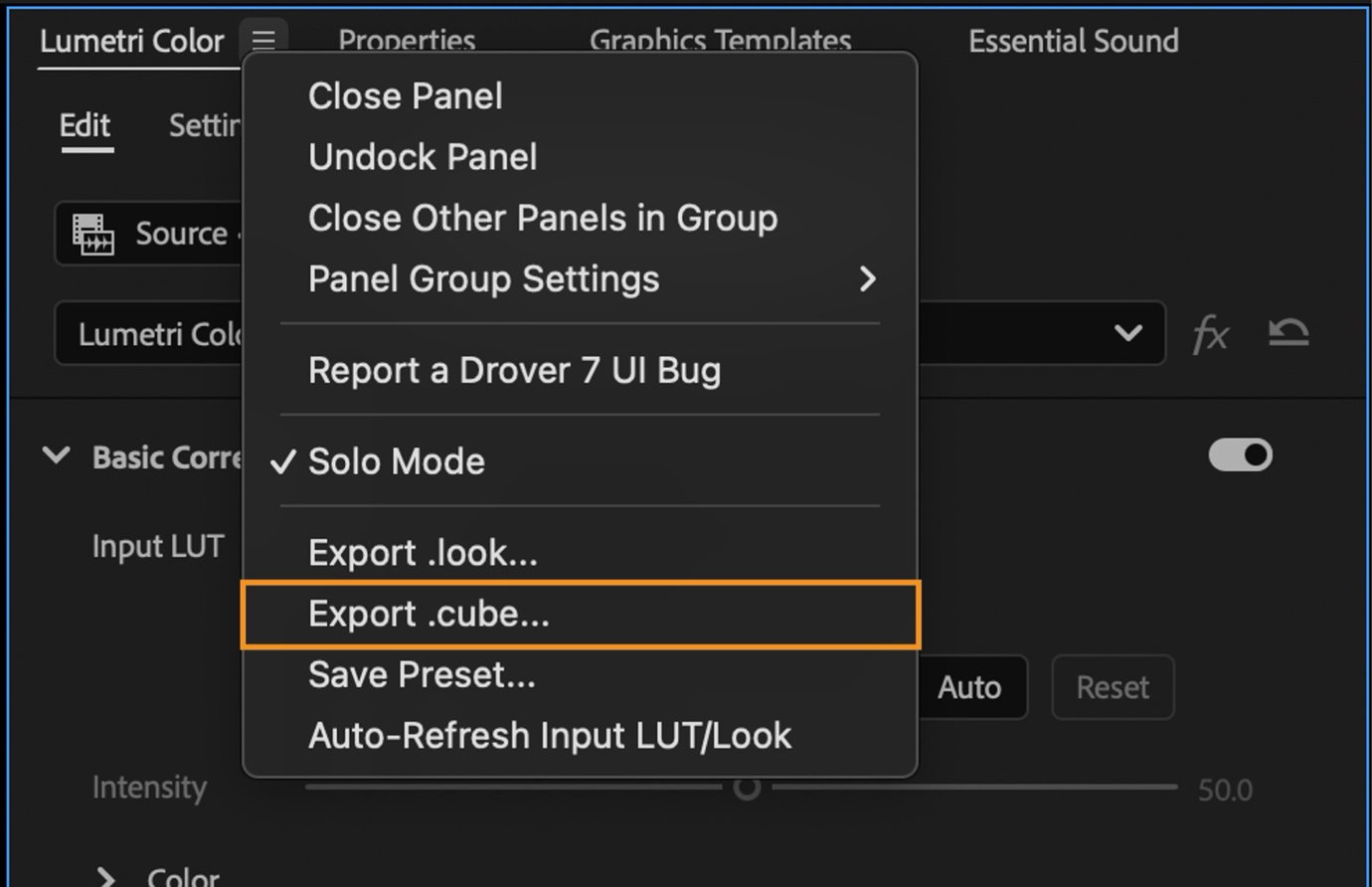
For those who want their grades to show up every time, copy your .cube files into the Common LUTs directory inside the Adobe system folders on your computer.
On macOS that is /Library/Application Support/Adobe/Common/LUTs, and on Windows C:\Program Files\Adobe\Common\LUTs. Drop the .cube files in either. Once they're there, they pop up in every dropdown across all Adobe apps, which makes your workflow much faster.
Using the shared folder saves a lot of time, because you don't have to hunt through downloads every time you want to apply a grade to a new video.
Premiere can even export your grade as a .cube file from the Lumetri panel menu, so your look travels to other apps. If you put them in the wrong subfolder, the software won't find them in the creative tab at all. With the setup done, you can focus on the edit instead of managing files.
Changing the Strength of Applied LUTs
When you apply a creative look through the Lumetri panel, you should use the intensity slider on the creative tab to dial back how much of that effect actually hits your footage.
Most LUTs don't look good at a hundred percent, because the colors are often too heavy or unnatural for standard video. Turning the slider down lets you find a balance, which preserves the mood without losing details in the shadows. It's a simple way to blend the grade with the original clip, for a better result.
To use a LUT while making separate color corrections, stack adjustment layers above your clips to keep the workflow clean. This method allows you to set the LUT strength on one layer, then tweak the exposure on the next.
You gain total control here. This setup prevents you from fighting a single slider, when you try to fix two different things at once. It makes the edit much easier to manage, as you move through the timeline.
Troubleshooting LUT Problems in Premiere
If your footage looks muddy or the shadows seem crushed, you likely applied a creative LUT to footage that was already in Rec.709 instead of using a technical fix first. This happens because LUTs stack on top of each other, which ruins the detail you worked hard to save. You must use a technical LUT to fix log footage before you add any creative looks, so the image stays clean. If you're skipping this step, the colors will feel heavy and flat across the whole edit.
When your custom files don't show up in the menu, you likely put them in the wrong directory or the file is not actually a standard cube type.
Premiere looks in specific folders within the Common directory, so check that your paths match what you need exactly. You might also notice that a grade looks different compared to DaVinci, because the two engines read the math differently. It's frustrating.
A timeline that lags under heavy effects probably has too many Lumetri instances stacked up and taxing your hardware.
You'd better collapse these effects into one instance to keep the playback smooth, which helps you stay fast. Using proxies is another great way to handle the heavy load, since it reduces the work the CPU has to do daily. A lean project finishes on time without constant crashes or slow renders.
Using Log Footage Specifically
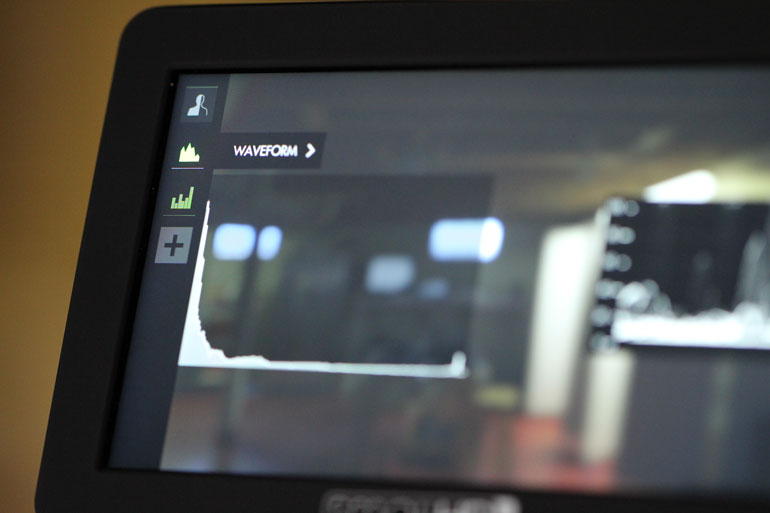
Formats like S-Log3, C-Log and V-Log look flat and desaturated by design, and they look terrible until a technical LUT fixes them. A LUT-capable field monitor from B&H previews the converted image on set.
The SmallHD monitor screenshot shows what that flat footage looks like on screen. You can download free technical LUTs from makers like Sony or DJI now, so you save time. These files aren't just for looks, because they help transform the raw data.
You should place your technical LUT on an adjustment layer above your clips so that you can grade the footage underneath without messing up the original files or your timeline.
Our Premiere versus Final Cut comparison covers how each app handles LUTs differently. This method keeps your project clean, while you change the look for clips. If the grade looks too harsh, swap the LUT. That is the whole workflow for a professional color pass.
Skipping the technical LUT on log footage produces a muddy mess that crushes your shadows and highlights. If you apply a creative LUT to log clips, the colors look broken. Convert the footage first or the video will not look good.
Frequently Asked Questions
Where can I get free LUTs for Premiere Pro?
It's easy to find free LUTs online because camera manufacturers provide technical conversion files to help users transform flat log footage into a standard color space. These files load easily from any folder you select on your computer during editing.
What is the difference between .cube and .3dl files?
Both formats map colors, but the .cube file is the modern industry standard while the .3dl format is an older Autodesk lineage. Adobe's Premiere page documents the supported formats. Premiere reads both without complaint.
Can I use an adjustment layer to apply a LUT?
Placing a Lumetri Color effect on an adjustment layer allows you to apply a specific look to every video clip located beneath it on the timeline. That way the grade does not drift across shots.
Why do LUTs look different in Premiere compared to DaVinci?
These programs use different color management engines and working spaces which means they interpret the same .cube file slightly differently during the grading process. You'll likely find the final look better in one app over the other.
How do I install LUTs permanently so they always appear?
To perform a permanent install, drop your .cube files into the shared Common LUT directory located within the program folders of your operating system. The files then show in every dropdown across all projects.