
Best Monitors for Color Grading in 2026
Color grading on a monitor that cannot show you what your footage actually looks like is worthless. Most people grade on whatever screen they bought for everyday use, then wonder why their export looks different everywhere. Here is what a grading monitor needs, and which four are worth your money.
What Matters in a Grading Monitor
When you pick a screen for video work, you should ignore refresh rates and fast response times because those are just gaming specs that won't help you see colors accurately during a grade.
You need a Delta E of 2 or less since the human eye can't catch errors beyond that, and you want at least 95% DCI-P3 coverage to make sure your video looks right. 10-bit depth is vital for keeping gradients smooth in Resolve or Premiere, while uniformity compensation is what really separates pro panels from cheap ones that have uneven tints.
Factory calibration is just a starting point because panels drift over time, so you really need to calibrate them monthly with a colorimeter to keep your work consistent.
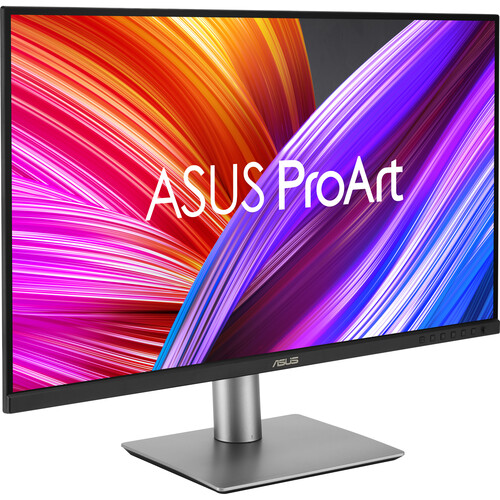
ASUS ProArt PA279CRV: Best Overall Value
ASUS positions the ProArt line for creators, and the PA279CRV is a 27-inch 4K IPS panel covering 99% DCI-P3, 99% Adobe RGB and 100% sRGB, with Calman Verified factory calibration at Delta E under 2 and a single USB-C cable carrying 96W of power to a MacBook.
A buyer ran their own calibrator and measured 99.5% sRGB and 99% Adobe RGB, calling it a monitor that punches outside its price range. An owner of ASUS's much pricier ProArt OLED bought a second PA279CRV for another workstation.
The critical reviews are about connectivity and expectations. A buyer reports USB-C and HDMI both taking up to five minutes to recognize a laptop.
A buyer measures 20-plus seconds to wake from sleep on an M3 MacBook Pro. One user who owns two units says both periodically drop signal for 5 to 10 seconds before recovering. And one buyer warns the 400-nit peak means this is not a real HDR experience.
Two more verified complaints worth knowing: one owner says ASUS stopped responding after the firmware update tool failed, and a Spanish-language verified review describes missing MacBook color-matching options plus an opened-box delivery. The panel is also picky about which calibrators it accepts, so check compatibility before you buy.
BenQ SW272U: The Photographer's Favorite That Grades Video Too
BenQ builds the SW series for photographers, and the SW272U covers 99% Adobe RGB and DCI-P3, and unlike the ASUS it calibrates in hardware through BenQ's Palette Master Ultimate software, storing the profile in the monitor itself.
The shading hood comes in the box with a cutout so you can calibrate without removing it, which matters in a room with ambient light. HLG support covers HDR preview work. Check it at B&H as well as Amazon.
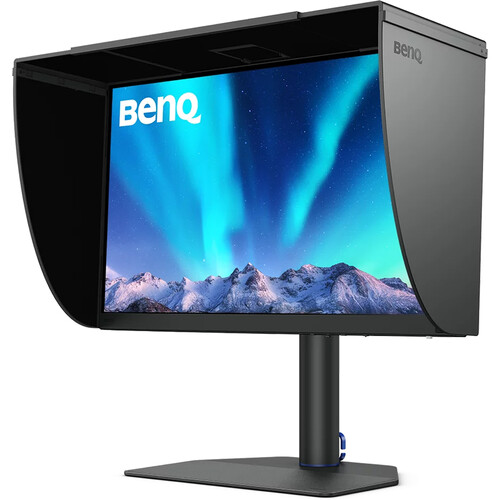
A verified 4-star reviewer specifically pushes back on a burn-in rumor, saying it belongs to a different, cheaper BenQ model, not the SW272U. One correction to our earlier coverage: the listing title confirms a 90W USB-C port with power delivery, so single-cable MacBook setups work here too. The main verified complaint is input switching: one buyer says the puck controller will not switch inputs while the monitor sleeps.
Eizo ColorEdge CS2740: The Broadcast-Grade Build
The CS2740 sits near two grand at B&H, in stock. Eizo is the name in post houses and broadcast facilities because their panels hold calibration for years, and the ColorNavigator software handles hardware calibration properly. Uniformity compensation keeps every part of the screen even.
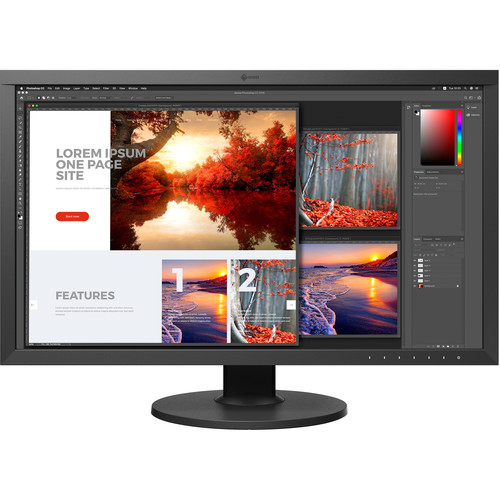
While this monitor covers 100% of sRGB and 99% of Adobe RGB, it only hits around 90% of DCI-P3, which creates a real gap for people grading cinema-grade video. If you only make content for the web, you might not need to spend this money.
You use ColorNavigator for hardware calibration to keep the image right so your work stays professional across all displays. This gap in P3 colors matters, especially if you work on high-end films or shows.
Next to the Apple Pro Display XDR, the Eizo sits in the sweet spot between prosumer and broadcast reference. Who should skip it: web-only deliverables don't need this money, and cinema work in DCI-P3 will notice the 90% coverage gap.
Dell UltraSharp U2725QE: The Capable Budget Entry
The U2725QE is a 27-inch 4K IPS Black panel covering 98% DCI-P3, and its 120 Hz refresh rate is useless for color but makes timeline scrubbing feel great. It's a USB-C hub monitor with no factory calibration certification and no dedicated color management software.
First color-aware display or secondary monitor: yes. Client delivery to broadcast standards: no.
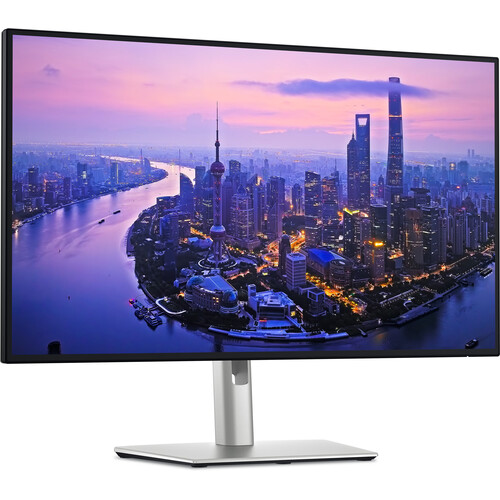
The critical reviews are rough. A buyer reports entire screen lines failing within a year. Another says the monitor died after 50 days with useless support.
The buyer describes a yellow cast that calibration cannot fully remove, reportedly worse on macOS
Hardware Calibration, IPS vs OLED, and the Room
Factory calibration is a starting point: backlights age and panels drift. For professional color work, run a colorimeter like the Calibrite ColorChecker Display monthly, about five minutes per session. BenQ and Eizo store the profile in the monitor's hardware so it follows the panel between computers.
ASUS supports hardware calibration through the ProArt Calibration app but is picky about which devices it accepts, so verify your calibrator works before you buy. If you grade on a desktop after shooting with an on-camera monitor, calibrating both to the same standard is the only way set matches post.
OLED panels like ASUS's ProArt PA32UCDM offer infinite contrast and perfect blacks, which sounds ideal until you price them, watch static Resolve UI elements burn in over long sessions, and hit brightness limits that complicate HDR grading. For indie films, corporate work, documentaries, YouTube and weddings, a calibrated IPS panel gets you there at a fraction of the cost.
The room matters as much as the panel: no windows throwing daylight at the screen, no overhead fluorescents, and ideally a D65 bias light behind the monitor.
Our ScreenBar Halo review covers a desk light that won't contaminate your color perception. Sit 24 to 30 inches from a 27-inch 4K panel, keep it at eye level tilted back about 5 degrees, and set the monitor's color mode to match your delivery: sRGB for web, DCI-P3 for cinema, Rec. 2020 or HDR10 for HDR.
Frequently Asked Questions
What's the minimum gamut coverage I need for professional color grading?
At least 95% DCI-P3 for video work. All four monitors here hit that except the Eizo CS2740 at around 90% (it covers 99% Adobe RGB instead). For web-only delivery, 100% sRGB is enough, but you'll outgrow it fast if any cinema or broadcast work appears. The PA279CRV covers 99% DCI-P3.
Do I really need hardware calibration, or is factory calibration good enough?
Factory calibration gets you started, and buyers report the PA279CRV holds its factory numbers well for the first months. For ongoing professional work, calibrate monthly and budget a few hundred for a quality colorimeter if you don't own one.
Can I use a gaming monitor for color grading?
Technically yes, but you'd be working blind. Gaming panels prioritize response time and refresh rate, cover sRGB decently, fall short on DCI-P3 and Adobe RGB, and ship without factory calibration for color-critical work. You can calibrate what's there, but you can't calibrate a gamut the panel physically can't display.
Is 27 inches big enough for color grading?
Yes. 27 inches at 4K is the sweet spot: enough detail without visible pixels. 32-inch panels work too as long as they're 4K or higher. For a dedicated client-viewing display, that's a different conversation, something like the Atomos Neon.
What's the difference between a grading monitor and a reference monitor?
A reference monitor (Sony or Flanders Scientific territory) is built exclusively for critical color evaluation, costs thousands, and provides broadcast-legal accuracy with built-in scopes and LUT management. A grading monitor like these four is a high-quality desktop display you use for editing and grading. For indie and mid-level work, a well-calibrated grading monitor gets you 95% of the way there.