
Adobe Premiere Pro vs Final Cut Pro: Which NLE Fits Your Workflow
Picking an editing app looks like a features question, and the feature lists for these two are long enough to keep you reading for a week. In practice the choice tends to come down to things outside the timeline: whether everyone on the job uses a Mac, how often you hand work to After Effects, and whether you'd rather pay once or pay every month.
Both are professional tools, so I'd start with how you work rather than which one has the longer feature list.
Below are the two timeline philosophies, how each one runs on Mac and Windows, color and effects, working as a team, and what each one costs over time.
Mixed-OS teams and After Effects users usually choose Premiere while all-Mac solo editors who hate subscriptions pick Final Cut because the timeline philosophy and pricing are the real decision points rather than simple feature lists. If you buy into Adobe's ecosystem, the subscription card works for most buyers, though activation fails repeatedly for a minority and one 2026-version user reports serious timeline lag when dragging clips.
Test on the trial first, and use the one-month refund window if the code will not activate. If your machine is the bottleneck, B&H's video editing hardware is where most editors upgrade from.
Two Timelines, Two Philosophies
Premiere uses a traditional layer-based system where you stack tracks any way you like, which gives editors a lot of freedom but also forces them to keep a messy project organized.
You can place any clip anywhere, and moving one never drags its neighbors, which keeps layout control total but can leave gaps you must close by hand. This style feels natural for those who want control, but it puts a load on your skills.
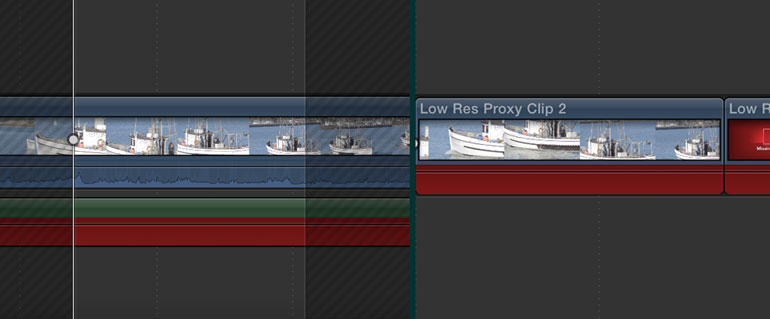
Final Cut Pro uses a magnetic timeline where clips snap to a spine, which keeps connected clips joined together when you move or trim parts of your story. This approach makes editing fast for solo creators because the software handles gap management for you, though it can feel restrictive when you need complex layer stacks on top.
Choosing between these two tools depends mostly on how you like to work, since one favors manual placement while the other prioritizes speed and flow for the editor.
One verified 2026-version user reported timeline lag when dragging clips, which is a good reason to test your footage before buying either way. If you work on dense projects, the layer-based approach might be the better fit for your team. If you want a quick cut, the magnetic spine will save you time today.
Hardware Performance on Mac and Windows
Since Final Cut Pro is built specifically for Apple silicon, it renders your work very fast on Macs, which makes it work well for editors who work with heavy video files. It handles demanding timelines well because the code is tuned for the hardware in the box, and exports finish sooner as a result.
Adobe Premiere Pro runs on both Windows and Mac, but how fast it is depends on the machine you use, and older machines feel it first. One user of the 2026 version says the timeline lags while they're dragging clips from the library. That same person noticed playback stuttering during scrubs, which gets frustrating on a fast-turnaround edit.
Proxies keep playback smooth in both programs, but nothing substitutes for testing your own footage on the free trial before you commit to any plan. Ten minutes of testing beats a refund fight.
Color Grading and Visual Effects
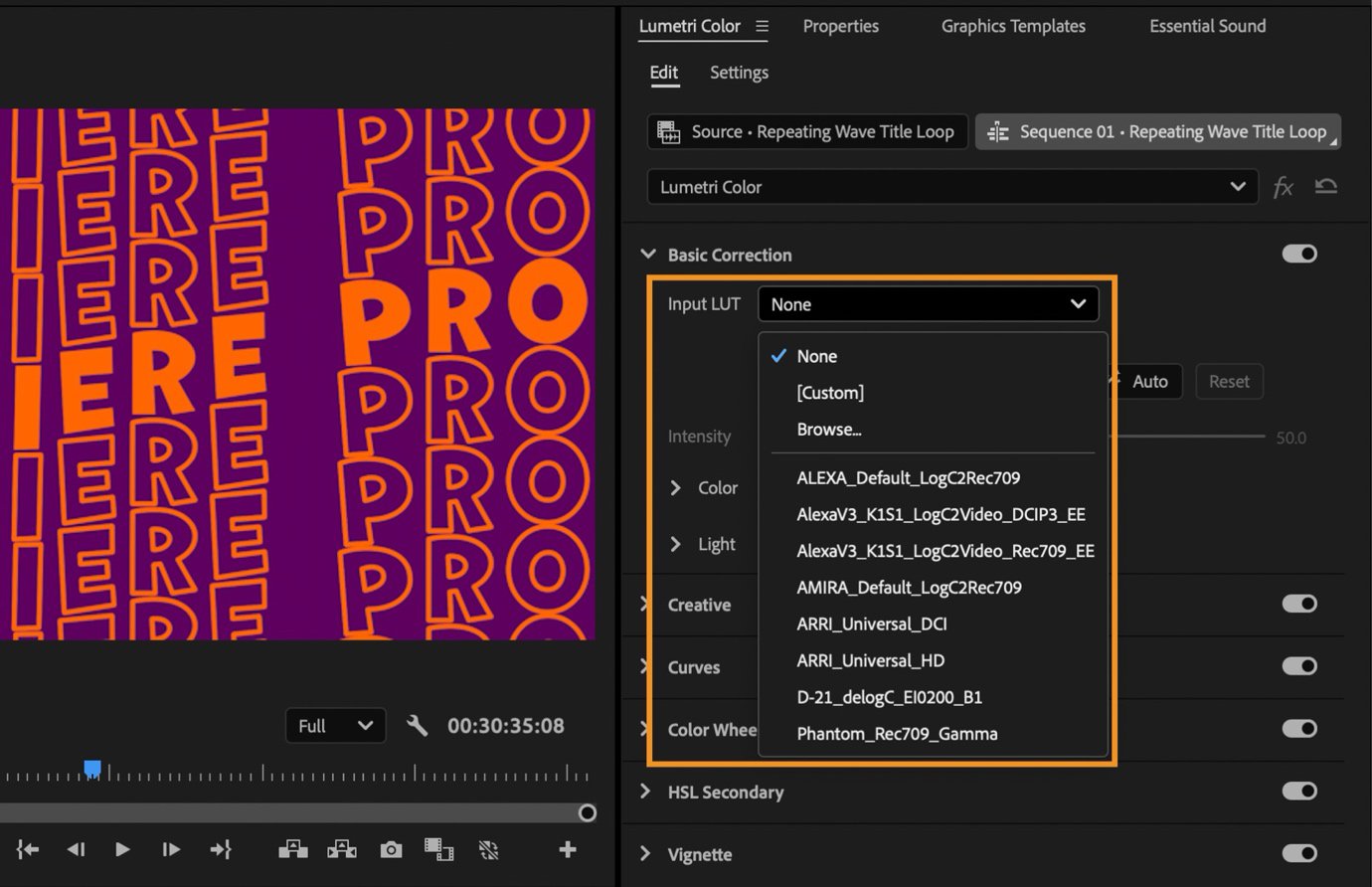
Premiere uses the Lumetri panel, a layer-based grading approach that feels natural to anyone who spent years in Photoshop, while Final Cut Pro provides a Color Board that is much simpler and faster to use. FCP's Color Board gets basic grades done faster, while Lumetri gives editors who want per-shot control more layers to work with.
The real difference shows up when you need to add complex effects since Premiere round-trips with After Effects for motion graphics, whereas Final Cut relies on Motion and a smaller world of third-party plugins. Teams that need heavy VFX pick Premiere, because the AE pipeline is so deep. Round-tripping is slow when files are not set up for it, while FCP's Motion link stays lightweight.
For work with constant motion-graphics round-trips, Final Cut's lack of a direct After Effects link becomes a real hurdle, and you end up bridging the gap with plugins that the Adobe suite handles natively. On deadline, that integration is time you cannot buy back.
Collaboration and Cross-Platform Teams
A team that mixes Windows and Mac computers has only one option that keeps everyone on one project format, and that's Premiere, which most buyers find easy to install. Check each machine's OS against the requirements before you buy the retail card, because activation failures are the most common verified complaint.
When everyone on your team uses a Mac, Final Cut offers a much simpler path because the team can share libraries easily across the whole group without any file issues.
The tool handles proxy media very well on Mac, which helps when you're working with large files that slow things down. Test the free trial with your own footage before committing, the same advice that saves you from a refund fight on any NLE.
Both apps handle modern camera formats well, so the real question is how your team shares work. A platform that cannot open the project grinds a mixed-OS team to a halt on deadline, so pick the tool that matches the machines you actually own.
Pricing and the Subscription Question
Because Premiere Pro requires a monthly plan while Final Cut Pro offers a one-time purchase, the choice of how you pay often impacts editors more than any specific feature found inside the software. You're deciding between a recurring cost and a one-off fee, which changes how you manage your long-term budget. One card quirk: existing subscribers must finish their current term before linking a new 12-month card.
Buying the 12-month card from Amazon is a common way to get started, but you should activate it immediately to use the one-month refund window if the code doesn't work. One user has reported that the code failed three times, while another said their plan never worked. Adobe support spent ninety minutes trying to install the software remotely on an older laptop, which shows the setup isn't always smooth.
Most buyers install without trouble and like the built-in tutorial, and the YouTube tutorial ecosystem is deep. Your machine needs Windows 10 or macOS Sierra 10.12 at minimum per Adobe's system requirements, so check before you buy.
Frequently Asked Questions
Which software is better for beginners?
Final Cut Pro's magnetic timeline is much easier to master quickly, while Premiere Pro teaches skills that transfer more directly to established professional industry jobs. Beginners often find the Mac interface very intuitive for their first video projects.
Can I switch from Final Cut Pro to Premiere Pro?
You can switch between them because basic timeline concepts transfer, and using XML files helps you move your projects between the two different software environments. This transition stays relatively smooth if you decide to change your current workflow.
Does Final Cut Pro work on Windows?
No. Final Cut Pro runs only on Mac, which is the whole decision point for mixed teams. Production teams with Windows machines standardize on Premiere, because a shared project has to open on every editor's machine.
Which program handles 4K and 8K video better?
Final Cut Pro performs very well on Apple silicon, whereas Premiere Pro scales based on your hardware across both platforms if you use proxy files. High-resolution editing feels much smoother when proxies are always enabled.
Can I use both Premiere Pro and Final Cut Pro?
Yes, and plenty of editors do. A common split keeps Final Cut for fast solo cuts and Premiere for VFX-heavy projects and team timelines, since the skills overlap and project XML moves between them when needed.
Is the Adobe subscription worth it?
The bundle math works if you also use After Effects, Photoshop, and Audition, but the one-time purchase of Final Cut Pro is cheaper over many years. If you only edit video, the recurring cost adds up quickly over time.