
The Best Video Editing Software for YouTube Videos: Resolve, Premiere, Final Cut or CapCut
Every YouTube channel hits the same moment: the phone app that made the first videos starts to feel slow and limiting, and it's time to pick a real editor. That choice tends to stick for years, because your projects, templates and habits all end up living inside it.
The options split along a few lines that matter more than any feature list: free or paid, a one-time price or a subscription, Mac only or both platforms, and whether you edit alone or with a team.
Below is the free default, the pick for teams, the Mac shortcut and the simpler editors for getting started.
DaVinci Resolve's the default for YouTube creators because its free tier's a professional-grade tool rather than a limited version, while the one-time paid version beats monthly subscriptions once you need noise reduction or high-resolution delivery.
Premiere Pro reads as a recurring tax for teams, Final Cut Pro as the Mac-only shortcut, and CapCut as the on-ramp before any of them. CapCut and Filmora serve the starter tier for anyone who wants simplicity over control. Which one fits depends on whether you edit alone, in a team, or on a Mac.
DaVinci Resolve: The Free Default for YouTube
DaVinci Resolve is the default choice for most YouTube creators because the free version isn't just a trial, but it actually offers almost everything you need to start a professional channel.
You can pay a single fee for the Studio version, which adds noise reduction, AI tools and the delivery ceilings that matter once a channel goes 4K - that payment buys years, not months. This paid upgrade also lets you export beyond the free ceilings, and there's no monthly bill - the license is yours.
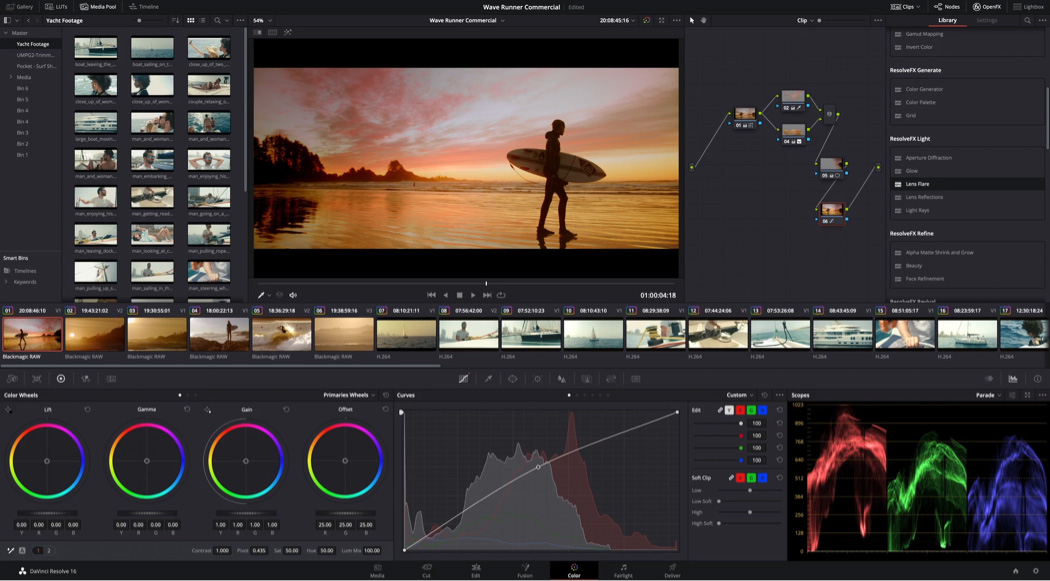
The Color page is the secret weapon for keeping viewers watching, because it grades footage with a professional look - the same engine that Blackmagic ships in Hollywood post houses. You can adjust the look of every clip, which makes a phone-shot video feel expensive on a big screen. That grading depth is why creators who start in Resolve rarely leave it.
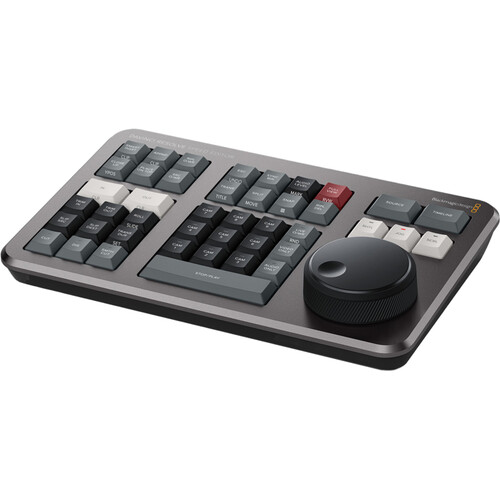
The Speed Editor keyboard used to come free with a Studio license during the bundle era, then went to a mid-range standalone price - used bundles show up on the resale market if you time it right.
Having real hardware under your hands speeds the cut in ways a mouse never will. Resolve remains the safe bet for anyone who wants power without paying monthly, and the free tier is where you prove that to yourself.
Adobe Premiere Pro: Best for Professional YouTube Teams
For a team on a big channel, Premiere Pro stays on top because multiple editors can share project files at once without stepping on each other's cuts. This shared workflow moves fast - one person cuts audio while another fixes color, and nobody waits on a project file.
You'll find a plugin for almost anything you run into, from caption burn-in to old-codec rescue. These tools make it easy to grow when you hire more people.
The best part for pro users is Dynamic Link, which lets you send clips to After Effects for complex effects without having to export them back and forth between two programs. When you save work in the app, it updates right in your timeline automatically for you. While Resolve has a great color page, Dynamic Link is the smoother path for anyone layering motion graphics under their cuts.
Paying a monthly fee might feel like a trap, but you always get the latest features and updates without ever having to buy a whole new copy again.
The monthly fee keeps everything current, which matters when a client project lands in a format the old version couldn't read. The cost adds up, yet the ability to use the full set of tools is worth it. Most creators accept that price to keep the toolset working together across machines - and bill the subscription to the client.
Final Cut Pro: Best for Mac-Based YouTube Creators
On a Mac, with no appetite for a monthly fee, Final Cut's one-time cost fits a mid-range budget, and Apple's page keeps the current price posted. It doesn't run on Windows, so choosing it means committing to Apple hardware for the life of the library.
You pay once and own it forever - no renewal email, no price change, no re-authentication dance. This setup is great for people who want to control their costs over a long time.
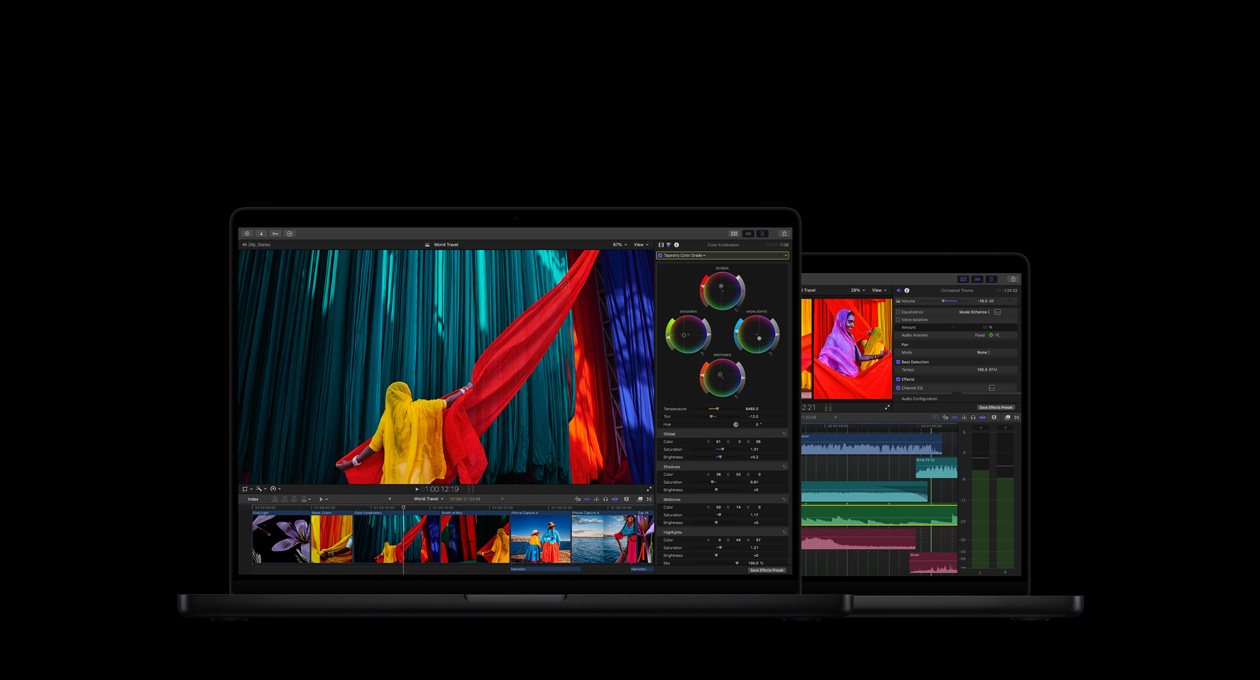
The magnetic timeline lets you move clips fast without breaking the edit, which keeps the work smooth when the upload deadline is tonight. You can see the color and audio inspectors clearly on screen, which helps you tweak as you go - the two-panel layout mirrors what the two-MacBook setup in the photo shows. Exports happen fast - you don't spend an afternoon watching a progress bar.
The speed is real, but the add-on market is smaller than the competition's, which narrows your options for exotic effects. You can't switch to a PC later without migrating libraries, a real risk if hardware plans change - and the Mac-only lock is the price of the speed.
CapCut and Filmora: The Shortcut Tier
To get a video out fast without learning a complex tool, CapCut or Filmora offer a quick path, because they do the hard work for you with simple buttons.
Filmora costs a modest yearly fee, while CapCut's free tier carries most people through their first hundred videos. You'll hit a ceiling with how it looks, or see a watermark if you don't pay - and the ceiling tends to arrive right when the channel starts to work. For a first upload, easy wins.
When your projects grow and you need frame-level control over color and audio, the jump to Resolve starts to make sense - and the habits transfer: cuts, trims and exports behave the same way, just with more depth underneath. These shortcut tools shine for social clips, yet they lack the depth that long-form work needs - multicam, proxies and real audio mixing all live in tools like the ATEM switcher ecosystem.
Don't stay on a simple tool if the channel plans to grow into something bigger.
Frequently Asked Questions
Is DaVinci Resolve actually free?
The free version of DaVinci Resolve is fully functional for most YouTube work, with real limits only on export resolution and a handful of advanced features. You only need the paid upgrade when a project demands the high-end tools - noise reduction on a windy vlog is the classic trigger.
Which software is best for beginners?
Beginners often find CapCut easiest to start with, but Resolve's cut page is a logical place to learn real editing. These tools let you finish real projects without drowning in panels you don't understand yet.
Can I edit 4K video in Resolve?
Editing 4K footage wants the Studio version for full performance, and your computer hardware remains the biggest factor for smooth playback - the GPU guide covers which machines keep up.
What PC or Mac specs do I need?
You need a modern machine with real memory and a fast GPU so heavy files don't crash the timeline mid-export. The computer-hardware-for-video-editing guide lists the memory and GPU targets in detail.
Should I choose Resolve or Premiere for YouTube?
Resolve suits solo creators who want a free start, while Premiere fits teams already living inside the Adobe ecosystem. The choice comes down to a flat fee versus a monthly plan - and whether a team ever touches the same project.