
Best External SSD for Video Editing: What 4K Actually Needs
External drives are where most editing projects actually live, and they're easy to buy on a spec sheet alone. The fastest number on the box sounds like the safest choice, but for most 4K editing the drive's speed is rarely what holds you back.
We edited from a single portable drive for nearly ten years, backing it up to a second one every few days, and that taught us what matters more: heat, how full the drive gets, whether it stays connected, and having a copy when it fails.
Below is how fast 4K editing really needs a drive to be, the picks for most editors, the faster drives and why a Mac won't use their speed, two with caveats, and the formatting and backup basics.
For 4K editing in DaVinci Resolve or Premiere, the Samsung T7 or T7 Shield is the right choice because faster 20Gbps drives like the T9 offer nothing extra on a Mac since Macs don't support USB 3.2 Gen 2x2. Those high-speed drives drop to 10Gbps anyway, which means the speed rating is rarely what actually limits your workflow when editing ProRes video.
Heat, how full the drive is, and whether it keeps working matter far more than the number on the box.
How Fast a Drive 4K Editing Really Needs
High-resolution video needs a drive that keeps up with the data your files demand, without dropping frames or stalling while you work through the timeline.
According to the Apple ProRes white paper, UHD 422 HQ at 30p needs about 110 MB/s, while the 60p version jumps to roughly 221 MB/s. A drive that hits 1,000 MB/s can handle several of these streams at once, though H.264 and H.265 files are much lighter to manage.
The numbers on the box often fail to tell the whole story because performance can drop during long writes or when the drive gets too hot or nearly full.
We noted back in 2018 that the fuller a drive gets, the slower it reads and writes, and that the USB 3.0 drives of that time were too slow for 4K without proxies. If your drive can't maintain a steady speed, your editing software will feel sluggish and frustrating during playback.
The actual speed you get depends on both ends of the cable, so you must check if your ports support Gen 2 10Gbps, Gen 2x2 20Gbps, or Thunderbolt 40Gbps. If you plug a high-speed drive into a slow port, you won't get the speed you paid for. The slower end always sets the speed.
Samsung T7 and T7 Shield for Most Editors
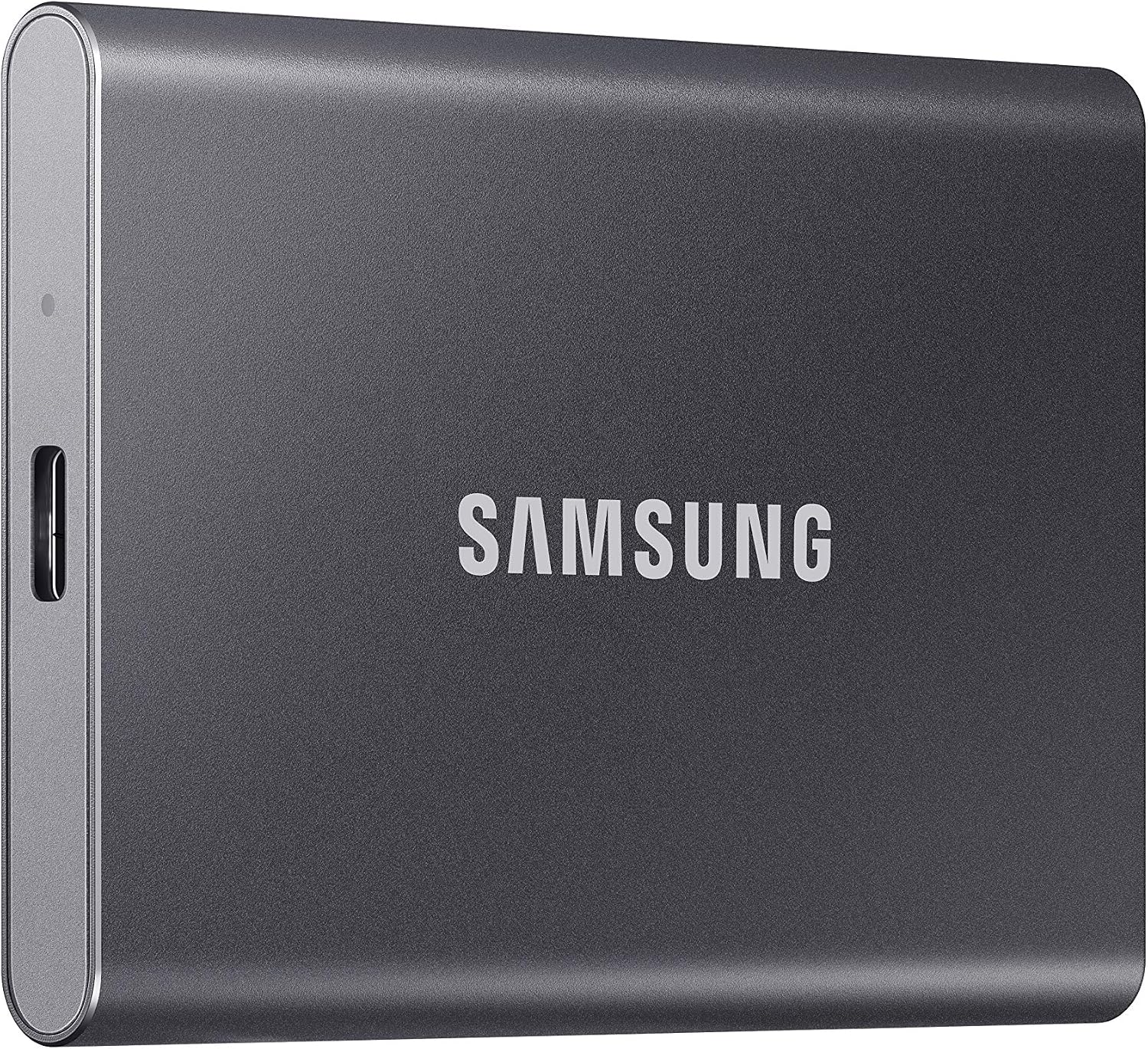
The Samsung T7 is the default choice for most editors because it uses USB 3.2 Gen 2 to run at full speed on every Mac and PC with a USB-C port, reaching 1,050/1,000 MB/s. This little drive comes in capacities up to 4TB and holds tens of thousands of ratings with a high 4.7-star average.
One owner used a T7 to record six ISO camera feeds plus the program feed at 1080p30 straight to the drive during a podcast session. Another reviewer has noted that it ran very hot the first time they used it, but it never slowed down during the work.
The T7 Shield is the exact same drive inside a rubber shell that offers water, dust, and drop resistance, which is the version I would take if I were working on location.
It keeps the same speed and storage options as the standard model, but several reviewers grumble that prices have climbed a lot since they first bought one. This makes it a safe bet for people who need a drive that won't break if they drop it on a set. You'll get the same performance with the extra protection.
Samsung T9 and Crucial X10, and Why a Mac Won't Run Them Faster
The Samsung T9 and Crucial X10 both use USB 3.2 Gen 2x2 tech to hit speeds between 2,000 MB/s and 2,100 MB/s, but most users won't see those numbers.
Since modern Macs don't support that specific 20Gbps standard, the drives drop down to 10Gbps, which makes them perform just like the older T7. You need a PC with a Gen 2x2 port and the right cable to unlock the full speed, otherwise you're paying for speed you can't use.
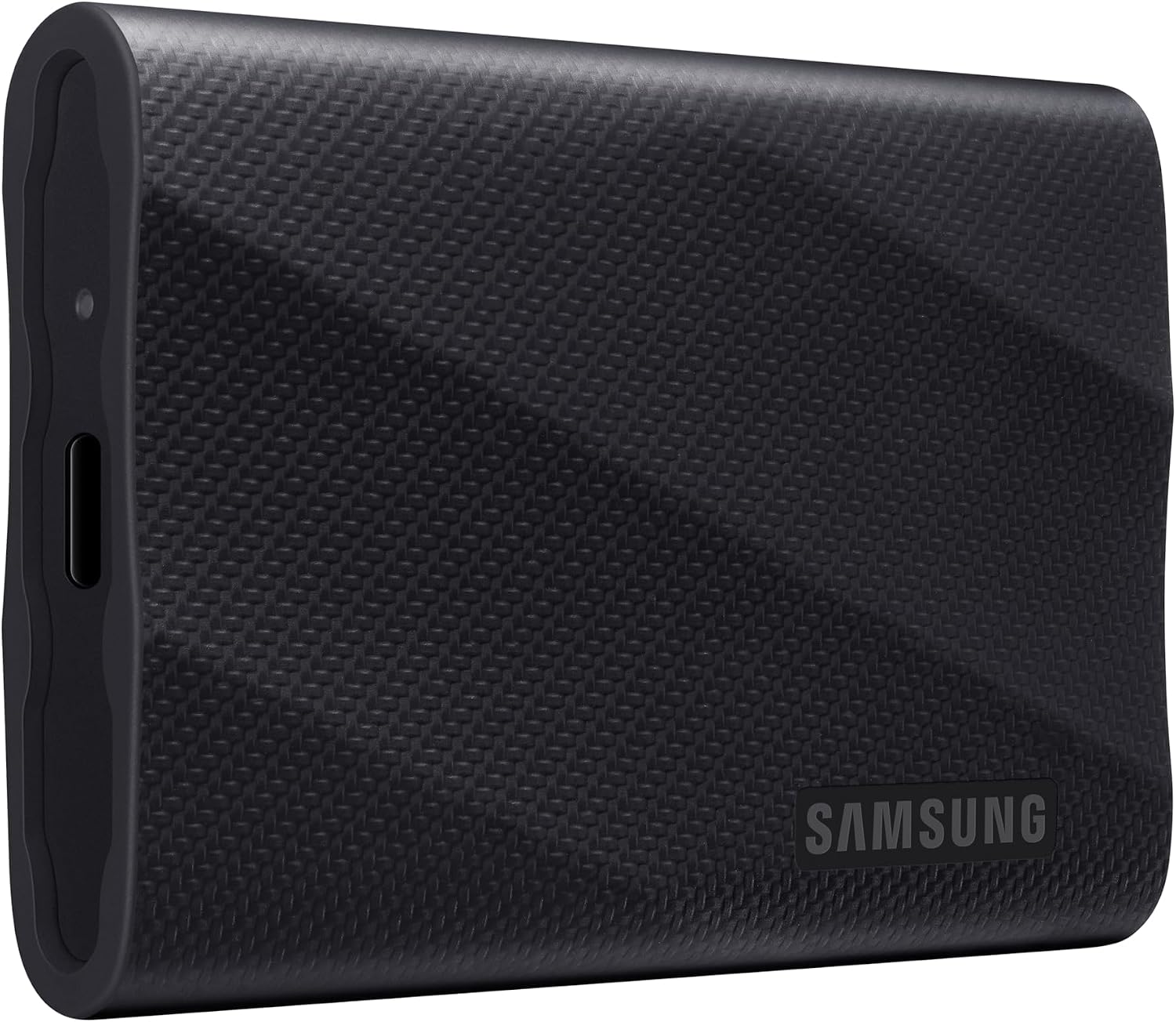
While the Crucial X10 offers a rugged build with an IP65 rating and can survive a three-meter drop, it comes with some red flags regarding quality.
One reviewer has noted the included cable is only five inches long, which might limit where you can use it. It also has the highest share of one-star reviews in this group, with one owner claiming it will fail entirely. You're betting on the hardware when you pick this one.
The Samsung T9 seems more stable since one owner has reported using a 4TB version for two years before buying a second one. That's one owner rather than a reliability study, but it's a good sign. If you have a PC that supports 20Gbps, it's a great choice for high-end workflows.
But if you work on a Mac, a cheaper drive will likely do the same job. Don't waste money on speeds your computer can't reach.
SanDisk Extreme and PRO-G40, With the Caveats
The SanDisk Extreme is a popular choice with over ninety thousand ratings, but one owner says it sometimes disconnects without notice. SanDisk issued a firmware update in May 2023 for drives that could unexpectedly disconnect, covering the 4TB Extreme and the 1TB, 2TB and 4TB Extreme PRO, though the 2TB Extreme isn't on that list.
A user measured sustained speeds of only 350 to 400 MB/s with large files, which is much slower than the box claims
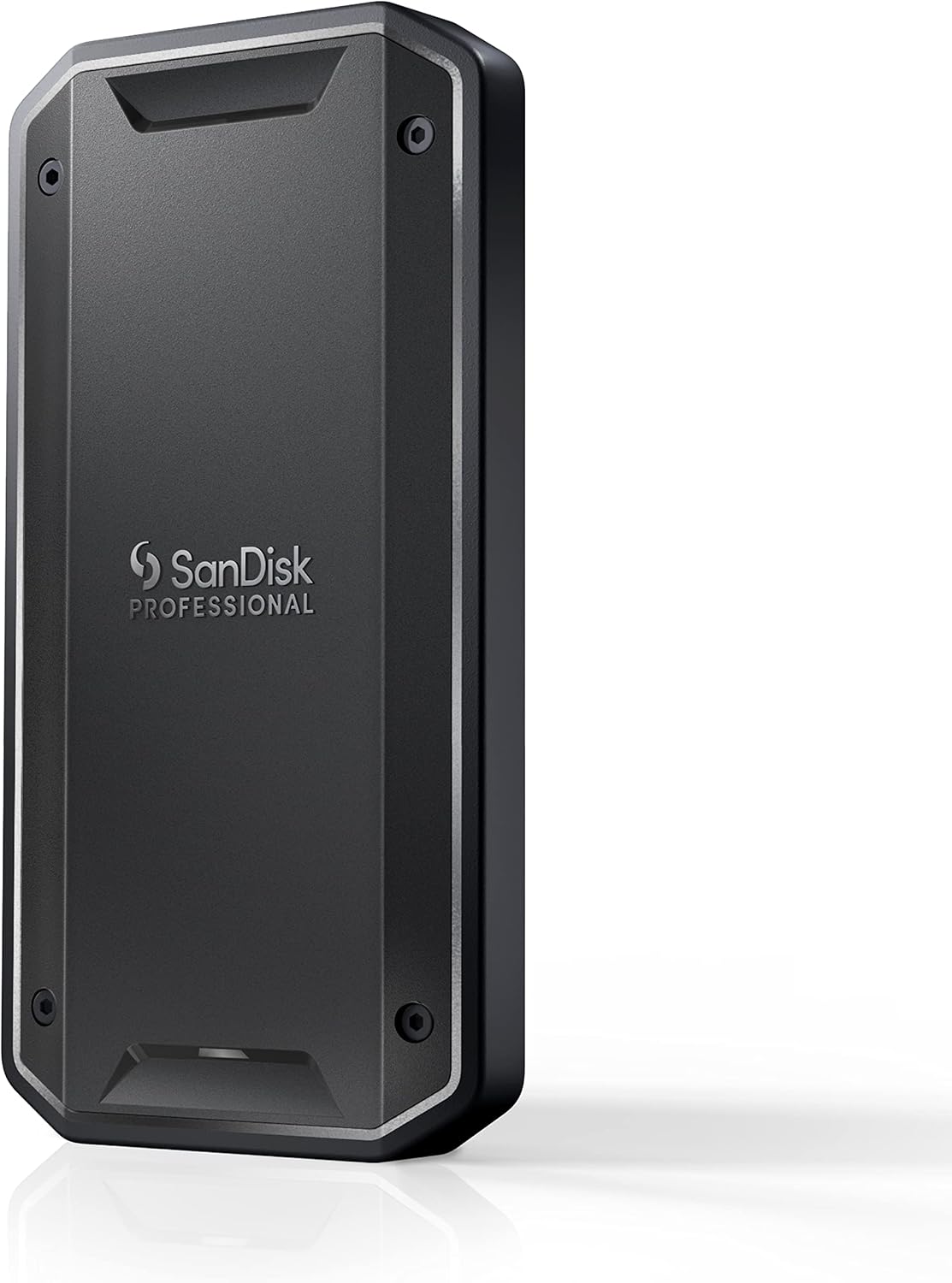
The PRO-G40 is the only drive on this list that stays fast on a Mac because it uses Thunderbolt 3 to reach speeds up to 3,000 MB/s. One video editor on B&H calls it far faster than the hard drives they used for years, but recent reviews show units failing after twelve to eighteen months or suffering from dropouts and I/O errors.
Some owners have found flaky connections or a weak USB mode, which makes the drive a risky bet for professional use. The price has gone up lately, so it is hard to justify the cost if the hardware fails early.
Formatting, iPhone ProRes and the Backup We Wish We'd Had
To move files between a Mac and a Windows PC, format the drive as exFAT, because it's the format both systems read and write without extra software. This format is also what Apple requires for recording ProRes directly onto an iPhone 15 Pro or later model.
You need a 10Gb/s cable and a drive that writes at least 220 MB/s for 4K60 or 440 MB/s for 4K120, drawing no more than 4.5 W. Every drive we listed here clears those speed hurdles.
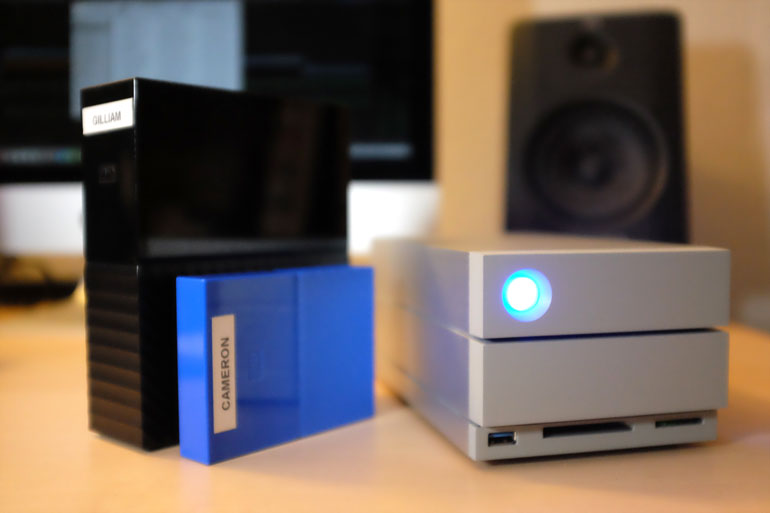
In our 2018 review of the LaCie 2big Dock, we described a workflow where we spent nearly ten years editing off one portable drive while copying to a duplicate every few days.
We admitted then that we had a major gap because there was no continuous backup, so a failed drive could cost us days or weeks of hard work. You should follow the rule that you must have two copies of your footage before you delete the memory card. You can see our old setup in our LaCie 2big review.
I think a second drive is the cheapest insurance an editor can buy.
Frequently Asked Questions
Is the Samsung T7 fast enough for 4K video editing?
The T7 is fast enough to handle UHD 422 HQ 30p footage because that stream only requires about 110 MB/s of bandwidth. This drive reaches up to 1,050 MB/s, which provides plenty of headroom for multiple tracks on a timeline.
Should I get the T7 or T9 for my Mac?
The T7 is the better choice for Mac users because Apple computers do not support the high-speed Gen 2x2 interface used by the T9. The T9 will drop to 10Gbps on a Mac, meaning it performs at the speed of the cheaper T7.
Is a Thunderbolt SSD worth the extra money?
Thunderbolt drives are only worth the investment if you need speeds consistently above 1,000 MB/s on a Mac system. The SanDisk Professional PRO-G40 offers these speeds, though some buyers report reliability issues and hardware failure over time.
What file format should I use for my external drive?
You should use exFAT if you need to move files between Windows and Mac or record directly onto an iPhone. APFS is the better option if you only work within the Apple ecosystem.
Can I edit video directly from an external SSD in DaVinci Resolve?
You can edit directly from an external drive as long as the drive has free space left, since a nearly full drive slows down. You must always maintain a backup of your project to avoid losing work if the drive fails.