
Best Free Video Recording and Editing Software for Filmmakers
There is a variety of free video editing and recording software available. However, many options lack the functionality necessary for serious video editing. Blackmagic Design's DaVinci Resolve is a top contender when it comes to free editing applications, but it is not the only option worth considering. Additionally, while OBS Studio has dominated the free market for screen and camera capture, it is a viable alternative to many commercial options.
DaVinci Resolve: A Professional Editing Application
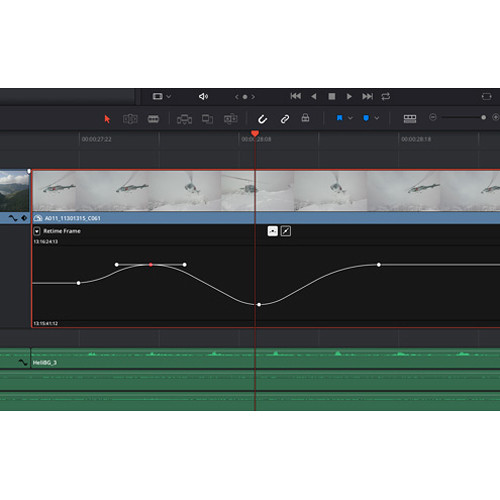
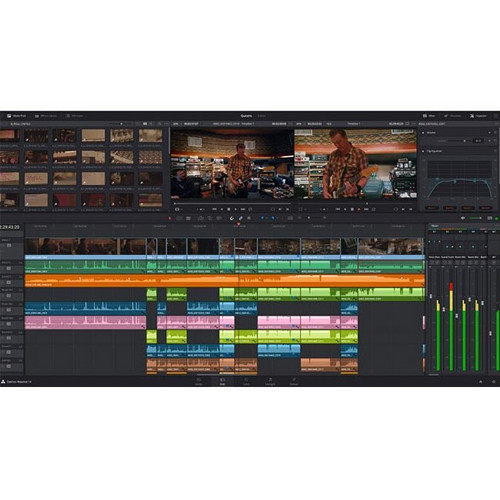
Blackmagic Design offers DaVinci Resolve as a completely free professional editing application. The free version of DaVinci Resolve includes a full professional editing timeline, an industry standard color grading tool, Fairlight audio post production, and visual effects through Fusion. The paid Studio version of DaVinci Resolve contains additional features such as GPU-accelerated effects, HDR grading tools, and neural engine AI processing. Nevertheless, the free version of DaVinci Resolve provides roughly 90% of the features needed for everyday filmmaking.
The DaVinci Resolve editing timeline functions similarly to those found in Adobe Premiere and Apple Final Cut. DaVinci Resolve has magnetic timelines, trimming tools, multicam editing, and speed controls. None of these features are particularly innovative, but they are all provided.
Where DaVinci Resolve truly excels above other free alternatives is the Color Page. The Color Page is essentially the same grading tool used by Hollywood colorists. It includes primary and secondary corrections, power windows, tracking, curves, and node-based grading. Node-based grading provides users with an extreme level of control over each pixel. If you plan on performing any color grading in your work, then DaVinci Resolve is the only free alternative worth using.
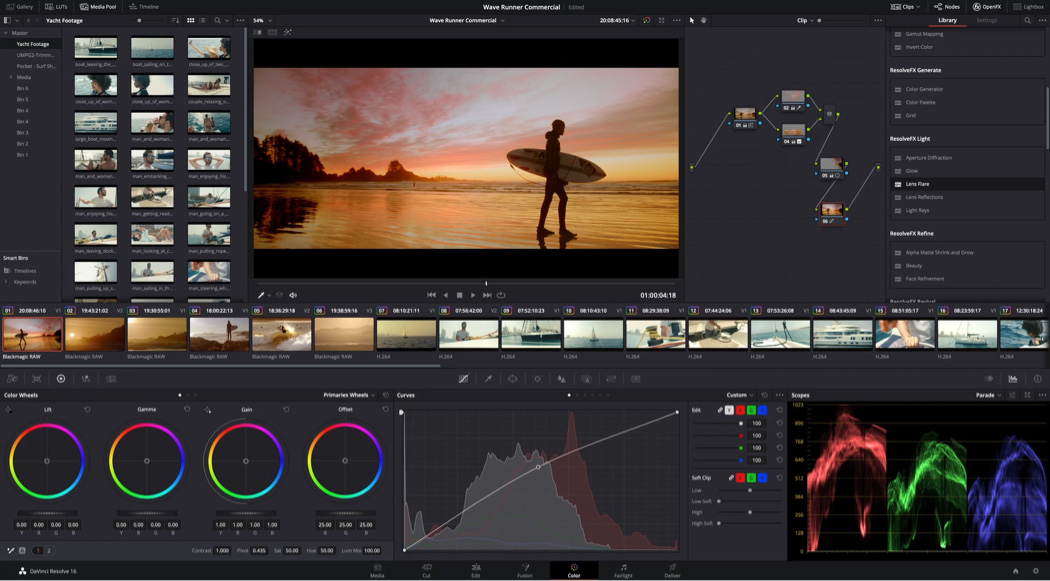
The learning curve associated with DaVinci Resolve is real. DaVinci Resolve is a very advanced application and you could spend months simply exploring the capabilities of the Color Page. The Fusion VFX Page utilizes a node-based workflow that is both extremely powerful and, to put it bluntly, confounding if you have worked with layer-based effects in Adobe After Effects.
DaVinci Resolve is also extremely resource intensive. To edit video with DaVinci Resolve effectively, you will likely need at least 16 GB of RAM, a strong discrete GPU, and fast storage. Trying to run DaVinci Resolve on an older laptop will result in lengthy render times. This is the reason why Blackmagic Design provides specific hardware recommendations for video editing.
Upgrading to DaVinci Resolve Studio
While the free version of DaVinci Resolve is incredibly comprehensive, it does include a few limitations. The first limitation is the resolution cap. The free version of DaVinci Resolve tops out at 4K, which is acceptable for most video projects. However, if you are working in 6K or 8K, you will need the paid Studio version.
The neural engine features, including face detection, magic mask, and speed warp, are also exclusive to the paid version. Finally, some of the collaboration tools required for multi-user projects are available only through the paid version. You can obtain a DaVinci Resolve Studio activation code at B&H Photo for a one-time payment, along with life-long updates. Compared to monthly subscription models, this is a very attractive offer.
OBS Studio: The Best Tool for Free Video Recording
If you need to record both your computer screen and/or your camera feed simultaneously, then OBS Studio is the tool for you. OBS Studio is an open-source application, and is therefore completely free. As a result of its capabilities, OBS Studio has established itself as the de facto recording software among a large number of video creators.
These creators range from YouTubers and live streamers to filmmakers documenting tutorials, behind-the-scenes footage, and other types of video content. OBS Studio can manage multiple audio and video input sources, switch scenes, and create composite videos in real-time without experiencing significant performance loss on average hardware.
OBS Studio records files in either MKV or MP4 formats utilizing hardware-accelerated encoding. Depending on your graphics card, OBS Studio can utilize Nvenc, QuickSync, or AMF. You can customize the recording profile to fit your needs, assign a separate audio track to your microphone and desktop audio, and configure hotkeys to start and stop recording without interacting with the user interface.
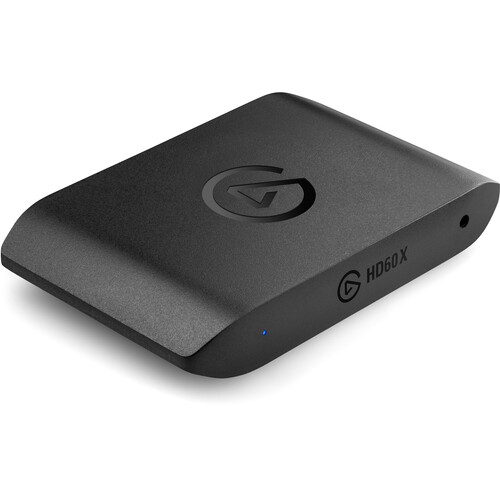
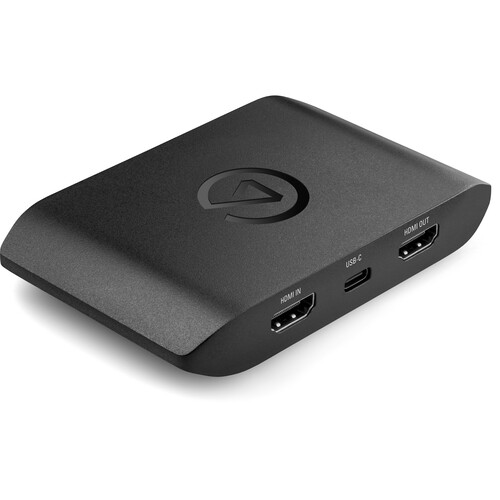
For filmmakers specifically, OBS Studio is useful for recording reference monitors, capturing gameplay for video essays, and recording interviews over video calls. When paired with a capture card, such as the Elgato HD60 X, you can capture HDMI output from cameras, game consoles, and other external devices and add them to your editing timeline.
Recording with OBS Studio
By default, OBS Studio is configured for streaming, not recording. Therefore, you will need to make several adjustments. First, switch the output mode to Advanced. Second, select your GPU's hardware encoder (e.g., Nvenc for Nvidia). Third, increase the bitrate to at least 40-50 Mbps for 1080p or 80+ for 4K. Fourth, set the CQP rate control to approximately 18-20. Fifth, use the MKV format instead of MP4. If OBS Studio crashes during recording, the MKV file will remain intact. You can easily remux to MP4 after the fact through the File menu.
Shotcut: A Lightweight Option
Shotcut is another very capable free video editing software application. Although Shotcut is often overlooked due to its relative obscurity, it has the potential to provide everything you need to complete your next video project. Shotcut is open source, cross platform (Windows, Mac, Linux), and requires less than half the system requirements of DaVinci Resolve. If you are struggling to run DaVinci Resolve on your current machine or if you would prefer a more lightweight application for simple cuts and small-scale projects, Shotcut is definitely worth checking out.
Shotcut's interface is extremely easy to understand. Simply drag clips onto the timeline, cut and trim, and add transitions and filters. Shotcut is able to support a vast array of codecs natively through FFmpeg, including ProRes, DNxHD, and H.265. Consequently, you should not experience any major issues related to codec compatibility.
The filter panel in Shotcut allows for color correction, chromakey, stabilization, and a good selection of audio filters. While the feature set in Shotcut is nowhere near as robust as the feature set in DaVinci Resolve, Shotcut can accomplish a large portion of the video editing process, such as assembling rough cuts, adding simple effects, and exporting completed video files.
Shotcut's drawbacks lie primarily within its clunkiness. Shotcut's interface may feel less refined than many of today's modern video editing software applications. Shotcut's timeline behavior is different from that of many of the more well-established video editing applications.
Furthermore, Shotcut does not include a dedicated audio post-production environment. Therefore, if you are working on complex sound design or mixing, you will need to utilize an additional application such as Audacity in conjunction with Shotcut.
Using Shotcut Instead of DaVinci Resolve
If you are editing on a machine with limited resources (i.e., 8 GB of RAM, integrated graphics, older processor), Shotcut will function far better than DaVinci Resolve. Additionally, Shotcut makes sense if you only need to assemble rough cuts quickly and do not intend to perform color grading or visual effects. Examples of common uses of Shotcut include assembling behind-the-scenes footage, creating rough cuts for clients to review, and chopping long recordings into smaller segments. Not every project requires the full DaVinci Resolve treatment.
Surprisingly Capable Editing Tool: CapCut Desktop
CapCut started as a mobile app that was linked to TikTok. Many users look down on it because of this connection. However, the desktop version has developed into a legitimate video editing tool, especially for creating social media content and short form videos. Additionally, it's free, it has a complete collection of effects and transitions available, and has some AI-based features such as auto captions, background removal, and speech-to-text that function very well.
For easy cuts, adding text overlay, basic color adjustment, and exporting to social media format, CapCut performs well. The auto caption feature is a huge time saver if you're making content that requires subtitles. Additionally, the template system allows you to add pre-made style edits to your project without having to rebuild your entire project from scratch.
CapCut lacks in the ability to perform complicated tasks. No color grading tools exist, limited audio control exists, no multi camera functionality exists, and the timeline becomes cumbersome with more than a few tracks. It's also worth noting that the way CapCut collects user data has raised concerns over privacy, so if you're going to be working with sensitive client footage, you might want to choose an alternative.
Other Free Video Editors That Are Worth Noting
HitFilm offers a free tier that offers a combination of a basic video editor along with some good visual effects. If you need compositing, particles, or 3D text on a zero budget, HitFilm is one of the few free editors that will provide you with VFX functions. While the free version of HitFilm has some limitations on export resolutions and number of effects available, it is worth checking out if Resolve's Fusion page is too daunting.
Kdenlive is another open source video editor that is compatible on Windows, Mac, and Linux. Kdenlive has been around for many years and has a large and active community. While the user interface of Kdenlive is somewhat outdated, it is a reliable video editor that can handle most file types and offers a wide range of effects and transitions. Consider Kdenlive as a compromise between the simplicity of Shotcut and the complexity of Resolve.
Blender is not primarily a video editor, it is a 3D modeler and animation tool. However, it does contain a video sequence editor that can handle basic cutting and compositing. If you are already using Blender for motion graphics or 3D work, the ability to do basic edits in Blender is convenient. Nobody should consider using Blender's video editor as their primary editing tool.
Hardware That Works Well With Free Video Editors
Free video editors save you money by eliminating license costs. However, you cannot ignore hardware completely. Here's what matters most.
When using DaVinci Resolve, the dedicated GPU will matter more than any other component. Even the free version of DaVinci Resolve utilizes GPU acceleration for both playback and rendering, and the difference between integrated graphics and a mid-range discrete GPU is significant. When considering upgrading your editing machine, reference the hardware requirements for video editing for a list of recommended upgrades.
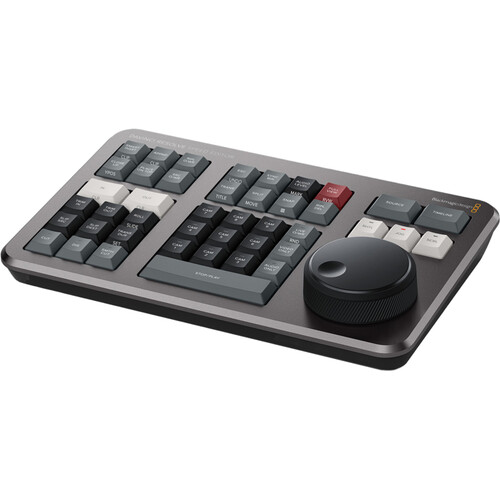
If you are serious about utilizing DaVinci Resolve and would like to improve your editing workflow, you can purchase a DaVinci Resolve Speed Editor. This is a hardware controller that bundles with the studio license. You will receive a jog wheel, cut/trim buttons, and transition controls all within a single unit.
B&H customers who have purchased a Speed Editor have praised the build quality and how much faster they are able to edit timelines with the Speed Editor versus relying solely on keyboard shortcuts.
When working with OBS recording workflows, a fast external SSD for video editing will keep your recordings from dropping frames when your internal system drive becomes congested. Also, if you are recording video from external video sources, you can utilize a capture card for streaming such as the Elgato HD60 X or Elgato 4K X to convert OBS into a true multi-source recording station. You can also search for the Elgato HD60 X on Amazon to see price comparisons.
Frequently Asked Questions
Is DaVinci Resolve Truly Free or Is There a Catch?
The free version of DaVinci Resolve is truly free with no time limits, no watermark, and no trial version. Blackmagic Design generates revenue from the Studio edition and their hardware products including the Speed Editor and color panels. The free version is a full featured professional video editor, not a stripped down demo version.
You will miss some of the higher end features such as HDR tools, multi-user collaboration, and some AI based features. That said, the base editing, color grading, audio, and VFX tools are all included in the free version.
Can OBS Studio Record In 4K?
Yes, OBS can record in 4K (3840x2160). To do so, you will need to have a GPU that has hardware encoding (Nvenc, QuickSync, or AMF), sufficient CPU performance, and a fast drive. Set your canvas and output resolutions to 3840x2160, enable hardware encoding, and increase the bitrate to at least 80 Mbps to record clean 4K video. A capture card such as the Elgato HD60 X will pass-through 4K video to the recording device.
Which Free Editor Will Be Best For Beginners?
CapCut Desktop will likely be the easiest to become familiar with if you've never used a video editor previously. The interface is clear, the AI based features will automatically process most of the monotonous tasks, and you will be able to go from importing your video to exporting your video in under five minutes.
However, if you wish to learn video editing correctly and develop skills that will carry-over to professional video editing, begin with DaVinci Resolve. Although the learning curve will be greater, every minute you spend learning DaVinci Resolve will pay dividends later-on due to the fact that the skills you develop can be applied directly to professional-grade video editing software. There's an excellent DaVinci Resolve tutorial if you want a structured starting point.
Is Shotcut Good Enough for Professional Work?
Shotcut can create professional-grade video edits, although the workflow will not be as efficient as Resolve or Premiere Pro for larger, more complex projects. Shotcut will work well for simple edits, rapid turnaround edits, and for projects that will not require advanced color grading or compositing. If your professional work will involve multi-camera editing, extensive color grading, or heavy compositing, you will quickly outgrow Shotcut and need to migrate to Resolve.
Can I Use Free Software for Commercial Projects?
Absolutely. DaVinci Resolve, OBS Studio, Shotcut, and Kdenlive all allow commercial use. There are no license restrictions preventing you from using these tools on paid client work, freelance projects, or commercial content. The output is yours. CapCut is also free for commercial use, though you should check their current terms regarding content that uses their built-in music and template assets, since those may have separate licensing.
What Free Software Works Best for Drone Video Editing?
DaVinci Resolve is the best free option for drone video editing because of its color grading capabilities and stabilization tools. Drone footage often needs exposure correction, white balance adjustments, and warp stabilization, all of which Resolve handles in the free version. The Color Page lets you pull detail out of flat or log-profile drone footage that other free editors simply can't match. Just make sure you have the hardware to handle the high-resolution files that modern drones produce.