
Hardware Requirements for Video Editing: What You Actually Need in 2026
The hardware requirements for video editing in 2026 do not resemble those from even a few years ago. Many of the same timelines that would have been too difficult for a high-performance workstation can now be played back smoothly on a mid-level laptop. But that doesn't mean you can throw any computer at a 4K timeline and expect it to work. The specs still matter, and knowing which ones actually matter is what we are going to cover here.
Most hardware guides only provide a list of specs and then leave you to figure it all out on your own. We want to help you understand what you truly need, based on what type of edits you are making and what type of budget you have.
CPU: The One Piece of Hardware You Need to Worry About First
The CPU is responsible for the majority of the video editing work. Each cut, each transition, each color correction, and each render passes through the CPU first.
Many people assume the GPU does all the heavy lifting in a modern NLE, but the reality is that both CPU and GPU share the work, and which part is done by which piece depends on the specific NLE being utilized.
For 1080p video editing, a modern six-core processor will handle everything just fine. An Intel Core i5 (12th generation or later) or AMD Ryzen 5 will handle 1080p timelines in Premiere Pro, DaVinci Resolve, and Final Cut Pro without significant slowdowns. You may see some lag during heavy effects work or multiple adjustment layers, but for general cuts and color corrections, six cores is sufficient.
For 4K video editing, you will need to upgrade to at least eight cores. An Intel Core i7 or AMD Ryzen 7 will provide you with the necessary processing speed to allow 4K H.264 and H.265 video playback without dropped frames, and also the ability to render out your video timelines in a timely manner. If you are working with 4K ProRes or RAW video files shot using a camera such as the Blackmagic Pocket Cinema Camera 6K, the additional cores will greatly improve your video playback.
For 6K or greater video resolution, or if you are creating complex visual effects or motion graphics, you will need twelve or more cores. The AMD Ryzen 9 or Intel Core i9 will be your primary choices in this case.
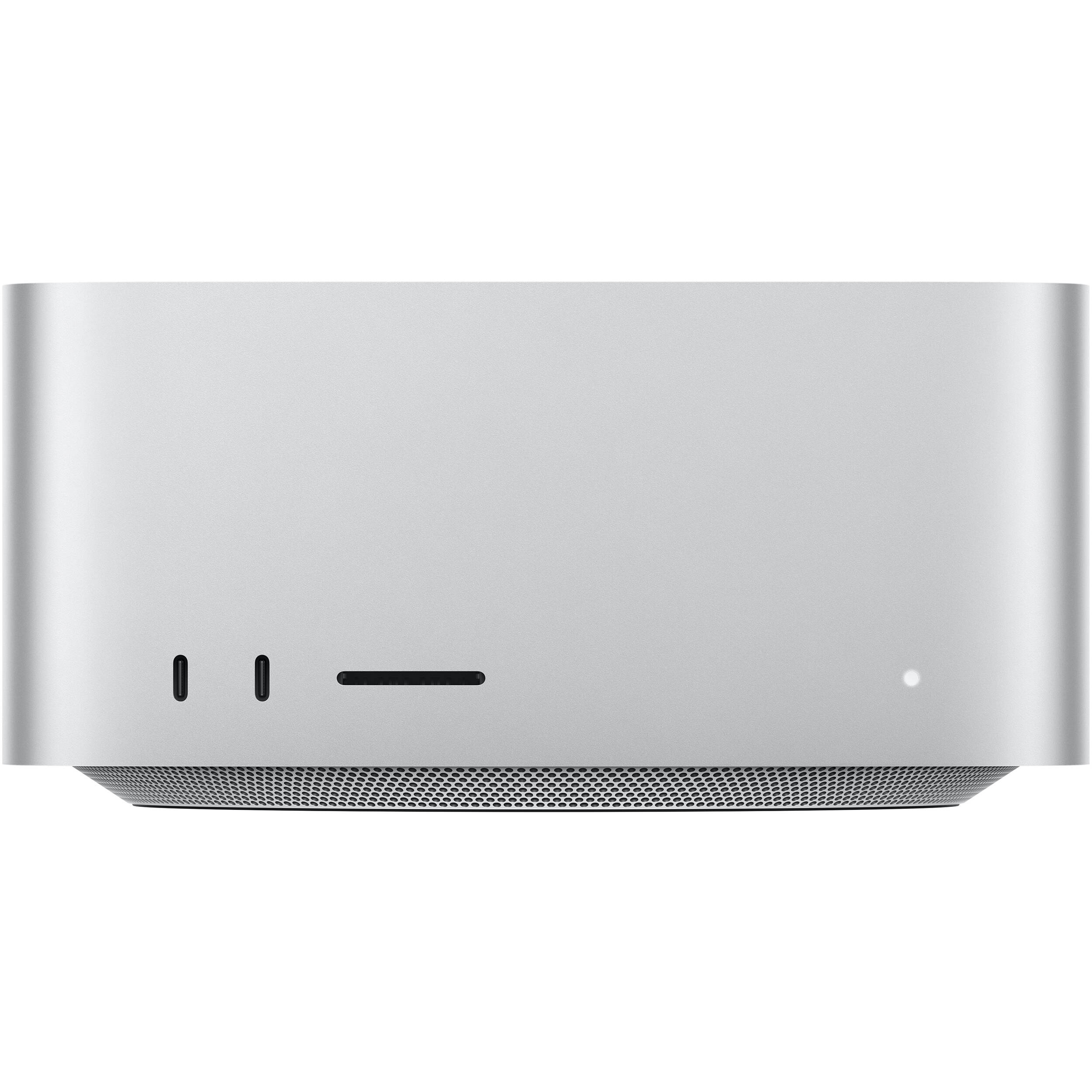
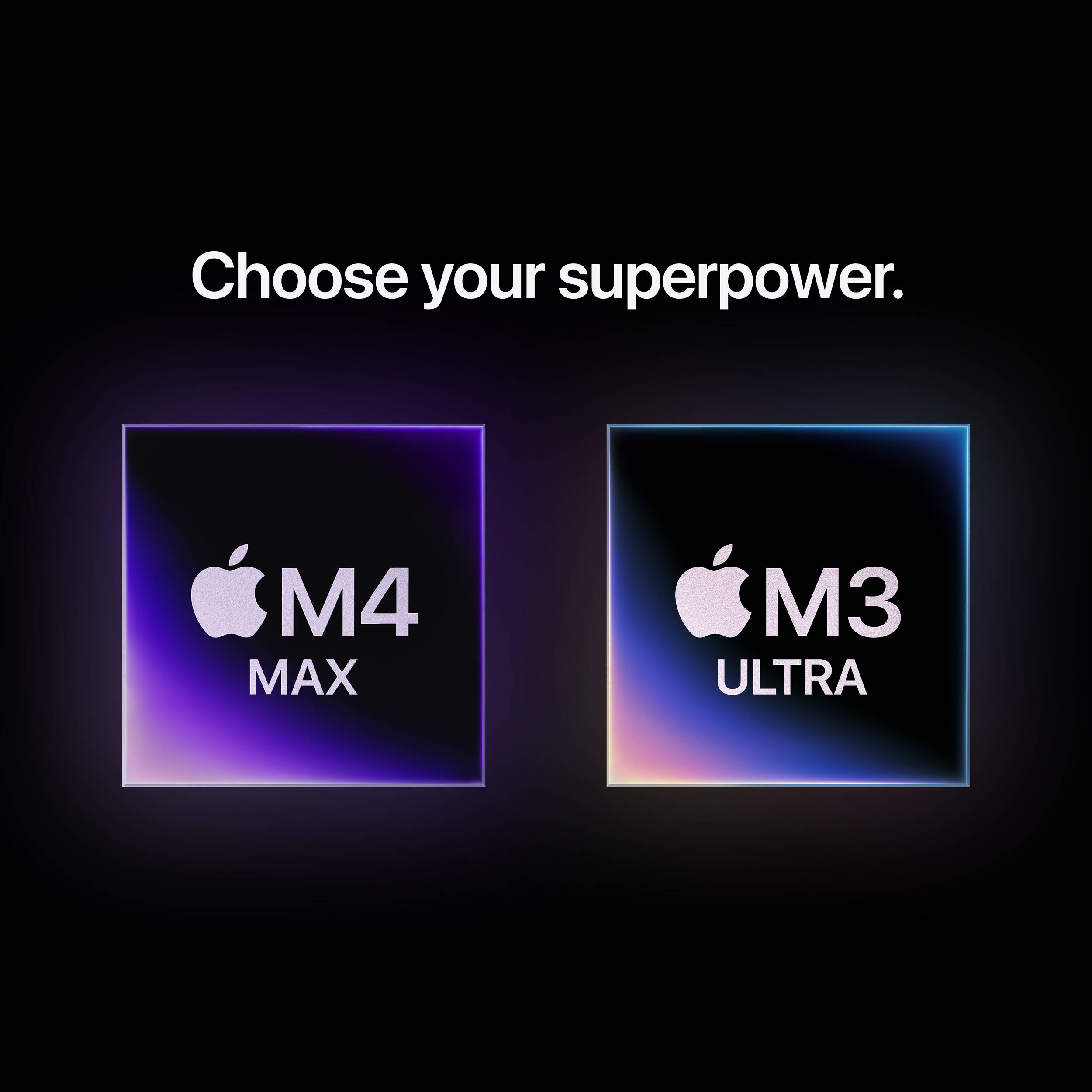
On the Apple side, the M4 Pro and M4 Max processors in the Mac Studio are highly capable of delivering smooth video timelines, and several B&H reviewers that purchased the Mac Studio for video editing purposes report that it performs significantly better at ProRes video playback compared to their older Intel based computers.
Clock Speed vs Number of Cores
For video rendering and exporting, multiple cores scale well, so a 12-core processor at 4.0 GHz will likely outperform an 8-core at 4.8 GHz when exporting a final timeline. But for real-time playback and scrubbing through your timeline, single-core performance matters more. You want a processor that balances both rather than one that excels in a single category.
GPU: Important, But Not As Important As You Think
The GPU is primarily responsible for performing hardware accelerated effects, color grading, and certain codecs within your NLE. In DaVinci Resolve, the GPU performs significantly more work than it does in Premiere Pro and Final Cut. Therefore, your GPU needs are dependent on which NLE you utilize.
For Premiere Pro and Final Cut users working at 1080p or 4K, a mid-level GPU with 6-8 GB of video RAM is more than adequate. An Nvidia RTX 4060 or equivalent AMD card will handle anything you throw at it for standard editing work. Unless you are doing serious color grading with multiple nodes and power windows in Resolve, you won't need a workstation class GPU.
For DaVinci Resolve users, the GPU becomes significantly more important. Resolve offloads a tremendous amount of processing to the GPU, particularly in the Color and Fusion pages. If Resolve is your primary NLE, budget for at least an RTX 4070 with 12 GB of video RAM for 4K work, and possibly an RTX 4080 or higher for resolutions above 4K.
On the Mac side, the unified memory architecture allows the GPU to access much more memory than a traditional discrete card. This is one reason why Mac users editing in Final Cut or Resolve typically see smooth playback.
Video RAM is the Specification That Matters Most
There is one thing you should remember from this section. Regardless of how fast your GPU is, the amount of video RAM available on your GPU is more important for video editing. Once you exhaust your video RAM, your performance drops dramatically.
At this point, your system begins to swap data to system RAM, and everything grinds to a halt. For 4K video editing, 8 GB of video RAM is the bare minimum. For 6K and above resolutions, or for heavy visual effects work, 12 GB of video RAM or more is recommended.
RAM: More is Almost Always Better
Unlike choosing a CPU or GPU, where the answer is a little less clear-cut, there is a very simple answer for RAM. Get as much as possible.
While having more RAM will not necessarily translate into a faster CPU or GPU, having more RAM will allow you to work more smoothly on larger projects.
For 1080p video editing, 16 GB of RAM is the minimum and 32 GB is comfortable. You can technically edit 1080p with 8 GB, but you'll be fighting your system constantly. Your NLE, operating system, browser, and music player are all competing for that limited memory, and it shows.
For 4K video editing, 32 GB of RAM should be the minimum. 64 GB is considered optimal if you have the budget to support it.
The reason for this is that modern codecs such as H.265 are extremely RAM-intensive when decoding, and if you are working with multi-camera shots or longer-form projects, having the extra headroom will prevent your system from paging to disk.
For professional-grade work with RAW footage, 64 GB of RAM is the minimum and 128 GB is preferred. RAW video files from cameras such as the Blackmagic Ursa or RED are incredibly memory-intensive, and having enough RAM to cache your timeline will make a huge difference in your overall playback smoothness.
The Mac Studio with M4 Max has configurations up to 128 GB of unified memory, and several B&H reviewers who are currently working in post-production indicate that this is one of the primary reasons they selected the Mac Studio.

Storage: The Bottleneck Nobody Discusses
Storage is probably the most underappreciated component in your video editing build, and unfortunately, it is probably the piece of hardware that is actually causing you the most pain.
Even if you have the fastest CPU and GPU available, your video timeline will not be smooth if your footage is stored on a slow mechanical hard drive.
Your System Drive
Your operating system and NLE should be installed on an NVMe solid state drive. Not a Sata SSD, not a traditional hard drive. NVMe. The difference in load times between a Sata and NVMe solid state drive is enormous for loading your projects, launching your video editing software, and caching previews. For 2026, a 1 TB NVMe solid state drive is the sweet spot for your system drive, and they are not expensive.
Your Project Drive
This is where your current project files and footage should reside while you are actively editing. An external SSD or a second internal NVMe drive dedicated to project files will give you the best possible performance. For 4K video editing, read speeds of at least 1,000 MB/s are required, and any modern NVMe drive will far exceed this requirement. A Samsung T7 Shield or similar portable SSD is a great option if you need to transfer between workstations.
Your Archive Drive
For storing completed projects and RAW footage archives for extended periods of time, a larger mechanical hard drive or high-capacity SSD will meet your needs. Since you are not actively editing from this location, cost per terabyte is more important than speed. A 4 TB or 8 TB mechanical hard drive will be more than sufficient for archiving your completed projects.
Putting It All Together: Budget Tiers
Here's what a real video editing system would look like for each level of budget.
| Component | Entry Level (1080p) | Mid Range (4K) | High End (6K+) |
|---|---|---|---|
| CPU | 6-core (Ryzen 5 / i5) | 8-core (Ryzen 7 / i7) | 12+ core (Ryzen 9 / i9 / M4 Max) |
| RAM | 16-32 GB | 32-64 GB | 64-128 GB |
| GPU (VRAM) | 6 GB | 8-12 GB | 12-16 GB+ |
| System Drive | 512 GB NVMe | 1 TB NVMe | 1-2 TB NVMe |
| Project Drive | Same as system | Separate SSD | Multiple NVMe |
| Network | Standard | Standard | 10GbE (shared storage) |
Entry Level (1080p Editing)
A 6-core CPU (such as Ryzen 5 or Core i5), 16-32 GB of RAM, a low-cost GPU with 6 GB of video RAM and a 512 GB NVMe system drive. This will allow you to perform 1080p editing and some light 4K edits. Most YouTubers and content creators who shoot in 1080p will not require more than this, and you can build or purchase a system at this price point without spending serious cash.
Mid Range (4K Editing)
An 8-core CPU (such as Ryzen 7 or Core i7), 32-64 GB of RAM, a mid-range GPU with 8-12 GB of video RAM, a 1 TB NVMe system drive, and a separate project drive. This is the sweet spot for most professional editors working in 4K. The Apple MacBook Pro with M4 Pro or a well-configured Windows desktop will perform nearly any task except for extreme VFX work.
High End (6K+ and Professional Post)
A 12+ core CPU (such as Ryzen 9, Core i9, or Apple M4 Max), 64-128 GB of RAM, a high-end GPU with 12-16 GB+ of video RAM, multiple NVMe drives, and a 10GbE network connection if you're using a shared storage solution.
The Apple Mac Studio with M4 Max fits squarely in this tier and has been a very popular option for many editors making the transition from the old Mac Pro towers. B&H reviewers have noted the Mac Studio's small form factor while still being highly competitive in terms of performance as a major advantage for smaller edit suites.

Common Mistakes to Avoid
There are a number of mistakes people continue to make when building or purchasing an editing workstation.
Overspending on GPU, Underspending on Storage
This is the single biggest mistake people make. They put a large amount of money into a top-tier GPU and then edit their footage off a USB 2.0 hard drive. The speed of your storage pipeline is equally as important as the speed of your processor, and a fast SSD will make a larger difference in your daily editing experience than going from an RTX 4070 to an RTX 4090.
Overlooking Codec Requirements
The codec your camera shoots matters for your hardware requirements. H.265 takes a massive amount of CPU resources to decode compared to ProRes or DNxHR.
If your camera shoots H.265 (most mirrorless cameras do), you either need a faster CPU or you should transcode to an editing-friendly codec before you start cutting. This is something many new editors overlook, and explains why their 4K timeline stutters even on decent hardware.
Planning for Growth
When purchasing a desktop, make sure the motherboard allows for future upgrades such as adding more RAM and additional storage. Although you may not currently need 64 GB of RAM, if you plan to move from 1080p to 4K shooting in the near future, it will be nice to simply add more RAM instead of replacing the whole system.
On the Mac side, Apple's unified memory is not upgradeable, so purchase more RAM than you think you'll need upfront.
Frequently Asked Questions
Can I edit 4K video on a laptop?
Yes, modern laptops can easily edit 4K video. Look for a laptop with at least an 8-core CPU, 32 GB of RAM and a dedicated GPU. The MacBook Pro with M4 Pro is a perfect example of a laptop that can easily edit 4K video, and similarly, there are numerous gaming laptops on the Windows side with RTX 4060 or higher GPUs that can also handle 4K editing.
Laptops do have the issue of thermal throttling during long exports, but other than that, they are perfectly capable for editing and color work.
How much RAM do I really need for video editing?
For 1080p, 16 GB is the minimum and 32 GB is fine. For 4K, start at 32 GB and go to 64 GB if possible. For RAW and 6K+ footage, 64 GB is the absolute minimum. The most important thing to avoid is having your system page to disk during editing, as that will kill performance instantly. If in doubt, get more RAM.
Is Mac or PC better for video editing?
Both platforms work well for video editing in 2026. The Mac Studio and MacBook Pro with Apple Silicon are incredibly efficient for Final Cut Pro and increasingly strong in Resolve.
Windows PCs offer more flexibility, easier upgradability, and better GPU options for heavy Resolve work. It really comes down to your NLE preference and whether you value upgradability (PC) or integration and efficiency (Mac).
Do I need a dedicated GPU for video editing?
For basic 1080p editing in Premiere or Final Cut, integrated graphics on modern chips (Intel 13th gen+ or Apple M-series) can get the job done. But for 4K editing, effects-heavy timelines, or DaVinci Resolve work, a dedicated GPU makes a significant difference. Resolve in particular is heavily GPU-dependent, and you'll notice the improvement immediately.
Should I build a PC or buy a pre-built workstation?
Building your own gives you better value and more control over component selection. You can allocate your budget where it matters most for your specific workflow.
Pre-built workstations from companies like HP and Dell are convenient but often come with compromises, like great CPUs paired with underwhelming GPUs, or fast processors with insufficient RAM. If you're comfortable building, build. If not, make sure any pre-built you consider has the right balance of components rather than just a flashy spec in one category.
What's the best monitor for video editing?
For general editing, a good 27-inch 4K IPS display with accurate color reproduction is all you need. You don't need a reference monitor for YouTube content. If you're doing professional color work, look at displays that cover at least 95% of DCI-P3 with factory calibration. The Apple Pro Display XDR is the gold standard but costs accordingly. A BenQ monitor light can also help reduce eye strain during long editing sessions, which is worth considering if you spend hours in front of your timeline.