
DaVinci Resolve Review: Free vs Studio and What You Actually Get
DaVinci Resolve is one of the few applications that truly live up to all of the hype surrounding it. Blackmagic Design has been developing, behind the scenes, possibly the most complete post-production application on the market, and that the base version will cost you nothing at all is still somewhat astonishing.
Whether you're assembling a short film on your laptop or grading a feature-length film in a professional suite, DaVinci Resolve Studio has become the de facto NLE of choice for an increasing number of filmmakers. This is for good reason. The free version of DaVinci Resolve provides significantly more functionality than most paid editors, thus the "do I really need to upgrade to Studio" decision-making process becomes quite intriguing.
Free Version Functionality
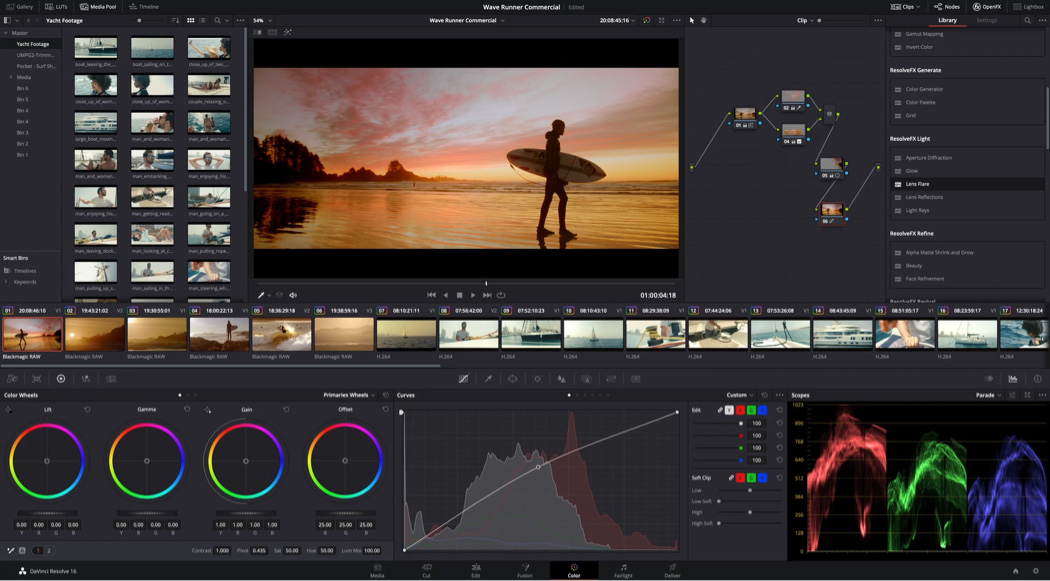
The free version of DaVinci Resolve is not a demonstration version. In fact, you receive a completely operational NLE with both the Edit page, a professional-grade color grading environment on the Color page, Fairlight audio tools and Fusion for visual effects. For the vast majority of independent filmmakers and content creators, the free version will provide everything you need 90% of the time, without any watermarks or time limits.
You can cut video up to 4K in the free version, which covers the majority of production work currently being done. Although the free version includes all of the same color grading tools that professional colorists use on major productions, some of the more advanced features such as HDR grading and noise reduction are reserved for Studio.
The free version's timeline operates seamlessly. The media management is robust. The overall editing experience feels like a true professional-grade application, unlike a crippled version of another product intended to drive you into purchasing the paid version.
The Cut page is perfect for fast turnaround. If you're doing social media content or run-and-gun edits where speed is much more important than precision, the Cut page is genuinely faster than using the traditional Edit page. Smart Reframe handles aspect ratios for social media platforms. Although the AI-powered version of Smart Reframe is exclusive to Studio, the regular version of Smart Reframe still operates well.
When Studio Really Makes a Difference
So here is when things get real. DaVinci Resolve Studio enables features that are critical based upon the type of work you do. Some of the main differences include GPU acceleration for everything, multi-GPU support, editing in 8K, tools for HDR grading including zone-based grading, temporal and spatial noise reduction, and the Magic Mask using the neural engine.
The Magic Mask allows you to isolate objects in your footage by automatically creating a mask, and then tracks through your shots with very high success rates. Multiple reviewers have stated that Magic Mask was the reason they upgraded to Studio. One reviewer stated they were primarily interested in Magic Mask along with several other features including halation, lens reflections, show music beat, depth mask, and the AI smart reframe.
In terms of color grading, isolating a subject in your footage, whether it's a person or a sky, without having to perform rotoscoping is a significant time-saver.
Noise Reduction in Studio is also very effective. Temporal noise reduction uses multiple frames to separate grain from detail, resulting in a cleaner image than any single-frame noise reduction tool. If you shoot in low-light conditions or push your camera's ISO, this feature can save shots that would otherwise be unusable. Spatial noise reduction is provided as well, but temporal is what separates Resolve from other plugins.
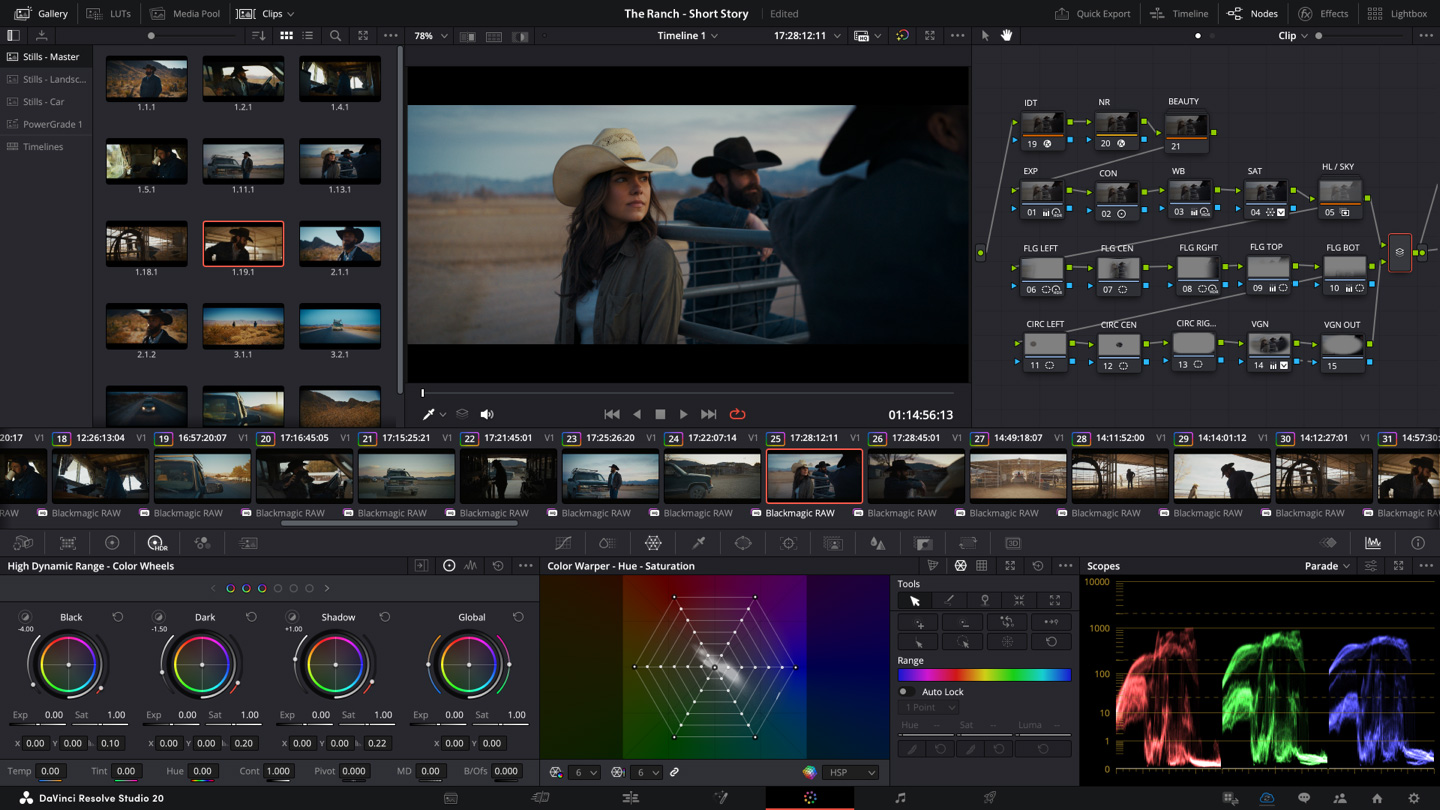
Studio is the only version that supports HDR grading. As more productions start to deliver in HDR, this is no longer a luxury item. The HDR color wheels and zone-based grading tools provide colorists with the control they need to produce HDR-compliant grades without needing to use third-party solutions. If you plan to grade for platforms that require HDR deliveries, you'll need to purchase Studio.
Color Page Still Reigns Supreme
DaVinci Resolve originally began life as a color grading tool, long before it evolved into a complete NLE. The Color page is still the most comprehensive color grading environment available in any editing application, and it isn't even remotely close.
The primary and secondary color corrections, power windows, tracking, curves, qualifiers and the node-based workflow provide colorists with a degree of control over color that neither Premiere Pro nor Final Cut can touch.
Working with nodes may take some getting used to if you are transitioning from a layer-based system. However, once it clicks, you will never think about grading any other way. Each node can contain its own set of corrections, masks and qualifiers. They can be connected in series, parallel or layered configurations.
It is extremely versatile. If you want to learn the fundamentals, our DaVinci Resolve tutorial covers the basics of getting started with the Color page and node workflow.
A relatively new addition is the Color Warper, which allows you to stretch or compress colors in a manner far more intuitive than traditional curves. Consider it a 2-D color wheel. You can select a range of hues and saturations, and drag them wherever you want. It is particularly useful for creative grading where you want to create a look without destroying skin tones.
And Resolve manages LUTs much better than any other NLE on the market. If you're working with Blackmagic pocket cinema camera LUTs, the integration is seamless.
For anyone seriously involved in color grading, DaVinci Resolve is now basically the industry-standard. The scopes, precision of the tools, and overall workflow are designed for individuals that care about the quality of their images. Many users state that once they transition to Resolve's Color page, returning to grading in Premiere or Final Cut feels limited.
Fairlight Audio and Fusion VFX
Fairlight is Resolve's native audio post-production suite and is actually quite capable. You can edit up to 2000 audio tracks in real time with the Studio version, mix in surround formats, and apply pro-quality audio effects without ever leaving the app.
Most video editors who do basic clean-up, dialog balancing and music mixing will find that Fairlight does everything they need to do without having to send back and forth to Pro Tools or Audition.
The audio engine supports adaptive sample rate processing, so you can mix together content that was recorded at different sample rates without manually converting it. The bus routing architecture is pro-level, and the built-in effects include EQ, Dynamics, Reverb and Delay that don't sound bad. While Fairlight won't replace Pro Tools for a dedicated sound mixer working on a big budget feature film, for everything else, it's plenty good enough.
Fusion is Resolve's VFX and motion graphics toolset, and things get complicated here. Fusion is powerful, there's no question about it. It's a node-based compositing tool that can do tracking, keying, particle systems and 3D compositing.
However, the learning curve is steep. Like, really steep. B&H reviewers have said that Fusion is such a unique type of software, that you basically have to learn it from scratch and it will take time. Several users have mentioned that using stacked effects in Fusion with complex timelines makes scrubbing painful, especially on systems that don't have high-end GPUs.
If you're looking to do simple titles, lower-thirds, and composites, then Fusion will work fine. But if you're trying to do serious motion graphics work, then After Effects still has a better flow for that. The node-based approach provides Fusion with much more technical horsepower, however, After Effects' layer-based timeline is just easier to think in terms of for most motion designers.
Resolve is Resource Hungry
There is no way to avoid it. The software uses your GPU for playback, rendering and all of the AI powered features in Studio. If you are using an older system or a laptop with integrated graphics, you'll run into issues pretty fast. Especially once you start putting nodes on the Color page or working in Fusion.
You should have at least a dedicated GPU with 4GB of vram, 16GB of system RAM, and an SSD for media storage to have a smooth editing experience. In reality, you want a modern GPU from either Nvidia or AMD, and 32GB of RAM for things to start feeling good.
B&H reviewers using systems such as an Intel i9-9900K with an RTX 2070 and 32GB of RAM say that basic editing works fine, but Fusion work with stacked effects is awful. Check out our guide on hardware requirements for video editing to make sure your system can handle it.
The free version and Studio both have the same system requirements. Some users have gotten frustrated with the performance differences between the versions, but as B&H support explained, the paid version unlocks tools and codec support, but does not change the hardware requirements.
In fact, the Studio version features such as multi-GPU support and GPU accelerated processing can provide improved performance on capable systems. Fast storage for your media is important as well. Using an external SSD for video editing will make a huge difference in timeline responsiveness, especially with 4K and higher resolution media.
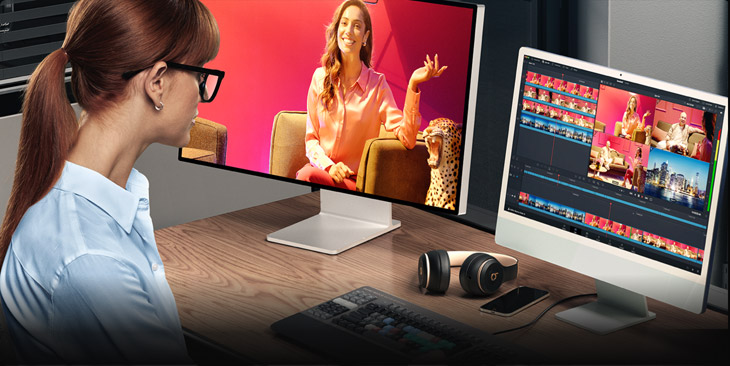
How Does It Compare to Premiere Pro and Final Cut
The inevitable comparison. Premiere Pro requires a monthly subscription that adds up fast. Final Cut Pro is a one-time payment, but you are locked into buying Apple hardware.
DaVinci Resolve offers a professional free version and a perpetual Studio license with no ongoing payments. On the pure dollar value side, Resolve easily beats Premiere, and in all fairness, Resolve is not even close to being a fair comparison.
Premiere still has an edge in certain broadcast workflows and in integration with other Adobe applications. If you are already using After Effects, Photoshop, and Premiere Pro, that interop is valuable. However, Premiere's timeline performance has always been a major complaint, and Resolve tends to handle playback of heavy codecs with less stuttering.
Final Cut Pro is fast. Apple has optimized for their own hardware, and Final Cut Pro flies on M-series Macs unlike any other NLE. However, Final Cut's magnetic timeline and simplified interface are a great fit for many editors, however, a number of editors have found them limiting.
Additionally, you simply cannot perform the level of color work in Final Cut that Resolve allows. For filmmakers shooting on Blackmagic cameras, the integration between Resolve and Blackmagic RAW is seamless and genuinely faster than working with the same footage in Premiere or Final Cut.
While Resolve certainly has a learning curve, the free version with basic editing is similar in complexity to Premiere. The Color page has a larger learning curve due to the node based workflow, however, it's a different workflow than most editors are used to.
Fusion is the largest challenge, it's far more complex than After Effects for casual users. But for basic editing and color work, most editors get comfortable with Resolve in a couple of weeks. If you're starting from scratch, there are plenty of comparison guides available that cover how Resolve stacks up for specific use cases.
Should I Buy the Studio License
If you need HDR grading, noise reduction, Magic Mask, multi-GPU support, or work above 4K resolution, then the Studio license is a no-brainer. Check current pricing at B&H for the activation card version, or you can also compare prices on Amazon.
Many content creators on YouTube and social media say the upgrade will pay for itself almost immediately. B&H reviewers have stated that the Studio version is the best editing and creation software, and a dream come true for content creators, as long as you have decent hardware to run it on.
If you are just starting out, stay with the free version. Learn the tools, and determine if Resolve will work for your workflow, and upgrade to Studio when you reach the point of limitation that Studio will resolve.
Frequently Asked Questions
Does DaVinci Resolve free have a watermark or time limit?
No. The free version of DaVinci Resolve has no watermarks, no export time limits, and no trial period. It's a full, permanent license. The only limitations are feature-based, things like resolution caps at 4K, no HDR tools, and no neural engine AI features. You can use it professionally without paying anything.
Can I use one DaVinci Resolve Studio license on multiple computers?
Yes. The activation card lets you install on multiple machines, but only two can be active at the same time. If you activate on a third computer, the oldest activation gets deactivated automatically. B&H reviewers confirm this works smoothly, though the initial activation process confuses some users who are new to the software.
Is DaVinci Resolve harder to learn than Premiere Pro?
It depends on what you're doing. Basic editing in Resolve's Cut or Edit page is comparable in complexity to Premiere. The Color page has a steeper curve because the node-based workflow is different from what most editors are used to. Fusion is the most challenging part, significantly more complex than After Effects for casual users. But for editing and color work, most people get comfortable within a few weeks.
What GPU do I need for DaVinci Resolve?
For the free version with basic editing, any dedicated GPU with 2GB+ vram works. For comfortable Studio use with color grading and Fusion, you want at least an Nvidia RTX 3060 or AMD RX 6700 XT with 8GB+ vram. More vram will help with higher resolutions and more complex node trees. The AI Neural Engine features in Studio will greatly benefit from modern GPUs.
Does DaVinci Resolve Studio include free lifetime updates?
Yes. Once you purchase a Studio license, you'll get all of the future updates for free. Users who purchased a license several years ago still receive the current version. This is a huge advantage over competing products that offer subscriptions, where if you stop paying, you lose access. You can pick up DaVinci Resolve Studio at B&H.
Can DaVinci Resolve replace Adobe Premiere Pro completely?
Most filmmakers and video editors can make the switch. Resolve will allow you to do editing, color grading, audio mixing, and VFX compositing in one application. This will eliminate the need for Premiere, After Effects and Audition.
The main areas where Premiere will still win are in the deeper Adobe Ecosystem integration (teams projects, shared libraries with Photoshop and After Effects), and in certain broadcast-specific workflows. However, for independent filmmakers, content creators, and small production houses, Resolve is a complete replacement.