
DaVinci Resolve Color Grading Presets That Actually Look Good
Color Grading presets within DaVinci Resolve Studio may have the potential to save you hours of time spent on editing, or alternatively, they could render your footage looking like you used a cheap Instagram filter. The variation lies in an awareness of the underlying adjustments being applied to your clips, and whether or not the presets are suitable for use within a legitimate production environment.
Although Resolve includes a few built-in looks, its true power is realized via PowerGrades, custom LUTs, and third party preset packs that are intended for professional color grading.
One thing most people do not discuss is this. Even though the free version of Resolve includes a number of solid color grading tools, if you truly desire to utilize presets in any legitimate fashion, you will require the Studio version of Resolve.
Features included in the Studio version that are beneficial to serious users include the Magic Mask, an AI based tool utilized to mask objects within your clips, HDR grading tools, and the capability to work with higher end codecs that truly benefit from careful color work. B&H reviewers consistently mention the color page as the standout feature of Resolve, and for good reason.
PowerGrades vs LUTs: Know What You're Working With
Before downloading every preset pack you encounter, you will want to familiarize yourself with the two primary types of presets in Resolve. They function quite differently, and confusing them is a common error.
PowerGrades represent Resolve's native preset format. They save the full node tree from your Color page, including every single adjustment, qualifier, window, and tracking data. When you apply a PowerGrade, you are receiving the entire grading configuration that was built by the colorist, and every parameter can be modified.
They are non-destructive and tremendously flexible. You have the ability to disassemble the node tree, adjust individual corrections, and modify the look for your particular footage. This is the approach that professional colorists actually take when sharing looks across projects.
LUTs (Look-Up Tables) are an entirely different matter. A LUT is essentially a mathematical conversion table that maps input colors to output colors. They represent a universal transformation, and you cannot really explore the individual adjustments responsible for the look.
LUTs work universally across different software (Premiere, Final Cut, Resolve), but they are less versatile than PowerGrades. They can appear wonderful on footage that closely resembles the source material they were designed for, and terrible on anything else.
When to Use Each
PowerGrades are superior for project-specific looks where you need full control. If you're grading a short film or commercial and require a particular aesthetic, PowerGrades allow you to fine-tune every single aspect. LUTs are ideal for commencing with a specific technical transformation (such as converting LOG footage to Rec. 709) across a group of clips. The optimal approach is to use LUTs to accomplish technical transformations and PowerGrades to develop creative looks.
Free Presets That Are Valuable
It is difficult to estimate the sheer quantity of free DaVinci Resolve presets available online. The majority of them are rubbish. However, several of them are genuine value, particularly for individuals new to color grading or requiring a rapid starting point for a project.
Built-in Resolve Looks
DaVinci Resolve itself contains a collection of built-in LUTs located in the LUT Browser at the left-hand side of the interface. Within the Blackmagic Design folder, you will discover LUTs that convert Blackmagic camera footage from Film to a range of display formats. Additionally, the DaVinci Resolve folder contains creative LUTs.
The built-in LUTs in Resolve serve as solid technical LUTs, but the creative looks are fairly elementary. They are suitable for learning how LUTs affect your image, but you will eventually outgrow them.
Community PowerGrades
The Resolve community has produced some genuinely valuable free PowerGrade packs. Resources such as The Resolve Store provide free LUT packs created expressly for Resolve, and the Blackmagic forum features a section where colorists share their PowerGrades.
These tend to be of a higher quality than random YouTube downloads, as the individuals who produce them possess a genuine understanding of color science. If you're working with Blackmagic camera footage and LUTs, community PowerGrades built for that specific color science can be especially useful.
YouTube Tutorial Presets
Numerous color grading tutorials on YouTube include free preset downloads. Several of these are adequate, but you should approach them with caution. The preset that appears spectacular on the instructor's carefully lit, perfectly exposed footage may look entirely wrong on your run-and-gun documentary clips. Always treat these as starting points, not final grades.
Paid Preset Packs Worth Considering
If you are engaged in professional work, paid presets frequently justify the investment. The quality difference between a well-made paid pack and a random free download is typically quite considerable.
The greatest paid preset packs include PowerGrades instead of LUTs, provide a selection of styles (e.g., film emulation, commercial clean, cinematic moody), and provide a document describing the design behind each preset as well as the type of footage it is intended to work with.
Paid preset packs are typically developed by working colorists that produce content, not by content developers that merely add a teal and orange style to everything and declare it cinematic.
Some considerations when evaluating a paid preset pack: Do they contain the node tree enabling you to study and customize it? Are they designed for specific camera profiles (e.g. ARRI LogC, Sony S-LOG3, RED IPP2)? Do they successfully address skin tones in various lighting conditions?
These factors matter far more than the total quantity of presets provided. Ten high-quality PowerGrades outweigh a hundred generic LUTs.
Individuals who have transitioned from other video editing programs (NLEs) to DaVinci Resolve consistently report that the color grading tools, particularly the node-based workflow, provide a greater degree of control over presets than anything offered in Premiere or Final Cut. B&H reviewers describe it as having all the professional tools you would expect from dedicated color grading software, which is quite remarkable given that the free version covers the majority of what you require.
How to Install and Manage Presets
Once you've learned where things go, getting presets into Resolve is easy. However, the file management side of things can become overwhelming if you don't stay organized at the beginning.
Installing LUTs
To install LUTs, go to Project Settings > Color Management > Open LUT Folder. Then, simply drop your .cube files into this folder (or create subfolders to organize your presets) and click "Update Lists" within the same settings panel.
Your new LUTs will now appear in the LUT Browser located on the Color Page. Keep your LUTs organized by camera profile, or style. Otherwise, you may end up scrolling through 100s of entries to try to locate the one you desire.
Installing PowerGrades
PowerGrades are stored in the Gallery. To import them, right-click in the Gallery panel on the Color Page and select "Import". You can import either single grades (.drx) or gallery collections (.dpx).
Also, note that the Gallery has a "PowerGrade" Album that remains consistent across projects. This is the album where you should be saving grades that you plan on using again. Any grades saved to the "Stills" album are specific to that project and they won't appear in other timelines.
Building Your Own Preset Library
This is where things become truly valuable. Every time a grade is completed to your satisfaction, save it as a PowerGrade. Over time, you'll construct a personal collection of looks that are compatible with your typical shooting conditions and camera profiles.
Give these descriptive names (not "cool look 3") and include notes regarding the camera and lighting conditions they were designed for. This personal library will eventually become more valuable than any purchased preset pack because it is calibrated to your specific work.
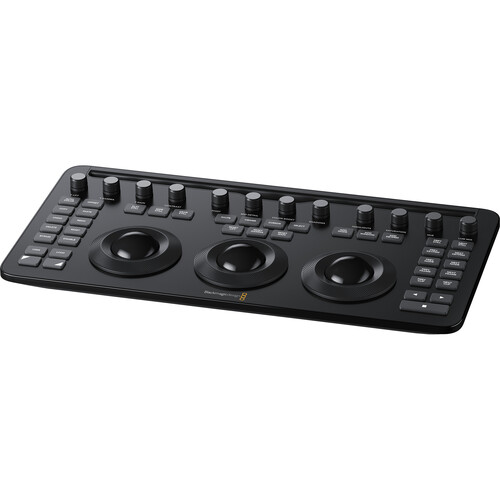
If you spend a significant amount of time grading, a dedicated control surface such as the DaVinci Resolve Micro Color Panel makes adjusting presets significantly faster than using a mouse. The trackballs and knobs are directly mapped to Resolve's color wheels, enabling real-time adjustments while you monitor your footage on a proper color grading monitor.
When Presets Help and When They Hurt
Presets are tools, not shortcuts. That distinction is significant. Using a preset as a starting point, then adjusting it for your particular footage is a smart workflow. Applying a preset to your timeline and calling it complete is lazy, and it is noticeable.
Presets Work Well When
You're doing high-volume work such as wedding videos or event coverage, where consistency is more important than a distinctive look for every single clip. They are also great for creating a baseline look for a multi-camera shoot. Apply the same PowerGrade to all cameras and then make individual adjustments. Corporate video work also benefits from presets because clients frequently desire a polished, professional appearance rather than something artistically distinctive.
Presets also function well as learning tools. Break down a well-crafted PowerGrade node by node and you will learn more about color grading than by watching ten tutorial videos. You can see exactly how a professional colorist organized their correction, the order in which they applied adjustments, and how they handled things like skin tone isolation or sky replacement.
Presets Hurt When
You apply them to footage they were not designed for without making adjustments. A LUT designed for ARRI LogC footage will look entirely wrong on Sony S-Log3 clips. A preset designed for properly exposed interview footage will not work on underexposed B-roll shot in mixed lighting.
And creative presets that look wonderful on fashion and beauty work can make documentary footage look artificial and over-processed.
The biggest trap is using presets to compensate for poorly shot footage. If your exposure, white balance, or lighting was incorrect during the shoot, no preset is going to fix that.
Get your primary corrections right first (exposure, white balance, contrast), then apply creative presets on top. Trying to use a creative preset to fix technical problems is like putting a paint job on a car with a broken engine.
Upgrading Your Color Grading Setup
If you're spending serious time in Resolve's Color page, your hardware setup matters almost as much as your software skills. Understanding what hardware you actually need for smooth playback during grading can save you from frustrating performance issues.
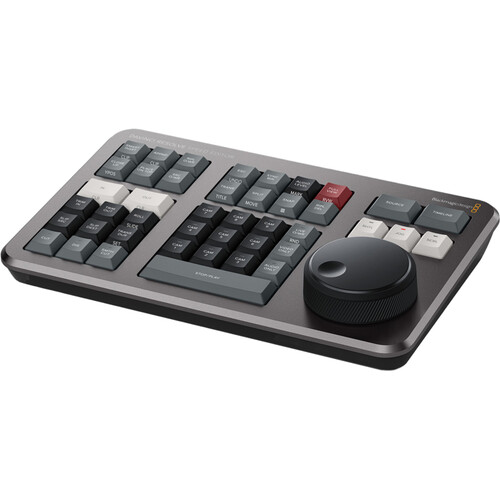
The DaVinci Resolve Speed Editor is also worth a mention here. Although it is primarily an editing tool, not a color grading surface, it ships with a DaVinci Resolve Studio license. This makes it one of the most cost-effective ways to get into the paid version of Resolve.
B&H reviewers frequently point out that the included Studio license alone justifies the price. And if you're also learning how to copy color grades between clips efficiently, the Speed Editor's jog wheel for scrubbing through timelines is genuinely useful.
You can also find DaVinci Resolve Studio and related hardware on Amazon if you want to compare pricing.
Frequently Asked Questions
Are DaVinci Resolve color grading presets free?
DaVinci Resolve includes built-in LUTs and the ability to use PowerGrades in both the free and Studio versions. There are many free community-created presets available online, however, the quality of these presets vary greatly. Professional colorists' paid preset packages generally offer higher quality and more camera-specific options. You can check DaVinci Resolve Studio pricing at B&H if you want the full feature set.
What is the difference between a LUT and a PowerGrade in DaVinci Resolve?
A LUT is a mathematical color transformation that takes input values and transforms them into output values. LUTs are static, unchangeable looks. A PowerGrade stores the entire Node Tree from Resolve's Color Page and preserves every individual adjustment so that you can adjust any parameter. Therefore, PowerGrades are more flexible and Resolve-specific than LUTs, which function universally across different video editing applications.
How do I install presets in DaVinci Resolve?
To install LUTs, go to Project Settings > Color Management > Open LUT Folder and drag-and-drop your .cube files into this folder. To install PowerGrades, right-click in the Gallery on the Color page and choose Import, then select your .drx or .dpx files. Save them to the PowerGrade album so they persist across projects.
Do I need DaVinci Resolve Studio for presets?
The free version supports LUTs and basic PowerGrades. Studio adds features like HDR grading tools, AI Magic Mask, and support for more codecs, which are relevant when working with high-quality footage and utilizing presets. If you plan to perform professional color grading, the Studio version will likely be worthwhile.
Can I use Premiere Pro LUTs in DaVinci Resolve?
Yes. LUTs utilize the standard .cube format, which is compatible with virtually all video editing and color grading software. Simply, drop your .cube files into Resolve's LUT Folder and they will appear in the LUT Browser.
Should I use presets or grade from scratch?
Both methods have their uses. Presets are ideal for high volume work, providing a means to maintain consistency across projects, and for learning how professional colorists construct grades. However, you should always adjust presets for your specific footage instead of simply applying the preset. When creating important projects, building a grade from scratch with a well-organized Node Tree provides the greatest amount of flexibility.