Best OBS Studio Recording Settings: Format, Encoder and Bitrate
Most of the OBS advice online was written for streamers, and that's a problem the moment you press Start Recording instead of Start Streaming. A stream has to squeeze through your internet connection at a steady rate, but a recording only has to land on your own drive, so the rules that keep a stream smooth are the wrong place to start.
The file format matters more than people expect, too. A crash or a power cut in the middle of a long session can leave a plain MP4 that won't open at all, and that's a rough way to lose a podcast you can't record again.
Below are the settings that hold up for footage you plan to edit: the container, the encoder settings for each brand of graphics card, what bitrate costs you in drive space, and how to get audio tracks and a camera into OBS.
To get the best results, you should record to MKV or Hybrid MP4 while using a constant-quality mode like CQP, CRF, or ICQ between 16 and 23 with a keyframe interval of 2.
You must stop thinking about bitrate because a recording isn't a stream, so the CBR advice used for streaming is the wrong starting point. A fixed bitrate holds the data rate steady and lets the picture quality drop whenever the scene gets busy.
MKV, Hybrid MP4 or Plain MP4
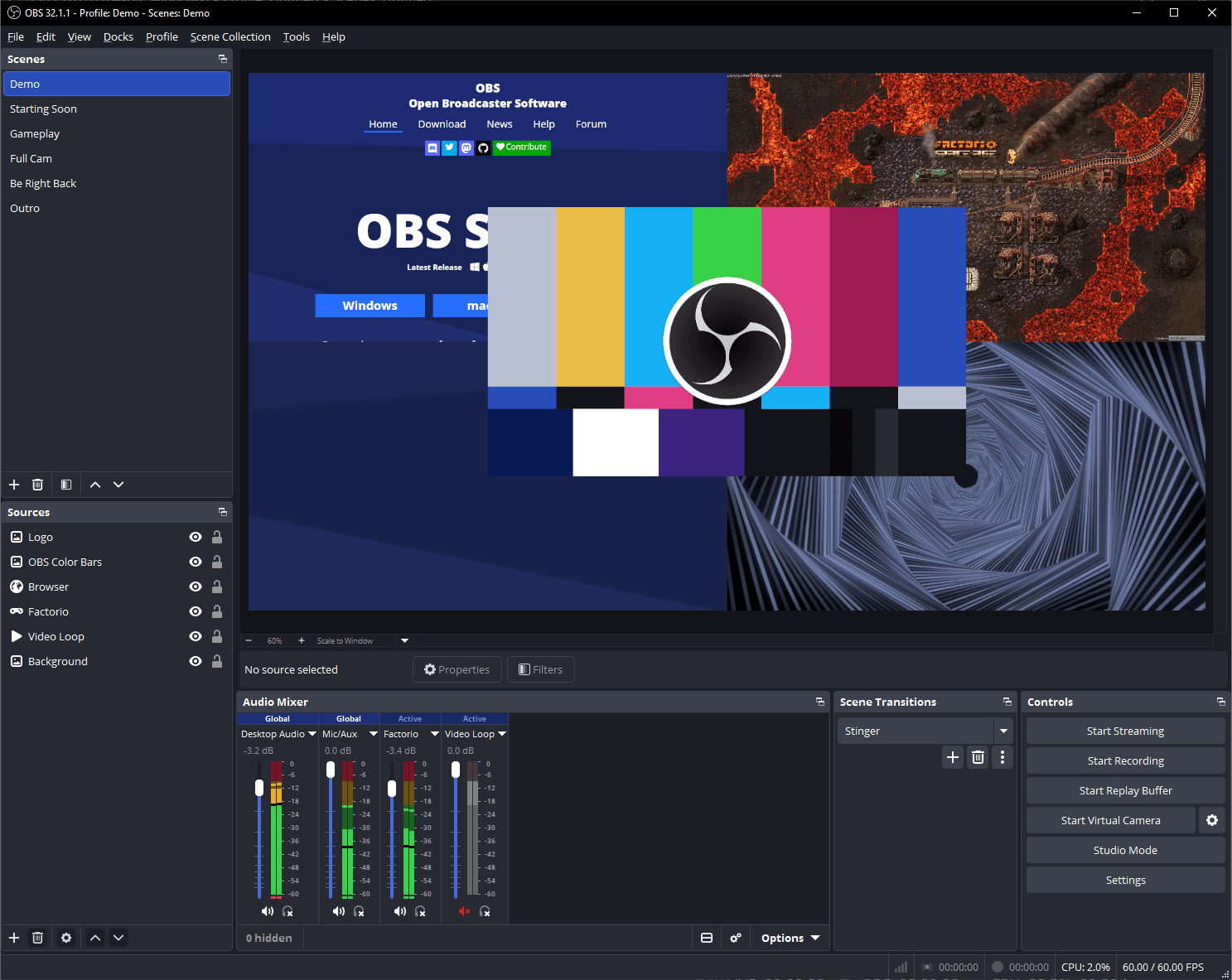
Choosing a plain MP4 is a risky bet because the file is only readable once OBS finishes writing it, so a sudden crash or power cut can cost you the entire recording session. That is why the official guide recommends using MKV, since an MKV file stays readable even if OBS stops unexpectedly, and you can use the "Automatically remux to mp4" setting to get your file ready for an editor later.
On OBS 30.2 or newer, check for the Hybrid MP4 option, which stays recoverable after a crash while still opening directly in your software without extra steps.
The Hybrid MP4 is the best bet for most people, but you need to know that chapter markers are lost if the system fails since they are only written during the finalization process. If you use PCM audio, the Hybrid MOV might be the safer home because PCM audio inside an MP4 isn't read by every app yet.
You should also remember that AV1 only works in MP4 while ProRes is limited to MOV, so your choice depends on the specific codecs you need for your project. Use a Hybrid MP4 if your OBS has it, or stick to MKV with auto remux if it doesn't.
Encoder Settings by Graphics Card
Owners of an NVIDIA card should set the encoder to NVENC and use Constant QP with a value between 16 and 23 according to the OBS Advanced Recording Settings Guide.
You should pick the P5 preset with High Quality tuning and use two passes at quarter resolution, while keeping look-ahead off and setting adaptive quantization on with two B-frames. I think starting around 18 to 20 is a good bet for footage you plan to edit later because lower numbers mean better quality and much larger files.
For those using a CPU, the x264 encoder needs a CRF of 16 to 23 at the veryfast preset.
On an AMD card, use CQP from 16 to 23 with the Quality preset and make sure to set your B-frames to zero. Intel QuickSync users should go with ICQ 16 to 23 using TU4 and three B-frames. The keyframe interval stays at 2 on all of these options so that editors handle the file well.
Constant quality modes keep the image quality steady while letting the bitrate float based on how much action is happening on your screen. This is better than a fixed bitrate for local files because it stops the video from looking muddy during fast-moving scenes or transitions. You won't have to worry about losing detail since the encoder uses whatever data it needs to hit your target quality level.
Any number much lower than 16 causes your drive to fill up far too quickly for very little gain in visual clarity. It's rarely worth going that deep for footage you'll edit, because the file size keeps growing while the gain gets smaller. Stick to the suggested range and your projects stay manageable.
What Bitrate to Record At, and What It Costs in Drive Space
You need a much higher target than YouTube suggests when using a fixed bitrate instead of constant quality modes because editing and the final upload both degrade visual quality.
While YouTube recommends 12 Mbps for 1080p60 video, a local master file needs more headroom to stay sharp after the cuts. At 12 Mbps, you'll use up about 5.4 GB every hour, but jumping to 50 Mbps means you'll need 22.5 GB for that same length of footage. It's a trade-off between image clarity and storage.
Modern external drives can handle these speeds without breaking a sweat because a drive writing at 1,000 MB/s actually reaches 8,000 Mbps, which is far beyond what OBS will ever ask for.
One verified Samsung T7 buyer runs a podcast studio that writes seven 1080p30 feeds, six camera angles plus the program mix, straight to one drive during each session. You shouldn't worry about the speed of the hardware, but you must watch how much space you have left. Check the free space before a long session, because a full drive ends the recording.
Simple Mode, Audio Tracks and Getting a Camera Into OBS
Simple output mode offers several quality tiers to keep things easy, and Indistinguishable Quality, Large File Size is the one I'd pick, keeping in mind that anything other than Same as stream costs extra resources from your computer. This setting provides a great balance for people who want a clear image without filling up their drive with massively large files, so it is the best bet for most users.
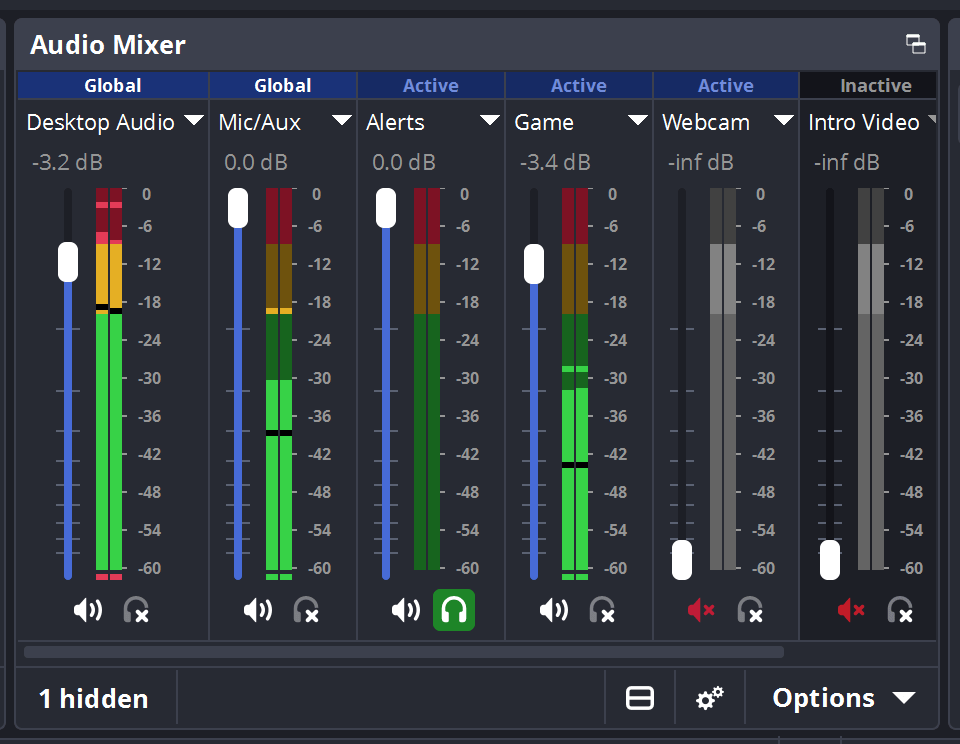
When you move to advanced settings, you can separate your audio tracks so your mic and game audio live on different channels, which is helpful if you want to leave copyrighted music out of the final edit. This flexibility lets you manage your mix much better, and it avoids having to cut out sounds later after the work is done.
Getting a camera in with a Cam Link 4K can be tricky because an owner calls it unreliable and says it fails to turn on about half the time across different ports. You should always plug it into its own USB 3 port rather than a hub because an Amazon reviewer says it disconnects a lot on a hub.
Most buyers are happy with it, 4.6 stars from over 14,000 ratings, and one reports OBS recognized it with no setup at all, but test it well before a live session. Our capture card guide covers the alternatives, and our OBS settings guide for streaming and recording covers the live side.
Frequently Asked Questions
What is the best OBS recording format?
You should use Hybrid MP4 if your version is 30.2 or newer, otherwise record in MKV and turn on Automatically remux to mp4. This ensures your file stays safe even if the computer crashes suddenly.
What bitrate should I use for recording?
You don't need a specific bitrate when using constant quality modes like CQP or CRF, but if you're forced to set one, stay well above YouTube's upload recommendations. Higher values help keep the footage sharp during the final editing process.
What are the settings for 1080p60 YouTube videos?
For 1080p at 60fps, use a CQP or CRF between 16 and 23 with a keyframe interval set to two. YouTube recommends 12 Mbps for 1080p60 uploads, so a recording you'll edit should sit above that.
Should I use CBR for local recordings?
Constant bitrate is meant only for streaming to servers and isn't ideal for recording local files to your hard drive. Using it for recording often results in poor quality during fast action scenes.
Why is my recording file corrupted or broken?
A plain MP4 file often becomes unusable if the system crashes, whereas MKV and Hybrid MP4 formats remain fully recoverable. These safer formats save your work even when the power goes out unexpectedly.