
OBS Studio Recording Settings for Local Files: Bitrate, Encoders and Audio Tracks
OBS is free, and that's part of the problem. It has so many settings, and so many guides written for streamers, that it's easy to end up recording local files with numbers meant for a live stream and wonder why the edit looks soft.
A recording has different jobs: it has to survive an edit and a final upload, keep your audio sources apart, and not slow down the game or the computer you're recording on. The answers below go in that order, from bitrate to encoder, resolution, audio tracks and a set of sensible defaults.
Local OBS recordings should prioritize constant quality rather than a fixed stream bitrate, so use CQP or CRF around 20, or a fixed 50 Mbps only when something forces a fixed rate.
I'd pick NVENC P5 or P6 on Nvidia, VideoToolbox HEVC on Mac, or x264 veryfast or Medium if your CPU is idle. Since recording and streaming are separate jobs, using stream settings for local files results in soft-looking video after you edit.
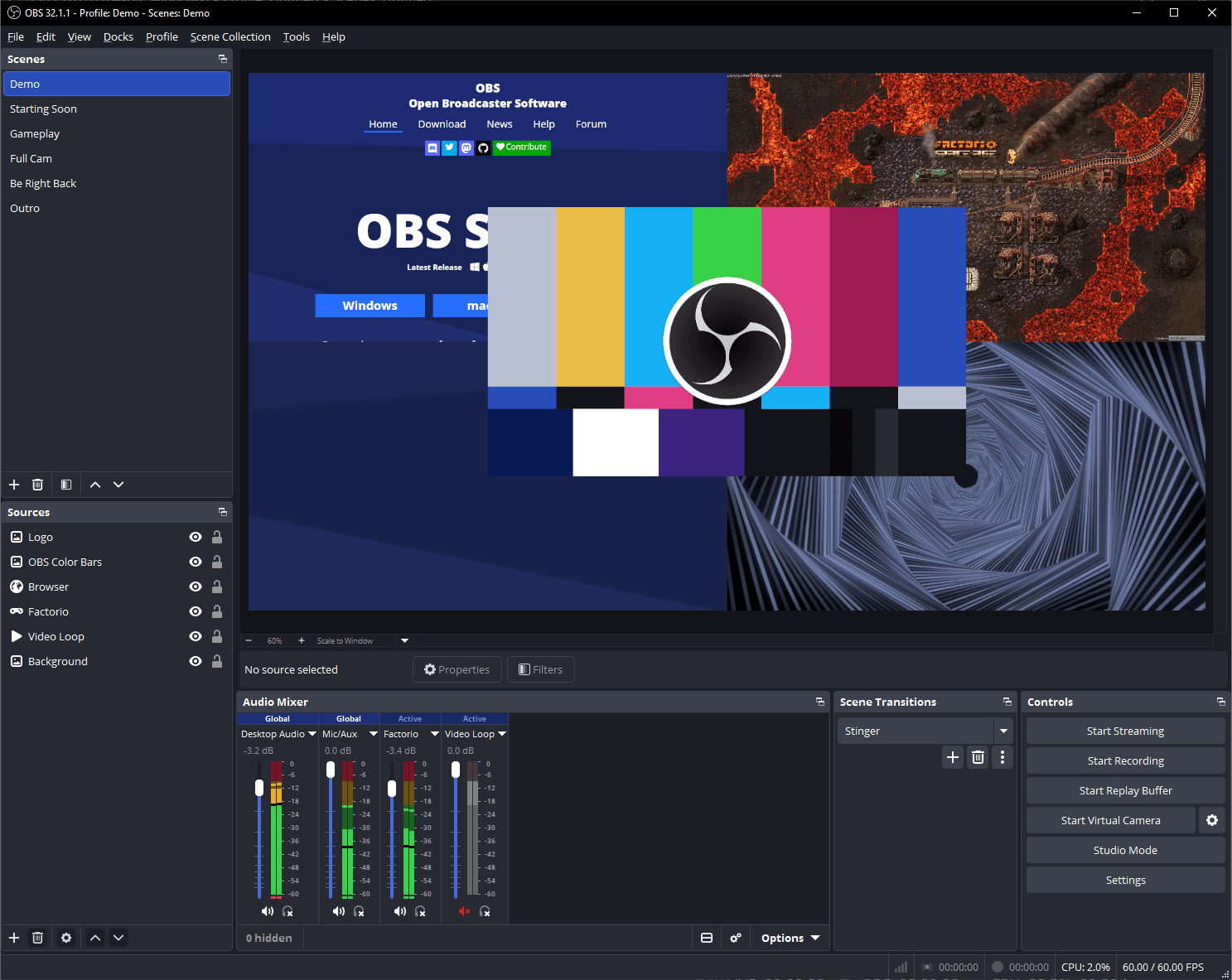
The Local Recording Bitrate Question
When you stream, you have to respect the limits of your upload pipe, but a local recording has no such limit so the only limit is drive space.
Using a constant bitrate keeps your data rate flat, which means your video quality floats depending on how much motion is on screen. Constant-quality modes keep the picture flat while the file size floats, and that is the better trade for a file you will edit.
The drive math is simple and worth doing once: 50 Mbps is 6.25 MB per second, so an hour eats about 22.5 GB. At 12 Mbps it's about 5.4 GB. At 50 Mbps you fill a gigabyte in about 2.7 minutes.
A fixed bitrate wastes data when a scene is still and starves the encoder during fast action.
Pick a fixed number only when a tool in your chain requires one. Your local file should outclass the final upload, because the edit and the platform's own re-encode each cost quality. If you record at a streaming bitrate, you'll end up with a soft-looking video in the edit.
Storage is cheap to buy back later, soft detail is not. If your internal drive is tight, an external SSD for recordings solves it.
Which Encoder Your Machine Gets
Choosing the right encoder depends on what hardware sits under your desk, because dedicated silicon can handle the heavy lifting while your CPU stays free. If you have an Nvidia RTX card, use NVENC with a CQP between 16 and 23, a P5 preset, and a keyframe interval of 2 seconds.
Nvidia's own guide suggests the P6 Slower preset for most users, but drop the tier if you're running several encodes at once.
For AMD cards, use CQP 16-23 on the Quality preset with B-frames at 0, per OBS's own guide. The per-encoder value table and the format question are covered in our companion piece on formats and YouTube bitrates.
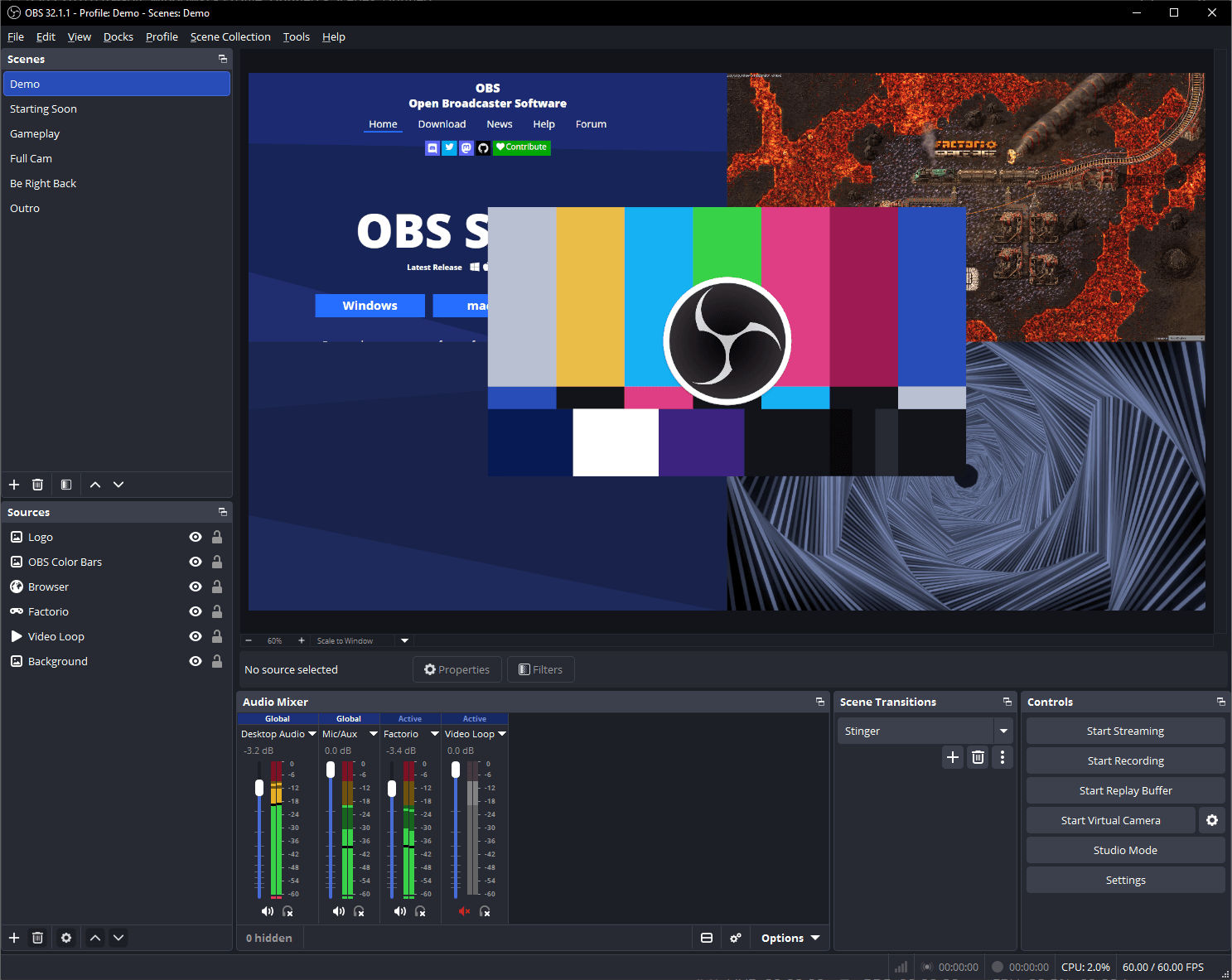
Intel QuickSync wants ICQ 16-23 with target usage TU4, keyframe interval 2, and 3 B-frames. Apple Silicon users should use VideoToolbox and pick HEVC, which Apple's media engine encodes at lower bitrates than H.264 at similar quality. If you want the best quality per bit and your CPU is idle, x264 with a CRF of 16-23 at the veryfast preset is the quality pick.
Resolution, Framerate and the Downscale Filter
Setting your canvas resolution to match your monitor is standard, but the output scaled resolution is what actually lands in your file based on the settings you choose in the OBS menu. Since 60 fps is much more taxing than 30 fps, you should test your hardware first to see if it can handle the extra load without dropping frames.
Bicubic is the default for full-frame downscales, but Lanczos adds a sharpen pass that suits face cams. On gameplay it can put halos around solid color blocks, which is exactly what a moderator-level member warns in OBS's own forum answer on the subject. One user in that thread reported Lanczos lagging hard on a Ryzen 7 3700X with a GTX 1660 Super, and went back to Bicubic.
Once GPU usage stays above 95 percent, Windows prioritizes the game over the recording. Enable Hardware Accelerated GPU Scheduling, cap in-game FPS, or run OBS as administrator, an option OBS added in 24.0.3. A capture card helps here too, and our capture card guide covers the options for consoles and cameras.
Multi-Track Audio, the Setting Most People Skip
To edit your footage later, assign each audio source to its own track in Advanced Audio Properties and then enable those tracks under the Output settings. Since standard video players only play back one track at a time, you should send everything to track 1 if the file won't go through a video editor.
The OBS guide's own example is leaving copyrighted music out of the recording, and it works just as well for game chat you don't want in the final cut. A typical layout puts the mix on track one, the mic on two, the desktop on three, and the game or a second mic on four.
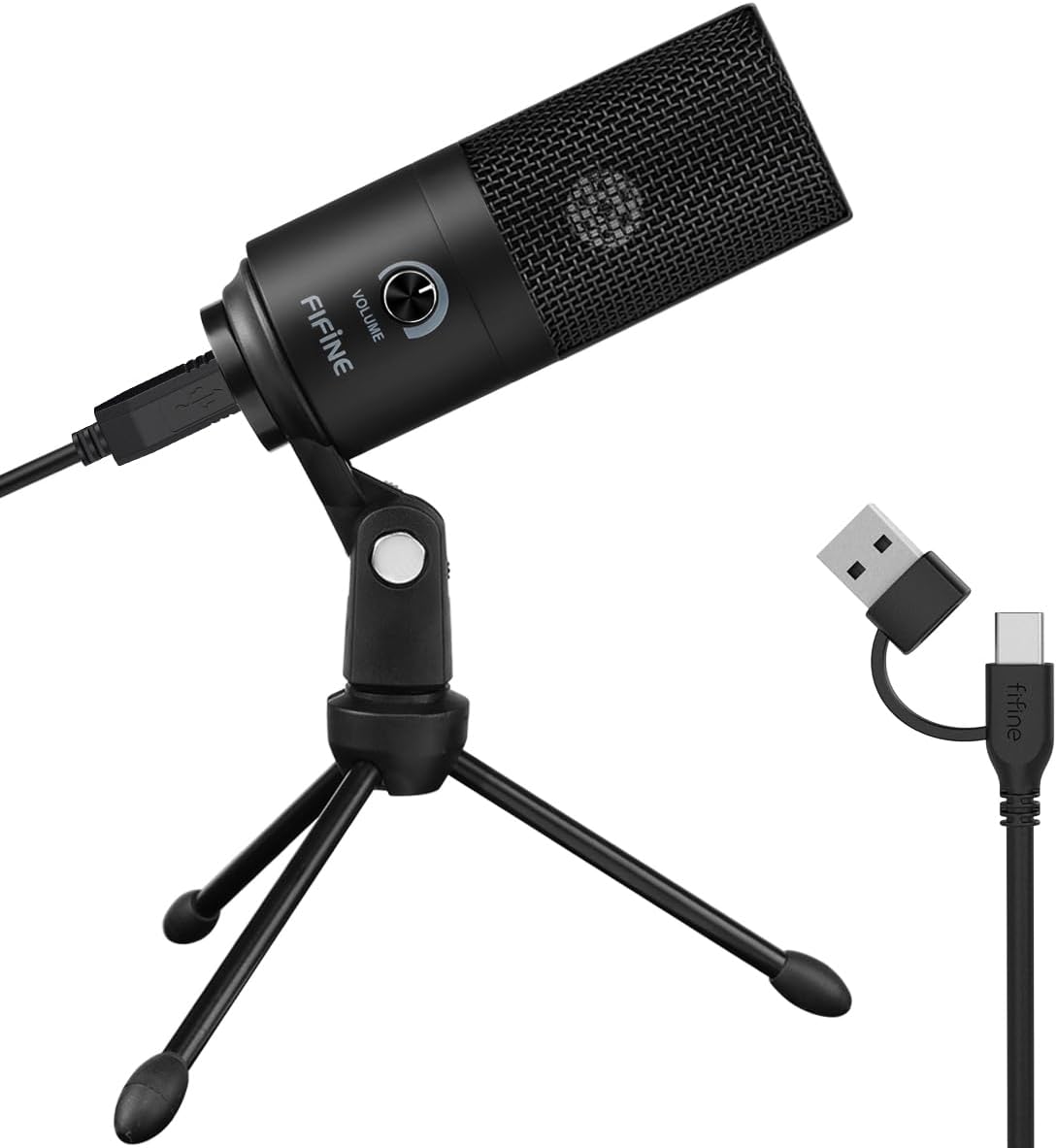
Audio quality starts with the mic, so picking up a Fifine K669B is a great cheap fix if you're on a budget. The preamp inside most laptops can't be rescued by any encoder setting.
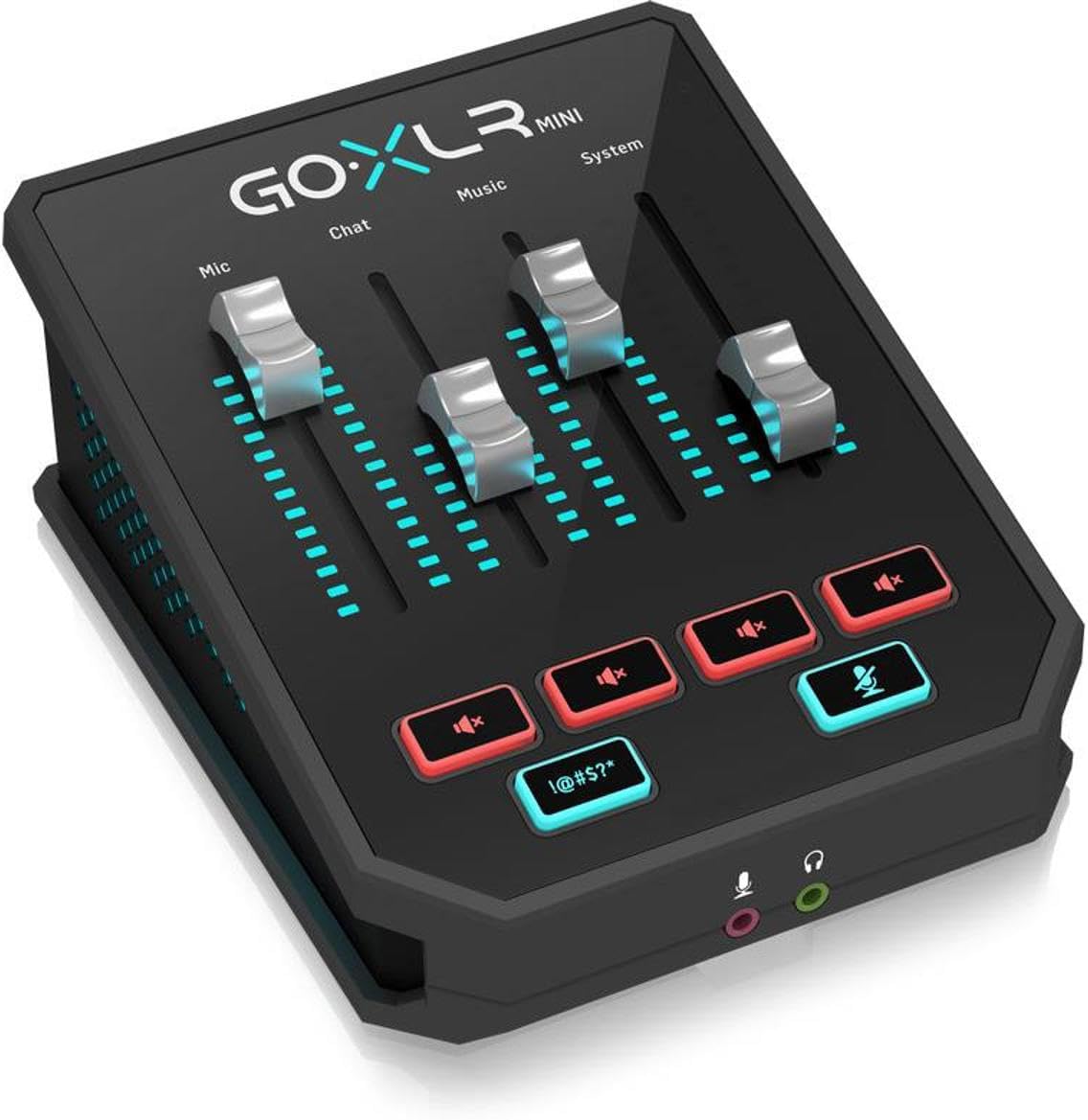
Anyone using a GoXLR Mini should plan an exit soon, because Boost-Audio reported that TC Helicon discontinued the line and stopped all software updates and security patches.
An owner praises the Midas preamp tone over everything else they tried, but a January 2026 verified review says TC Helicon cancelled support with no warning, and an October 2025 verified review says a failed headphone jack got no response from the company. Oddly, TC Helicon still lists the GoXLR on its site as if nothing happened.
The unofficial GoXLR Utility is still active and now rehosts firmware files because TC-Helicon's own update server has been unreliable.
The same hardware sits at B&H as a B&H listing, though it reads temporarily out of stock there, which fits the discontinued-hardware story. If you already own one, back up your profiles now. If you're buying new, a device with live support is the safer pick.
Sensible Defaults and When to Break Them
For high-quality 1080p60 on an Nvidia machine, use NVENC HEVC or H.264 with a CQP of 20. Set your preset to P5 with a keyframe interval of 2 and the High profile, and record straight to an SSD, because a slow drive drops frames at high bitrates. If you are on a Mac, VideoToolbox HEVC is your best bet for similar results.
Break the defaults when it makes sense: x264 Medium on an idle CPU for tutorials, or if you want to drop to 30 fps for talking heads to halve your file size.
Lossless mode is only for short clips: OBS's presets guide puts it around 7 GB per minute, and it always uses the CPU encoder. Skip the Same as stream preset for recordings. It copies the streaming encoder's settings exactly, and OBS won't let you pause a recording while it's selected.
Frequently Asked Questions
What bitrate should I record at locally in OBS?
Skip the fixed number: constant quality modes like CQP or CRF around 20 hold quality steady across busy and still scenes. If you must set a fixed rate, 50 Mbps runs about 22.5 GB per hour, which is our own math from the bitrate, not an OBS figure.
Which encoder is best for OBS recording?
NVENC on Nvidia cards and VideoToolbox HEVC on Apple Silicon run on dedicated hardware, so the CPU stays free. x264 gives the best quality per bit, but only when the CPU has idle headroom.
Why does my local OBS recording look soft?
Usually the recording was made at streaming bitrate, or the encoder preset is too fast to hold detail. Record above your upload number, because the edit and the platform's re-encode both cost quality.
Should the recording match the stream bitrate?
No. A stream must fit your upload pipe, a local file has no pipe, so recording at stream bitrate just guarantees softness. In advanced output mode OBS runs both at once, and each side gets its own settings.
Is the GoXLR still worth buying for OBS audio?
Probably not new. Boost.Audio reported in 2026 that TC Helicon discontinued the line and is ending software updates and security patches. The unofficial GoXLR Utility is still active, but new buyers without troubleshooting skills should pick hardware with live support.