
Best PC Game Recording Software: Free First, Pay for Specifics
Recording games on a PC is easier than it's ever been, which is exactly why the choices pile up. Your graphics card has a recorder built in, Windows has another, and there's a free open-source tool most streamers already use, before you even look at the paid apps.
Each one is good at something different. Some are best at saving the last few minutes after a great play, some give you full control over scenes and audio tracks, and some are built around sharing clips quickly, so paying only makes sense when you need one specific strength.
Below are the free standard, the built-in recorders, two paid picks, a cloud-clip option, and how to pick, including where the Windows Game Bar fits.
OBS Studio handles almost every need for free because it's the professional standard, while your GPU's built-in recorder owns instant replay if you don't want to deal with complex setups for quick clips.
You should only pay for Mirillis Action! or Bandicam when you specifically need their strengths like timeshift polish or long-format compression, but OBS often suffices. Insights Capture is the right modern choice if cloud clips and bookmarking matter more to you than having total control over settings, since it simplifies sharing. The Windows Game Bar remains the floor: free and preinstalled, but shallow.
OBS Studio: The Free Standard
OBS Studio records and streams from the same engine, and the recording side is first-class rather than an afterthought. Scenes stack multiple sources, desktop audio and your microphone land on separate tracks for later editing, filters and plugins extend the pipeline, and it runs on Windows, Mac and Linux for free.
For gameplay specifically: add a Game Capture source, launch the game, and OBS records Valorant, Fortnite or any title full-quality with hardware encoding.
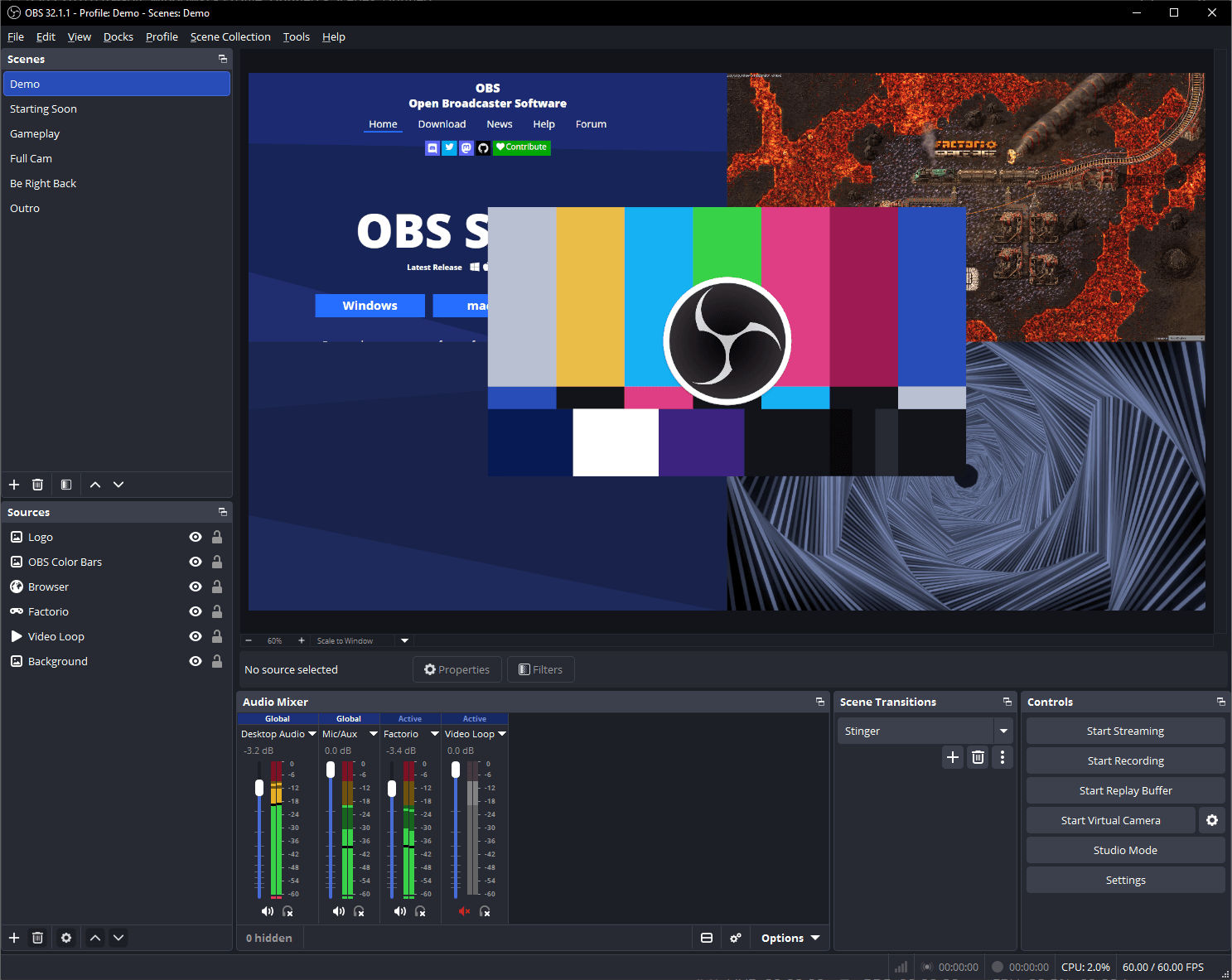
Where OBS stops short is clip sharing. Files land on your local drive and the sharing step is yours, which is exactly the gap the cloud-connected tools below chase. For the settings side, our OBS recording settings guide covers the encoder and quality choices in depth.
NVIDIA ShadowPlay and AMD ReLive: The Built-Ins
NVIDIA ShadowPlay now lives inside the NVIDIA App, where you can use Instant Replay to catch the last few minutes of gameplay continuously without hurting your frame rate because the GPU encoder does the work. This tool works well, if you want a quick clip without having to spend time configuring complex settings.
Since it uses your hardware directly, the frame rate stays high while you record your best plays. You need an NVIDIA GPU for this one. AMD owners get the equivalent from their driver software.

AMD offers a similar path through ReLive within the AMD Software, which lets you grab great moments instantly without the need to set up any external software or heavy tools first. Both target people who just want to share a cool clip with friends, with zero setup. Controls are thinner than OBS by design.
While these built-in tools are great for casual use, they can't match OBS when you need to produce a finished video with multiple layers or specific separate audio tracks. Use the GPU-based apps when you need a simple replay of a lucky shot, and switch to OBS when you want to build a real video. If you record console footage instead of PC gameplay, that is capture card territory.
Paid Picks: Mirillis Action! and Bandicam
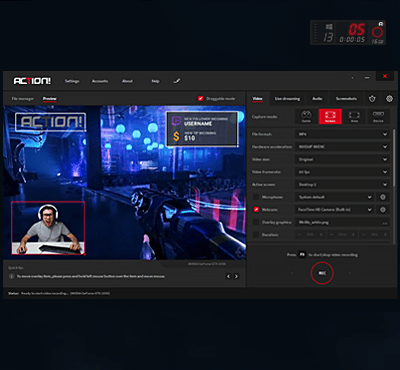
Mirillis Action! offers a smooth path for folks who want to record gameplay without the headache of configuring complex settings, and it includes a helpful timeshift buffer that saves your moments.
You'll find the hardware acceleration keeps your frame rates high while the tool captures every big play. The HUD stays clean on your screen so you can see the game clearly without any messy icons. Since it uses a one-time license, you don't have to pay a monthly fee for this polish.
Bandicam stands out when you need to record long-format videos because it compresses files well, which saves space on your hard drive while keeping the image sharp.
The screen-recording mode draws notes directly onto the video as it plays, which suits tutorial-style captures. The free tier puts a watermark on your clips, so you should pay for the full version. This tool works well for people who need to show how things work to others.
While Mirillis Action! wins on ease and polish for most users, OBS still provides much more depth for those who want to tweak every single detail for free. Pick the paid tool if you want something that works right out of the box. If price is the main concern, the free standard remains the better choice.
Insights Capture: Cloud Clips and Bookmarking
To share your best plays without moving large files around, Insights Capture stores clips in the cloud for you.
You can use the Alt+B hotkey while playing to mark specific moments that really matter. That solves OBS's clip-sharing gap, since OBS saves files locally and leaves the sharing to you. The app is newer and simpler than the free standard, built for players who post highlights quickly.
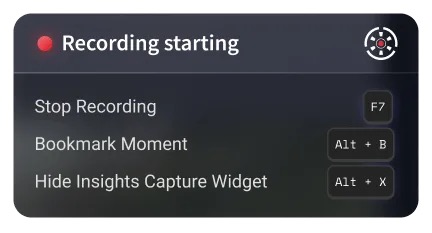
Although this software lacks the deep controls found in other apps, it remains a great pick when you care more about sharing clips than about setting up complex video scenes.
You're betting on their cloud service staying up, which is a risk compared to using local storage. Because it is less established, expect fewer features than OBS. This modern app works well for players who just want to record and post highlights without any fuss.
How to Pick, and the Game Bar Question
You should start with OBS Studio because it covers most of what you need for free, but you can also use built-in GPU tools if you want to grab quick clips without setting things up first. These tools, like the NVIDIA App or AMD software, let you record the last few minutes of play while keeping frame rates high.
Modern hardware encoders such as NVENC and AMF make recording far cheaper for your frame rate than the software encoders of years ago. Our OBS recording settings guide covers the choice. Spend money only when you need specific features, like the timeshift buffer in Action! or the way Bandicam shrinks files.
For players who care more about where clips go and marking highlights as they play, Insights Capture is a modern choice with a simple hotkey for tagging the best moments. The Game Bar is the floor: free and preinstalled, but shallow, and it often drops frames under heavy load. You'll find it works for a quick clip, yet you'll want something better for making videos.
Frequently Asked Questions
Does OBS work for recording or just streaming?
This software handles both tasks equally well, though the recording engine is a first-class tool for users who need high-quality video files for editing. You can capture complex scenes with multiple audio sources without any issues at all during recording.
Will recording hurt framerate?
Using hardware encoders on your GPU keeps the impact on performance minimal, but software-based encoding will tax your CPU during heavy gameplay. Test your specific game to see the real drop before a long session.
Is OBS really free?
The OBS Studio project is completely open source and doesn't have a paid tier, as it relies on community donations to keep the development going. You get every professional feature without having to pay a subscription fee.
What bitrate should I use for gameplay?
It's better to record at high CQP or CRF quality levels instead of a fixed bitrate because local files don't have upload limits. These settings keep your video sharp regardless of how long you play.
Can I record game audio and mic separately?
OBS allows you to map desktop audio and your microphone onto separate tracks so you can edit them independently in your video editor. This feature is vital for creators who want to balance volume levels later.