
Good PC Game Recording Software: ShadowPlay, OBS, and Game Bar
Recording PC games doesn't have to mean buying anything. Your graphics driver and Windows already include recorders, and a free open-source app covers almost everything else, so the real question is which one fits the way you play.
The differences come down to how much control you want and how much you'll notice the recording while you play. Some tools run quietly in the background and save the last few minutes on demand, some let you build a full scene with overlays and separate audio, and one is already installed and good enough for a quick clip.
Below are the default for most players, the power-user pick and the zero-install fallback.
NVIDIA ShadowPlay is the default, OBS Studio is the power-user pick, and Xbox Game Bar is the zero-install fallback. The hardware encoder decides everything: it uses a dedicated chip for the video work, so your frame rate stays high while you record, and that single fact is why the default tier wins for most rigs.
The Default: NVIDIA ShadowPlay
Since this tool comes right with your graphics drivers, you don't need to install extra software, which makes setting things up very fast for people who just want to catch a cool moment. It uses a dedicated chip to handle the video work, so your frame rates stay high while you record.
Because the load is so light, the game does not lag or stutter when things get intense - the NVENC encoder on the card does the lifting, and the CPU never sees the job. It just works, and here that's nearly true.
The best part is the instant-replay buffer: it keeps the last few minutes of play in a ring on the card, and the hotkey writes it to disk after the moment passes
The kill you did not know would matter is the whole use case - nobody hits record before the good part happens
Shadowplay's buffer runs at your display's frame rate, holds up to twenty minutes, and the file lands in the videos folder before you alt-tab back. You won't need a capture card or a second PC, if you only want to share quick clips with friends. If complex settings and custom overlays are not the job, this is enough for most needs.
The overlay it does have - the FPS counter and the stat readout - is the one you actually leave on, because it tells you whether the encoder is keeping up before the recording betrays you. It saves the deep-menu dive, and the clips land before you have alt-tabbed back
The one real limit is the encoder check: if your card is a generation behind, the buffer drops frames, and the fix is a driver update you should have installed anyway.
The Power User: OBS Studio
OBS Studio lets you build complex scenes with multiple sources so you can switch between layouts instantly - face cam, game capture, alerts, and the replay buffer, all in one canvas. The replay-buffer plugin does the same ring trick with more knobs: duration, hotkey, pre-roll
Audio tracks split game, mic, and Discord to separate lanes, so the edit can drop the argument without dropping the game. That single feature is why the edit-heavy creators put up with the learning curve, and why 'you don't have to be there for every kill' stops being a joke.
You can add different audio tracks for your mic, which helps you keep the chat separate from the loud music. This setup takes time to learn, but the quality holds when the action gets intense.
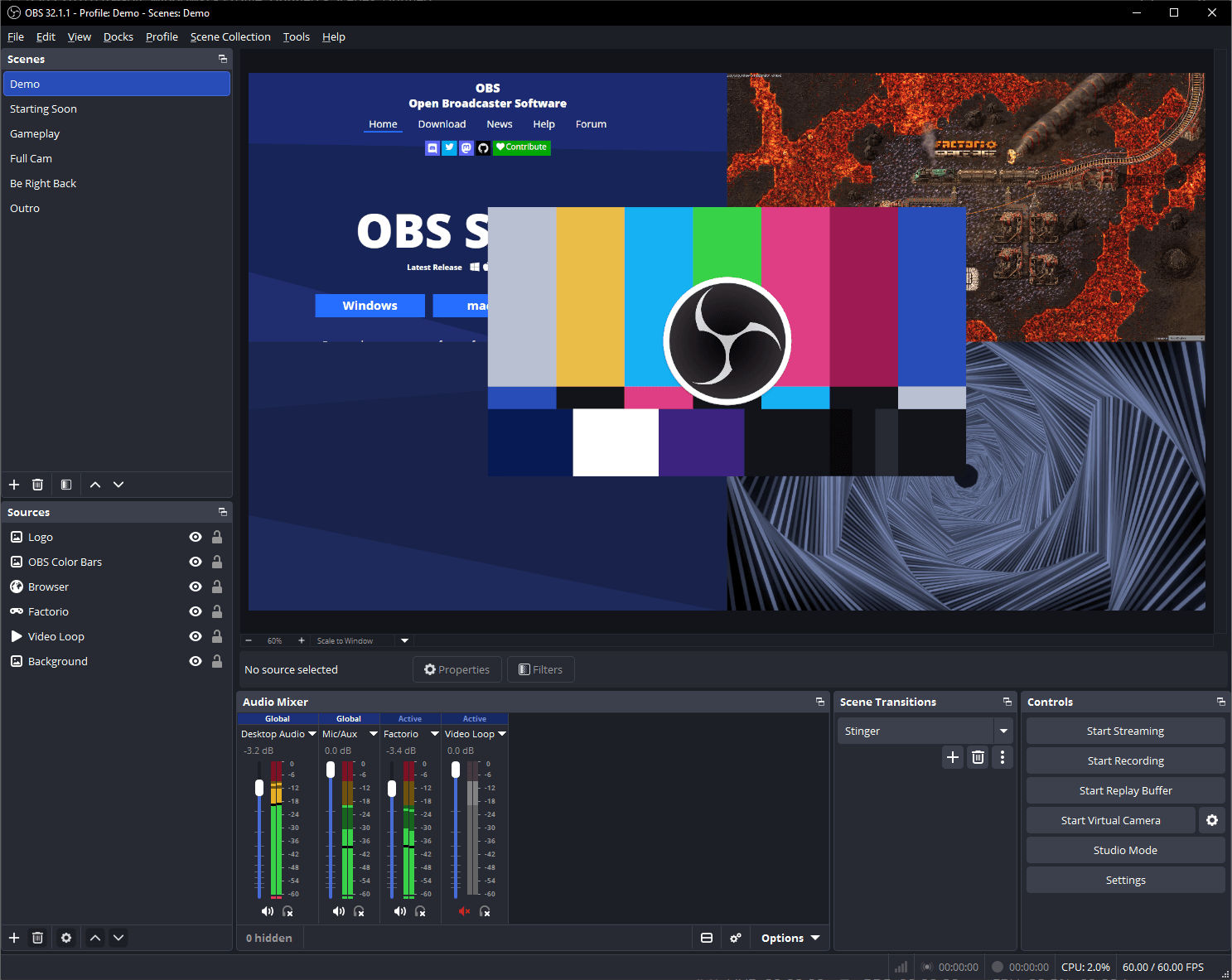
When you configure the software, you must choose between NVENC and x264 encoders because the choice determines how much load your CPU or GPU takes while you record or stream live.
Using the hardware encoder keeps your game fast, though software-based encoding helps if you want the smallest file sizes. Split the recording and streaming profiles, because they need different bitrates to look right: 60-to-80-megabit for the local file, 6-to-10 for the stream. The record profile is where quality lives, and the stream profile is where Twitch's ceiling lives.
The Zero-Install Fallback: Xbox Game Bar
To capture a clip without installing anything, just press Win+G to open the tools already built into Windows. This tool works well for quick moments, but it has limits that might frustrate you during long sessions. The software stops recording automatically after two hours, so you'll need to restart it if you play longer.
Because the bitrate stays low, the video looks a bit soft next to a ShadowPlay file, so good enough is the honest ceiling, and for a clip headed to a group chat, that's usually fine.
While professional tools offer more control over how your video is saved, the Game Bar provides a solid fallback for people who just want to share a funny play with friends right now.
You don't need a capture card or a second PC, because this software uses your existing hardware power. The interface is simple to use, but you won't find the fine settings needed for deep editing work. If perfect pixels are not the job, the built-in option saves the setup time - and the two-hour cap is the hard stop to remember before the boss fight.
Frequently Asked Questions
Will recording lower my frame rate?
Recording costs frames because the encoder work has to live somewhere - on the card, on the CPU, or nowhere. The NVENC path parks it on the card, and the frame hit lands in the low single digits. Using hardware encoders like those in ShadowPlay minimizes this impact by offloading the work.
How much space do I need for high quality video?
The storage math is bitrate times seconds divided by eight: at 60 megabits, a minute of 4K gameplay runs about 450 megabytes, and an hour of it eats a drive. Higher bitrates create large files that fill up your drive quickly if not careful.
Is OBS better than NVIDIA ShadowPlay?
OBS Studio offers deep technical control over scenes and filters while ShadowPlay provides a simpler experience for users who want to record without setup.
OBS wins if you need complex layouts for a professional stream. ShadowPlay wins if you want the replay buffer with zero setup. The layouts question is the fork.
Can I record different audio on separate tracks?
Professional software like OBS allows you to separate game sound and microphone input onto different tracks so you can edit them independently later on. This makes it much easier to balance volume levels during the editing phase.
Do I really need a capture card for streaming?
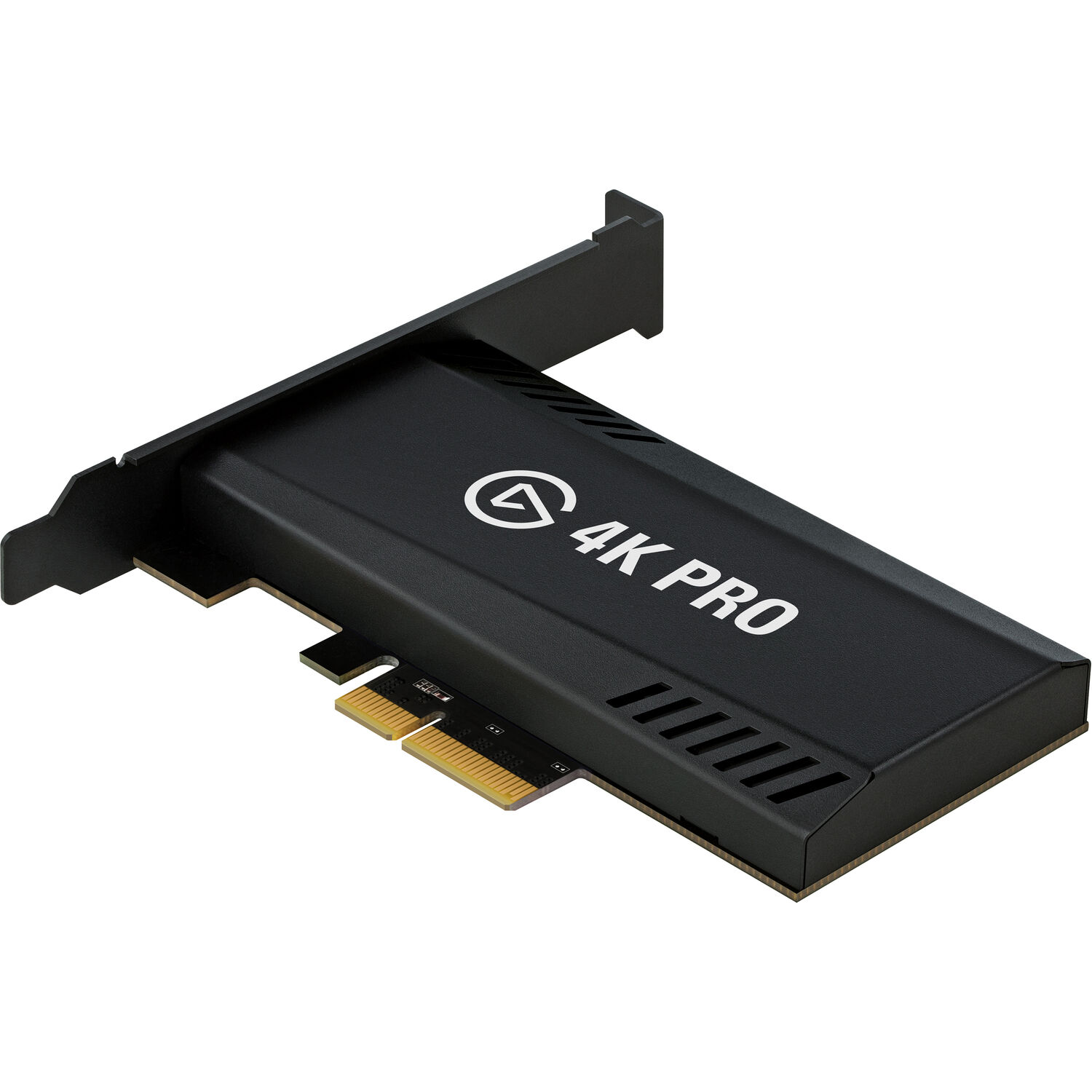
A capture card earns its slot in the dual-PC build, where the second rig encodes and the gaming rig never feels the stream. On a single NVENC-equipped rig, the card mostly sits unused - the encoder on the graphics card is already the same silicon the capture card would rent you.
The capture-card question is the two-PC fork: one rig plays, one rig encodes, and the card moves the footage between them. 'A capture card is necessary if you don't want to lose performance on your gaming machine' - true for the dual-PC build, false for the NVENC single-rig path.
The capture-card tier covers the hardware, the OBS settings page covers the bitrate math, the free recording software comparison covers the no-budget lane, and the capture-card-for-streaming page is the dual-PC tier, the streaming-PC build covers the second rig, TechRadar's streaming-software guides cover the same tools from the consumer side, and No Film School's capture guides frame the workflow from the video side. Check B&H's capture card stock for the tiers.