
Good Game Recording Software for PC: OBS, ShadowPlay, Bandicam and More
Most gamers start recording the same way: a great moment happens, and there's nothing running to catch it. Then they install something, the frame rate drops, or the clip looks smeared next to what they saw on screen.
The fix usually isn't a different app. How the video gets encoded decides most of the quality and most of the performance cost, and once that's set right, the choice of app is mostly about workflow: total control, instant replay, simplicity or quick highlights.
Below is why the encoder matters first, then the free configurable pick, the built-in instant replay tools, two easier paths, and the capture and editing pitfalls.
OBS Studio covers total control for free, ShadowPlay and ReLive record from the driver with zero overhead, Bandicam is the easy path, and Insights Capture bookmarks highlights mid-game. The encoder decides quality before any of them do - everything else is workflow.
The Encoder Decides Quality Before the App Does
You might worry about which app you pick, but the quality of your video depends on how your hardware handles the math of turning pixels into a file. Using a chip like NVENC offloads the work from your CPU so your frame rates stay high. If you use x264 instead, your processor might struggle, and the stutter shows up exactly when the fight gets busy.
Setting your bitrate determines how much data goes into each second of footage, which directly affects how much disk space your recordings take up after a long session - the same math that drives 4K storage planning in the OBS guide. Higher numbers make the image look sharp, yet they fill your drive fast if you don't watch the limits.
Find the balance against your free disk space, and remember the logic travels: a setting that works in OBS works the same way in any other recorder.
The core engine behaves the same whether the app costs nothing or sixty dollars: a free tool with the encoder set right outperforms a paid one left on defaults. Focus on what your hardware can do, because a pretty interface won't fix a blurry video. Once settings are dialed in, you can use any interface that feels natural to your workflow.
OBS Studio: The Free, Endlessly Configurable Pick
OBS Studio is a free tool that lets you tweak every part of your stream, but the number of options can feel overwhelming for people who just want to record a quick game.
You can add different scenes and sources to your layout, which helps you switch between gameplay and chat during live play. This setup gives you total control, though it takes time to learn how the menus work. Most folks get lost in the settings because there are so many dials to turn at once.
The software includes a replay buffer that lets you save the last few minutes of action, which is great when you miss a big play while not recording the whole session beforehand.
You can record for as long as your drive has space, since there is no time limit on the files themselves. Our OBS settings guide walks the bitrate and encoder numbers for specific hardware, and the free editing round-up covers what to do with the files afterward.
Master the interface and you'll get video that looks much better than most basic apps produce. The learning curve is the price of the control - pay it once and every future recording inherits the setup. You'll find that the flexibility pays off once you know exactly how you want your clips to look.
ShadowPlay and ReLive: Zero-Overhead Instant Replay
NVIDIA and AMD graphics cards come with built-in tools that record gameplay at the driver level without slowing the frame rate while you play. This method keeps a buffer running in memory, so you can save minutes whenever a play happens. It's faster than setting up complex software because the hardware handles the encode - the defaults are the vendor's problem, not yours.

While these tools offer a quick way to get video clips, you're locked into the hardware you bought because the software only works with those specific brands of cards. You can't tweak every fine detail of the video quality - the trade for zero overhead is fewer dials. If you switch brands later, you won't be able to use these tools anymore.
The NVIDIA promotional image here shows what the interface might look like, but it's just an illustrative render and not a real screenshot from a long game session. For anyone who wants the clip saved without touching a single menu mid-game, this is the path - capture happens on the card, and the game stays smooth while it runs.
Bandicam and Insights Capture: Easier Paths In
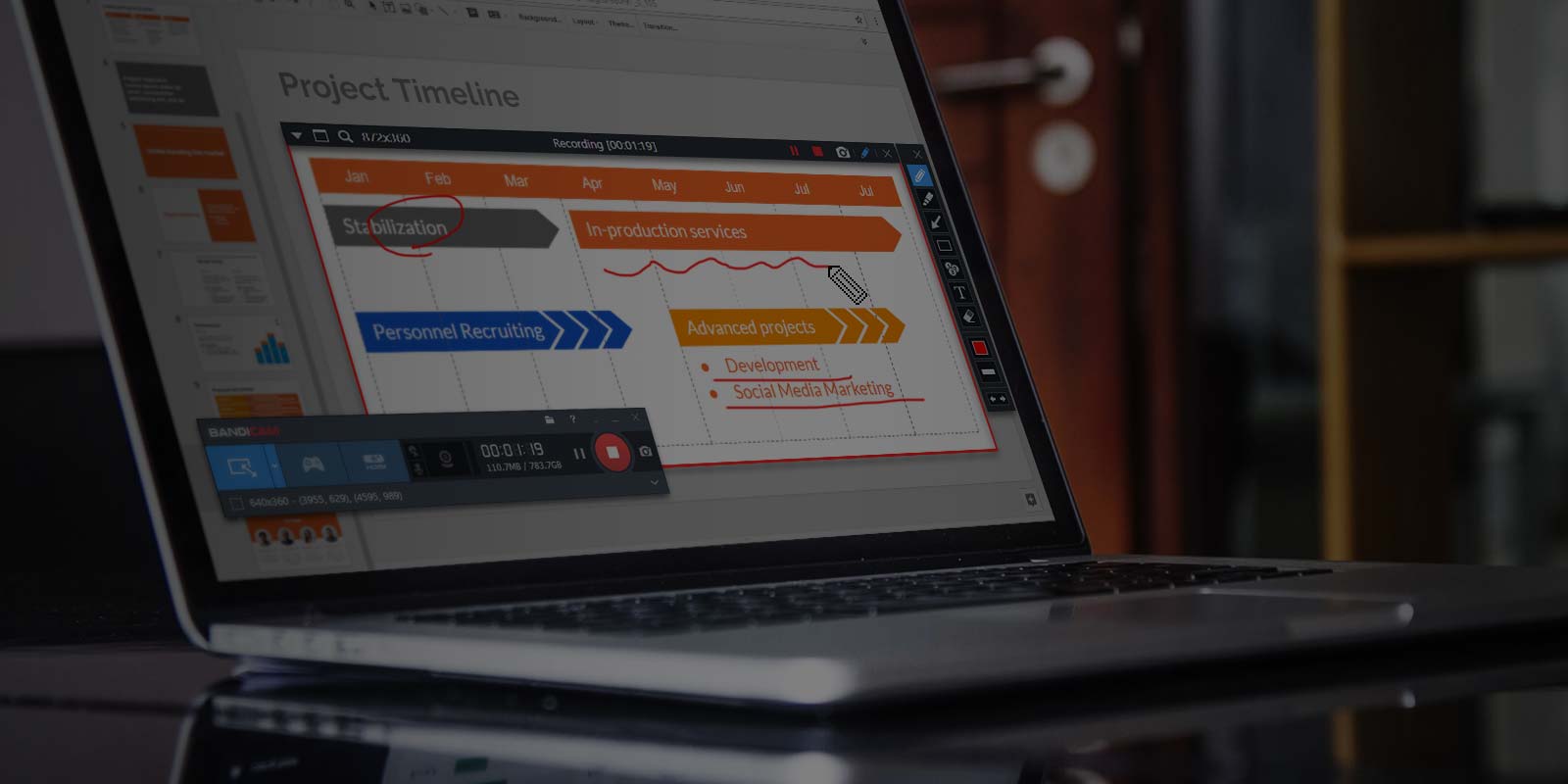
For a quick way to start recording without fiddling with complex menus, Bandicam is a straightforward path for people who just want to capture clips. The interface shows exactly how much space your video takes up, and how much room is left on your drive. That live readout prevents the mid-session disk-full surprise, and the rest of the interface stays deliberately shallow.
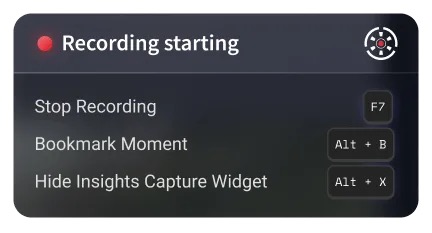
For gamers who play for hours but only want to save the best parts, Insights Capture provides a unique way to mark specific moments as they happen in the action. You can just hit the Alt+B key to bookmark a highlight, so you can find it later when editing. The bookmarks turn a two-hour session into a five-minute edit, because the timeline markers already exist.
Choosing between these two tools depends on whether you need to record everything at once, or if you want to pick out the best bits while you play along.
Bandicam is for the person who wants to hit record, and know that the file is safe right away. Insights fits the creator who needs to sort out clips without losing track of the best moments - the hotkey does the sorting while you play.
Capture and Editing Pitfalls
Record straight to MP4 and a crash can cost you the whole clip, which is why MKV keeps your work safe even when things go wrong.
Most software lets you convert these files later, so you don't have to worry about losing files. Spending a moment on conversion beats losing an hour of footage to a crash. This keeps your footage on the disk, even if the app stops suddenly.
When your hardware struggles to keep up with the game, you'll see frame drops that make the final video look choppy and hard to watch for anyone else. You should check your settings before you start, because the encoder needs a lot of power. If the bitrate runs past what the machine sustains, the game stutters while you record - and the stutter lands in the file.
Capturing a console or using a second PC needs a hardware path like the Cam Link 4K or the HD60 X, and B&H's capture card listings show both in the current lineup. These tools take the signal, so your main PC stays fast and cool. Using a card prevents the game from slowing down, while the software does the heavy work.
The signal never touches the gaming PC's encode budget, so the frame count stays identical.
Frequently Asked Questions
Is OBS enough to never pay?
Since OBS Studio is completely free and offers endless configuration, most users will never need to spend money to get professional quality recording results. You only pay if you want a much simpler interface or dedicated technical support for your projects.
Does ShadowPlay slow down games?
These tools use hardware encoders to capture video which keeps the performance impact on your frame rate extremely low while you play. This method is much lighter than using software-based recording methods that strain the CPU processor.
Why does recording look worse than live?
The visual quality depends more on your bitrate and encoder settings than on the specific software you choose to use for capture. Higher bitrates ensure the recorded video matches what you actually see on your monitor screen.
Should I use MKV or MP4?
Using MKV is safer because the software won't ruin the entire file if your computer crashes or the power goes out. You can easily convert these files to MP4 later using various free utility tools or online converters.
Is a capture card necessary?
A capture card is only required if you want to record console games or offload the work to a second PC. This setup prevents any lag or stuttering on your primary gaming machine during intense sessions.