
Blackmagic Pocket Cinema Camera LUTs: A Practical Guide to Getting the Look
The Blackmagic Pocket Cinema Camera 4K produces among the finest-looking footage possible without having to spend money on an entire cinema system. Yet the footage produced from the Blackmagic Pocket Cinema Camera straight out of the camera looks flat and desaturated. That's by design.
The Blackmagic Pocket Cinema Camera captures 13 stops of dynamic range and a wide color gamut so you can make adjustments and changes to the image while grading. However, many filmmakers buy a Blackmagic Pocket Cinema Camera, shoot their first project and end up staring at gray, murky footage and wonder what went wrong.
That is where the LUTs come in. A LUT (Look-Up Table) is a color transformation that maps one set of color values to another. It can be viewed as a preset that transforms your flat log footage into something that resembles a finished image. And for the Blackmagic Pocket, LUTs are required to implement any serious color workflow. You may also use them as a starting point in DaVinci Resolve, view on the monitor when shooting through the camera's built-in 3D LUT support, or even embedded directly into Blackmagic RAW metadata since the 6.6 firmware update.
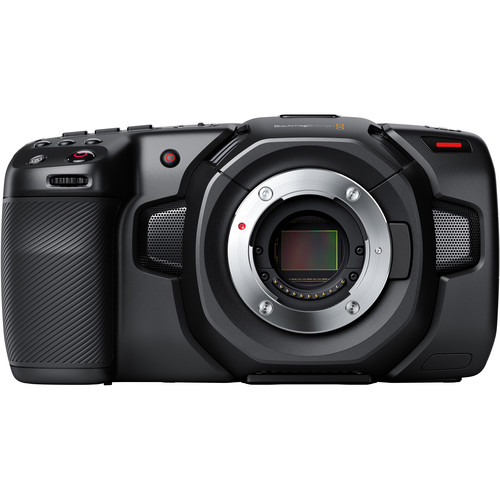
Reviewers at B&H frequently comment on the color science as being one of the camera's strongest features. One reviewer said they purchased a second unit after years with the original, stating they are still very pleased with the look. Users also comment that the combination of Blackmagic RAW and the included DaVinci Resolve Studio license makes the entire camera a remarkably complete package for color work.
What LUTs Actually Do (and What They Don't)
Technical Side
A LUT is a mathematical table that translates input color values to output color values. For Blackmagic Pocket Cinema Camera footage, the most common application is transforming from Blackmagic Design Film or Blackmagic Design Extended Video color spaces into Rec. 709, which is the standard color space for most displays. This transformation is referred to as a technical or utility LUT, and it is the basis of any Blackmagic Pocket color workflow.
Creative LUTs take it a step farther. They add a certain style on top of the technical transformation, such as film emulation, teal and orange grades, or high contrast cinema looks. The Blackmagic Pocket community has developed a fairly large library of both types of LUTs over the past few years, and the ARRI Alexa emulation LUTs in particular have become a sort of cult favorite.
Specifically within the Blackmagic Pocket community, users refer to Joel Famularo's Alexa emulation LUTs as truly fantastic for producing a film-like quality from the camera's sensor.
Where LUTs Fall Short
LUTs aren't magic. They can't fix poor exposure, nor do they allow recovery of highlight detail that was previously clipped in-camera. A LUT is a fixed transformation, which means it will produce the same adjustment on each pixel regardless of the content.
If your footage is 2 stops over-exposed, a LUT that was created for properly exposed footage will produce a blown out mess. Similarly, if you shot with the incorrect white balance, you'll receive color shifts that no LUT was designed to handle. LUTs perform best as a starting point. Real grading is done in DaVinci Resolve's color wheels, curves and qualifiers.
Where to Find Blackmagic Pocket Cinema Camera LUTs
Options That Are Free and Actually Work
Blackmagic Design includes several LUTs with DaVinci Resolve that ship with the product. You can locate them in the LUT browser in the color page, categorized by manufacturer. The Blackmagic Design folder has conversion LUTs that were specifically created for the Pocket Cinema Camera's color science. These are solid starting points and honestly what most people should begin with before purchasing anything else.
Beyond the options included with DaVinci Resolve, the Blackmagic Pocket community on Reddit and the Blackmagic Design forums have made available many free LUT packs over the years. The quality of these LUTs vary, but you can find some actually useful ones. If you're coming from the color grading master class world, you already know that understanding the underlying color science is more important than the specific LUT pack you download.
Paid LUT Packs Worth Considering
The paid LUT market for the Blackmagic Pocket is now pretty saturated. Several options stand out to users based on actual usage in real-world projects. Buttery LUTs provides creative and Rec. 709 conversion LUTs specifically designed for the Blackmagic Pocket Cinema Camera sensor, with 17 unique looks inspired by high-end commercial work. Kondor Blue's utility LUT is used by many for its clear approach to correcting color and flattening exposure discrepancies between shots.
The main difference between free and paid LUTs is typically the consistency and documentation. Paid LUTs normally contain better documentation, more variations and LUTs that have been tested in a wider variety of shooting situations. But honestly, if you understand the basic DaVinci Resolve tutorials and can use curves and color wheels, free LUTs will get you 80 percent of the way there.
How to Apply LUTs in DaVinci Resolve
Basic LUT Workflow
Every Blackmagic Pocket Cinema Camera includes a license to DaVinci Resolve Studio, which is the logical place to grade Blackmagic RAW footage. Reviewers at B&H often reference this as a major component of the value proposition, with one user describing the camera and Resolve combo to be dead simple to use and a good deal. The basic process of applying LUTs in Resolve is as follows.
Open your project, go to the Color page, and right-click on a node. Select LUT from the context menu and navigate to your LUT file (normally a .cube file). To achieve the cleanest results, it is recommended to create a separate node for the technical conversion LUT from any creative grading.
Therefore, you can adjust the base grade without the LUT fighting your adjustments. Many colorists place the technical LUT on the last node in the chain, although some colorists prefer a parallel node structure based on how complex the grade is.
Additionally, if you are grading Blackmagic RAW footage, you have an additional advantage. The RAW tab in Resolve allows you to correct exposure, white balance and ISO prior to the image reaching your node tree. This means you can correct exposure issues at the RAW level, then apply your LUT to correctly exposed footage, resulting in much better results than attempting to correct all issues with the LUT alone.
Embedding LUTs in Blackmagic RAW Metadata
Since firmware 6.6, the Blackmagic Pocket Cinema Camera can store its own custom LUTs inside Blackmagic RAW metadata. This can be very helpful for collaborative workflows. Load your desired LUT to the camera's storage and whenever you shoot, the LUT will be embedded in the BRAW file's metadata. The original RAW data remains untouched, but once you open the file in DaVinci Resolve the LUT will be automatically applied as a base color. The colorist can then use it, modify it, or discard it.
This feature can be especially beneficial when wanting to provide clients or editors with an approximate representation of the intended look without baking anything into the final product. Additionally, this method can be great for on-set monitoring.
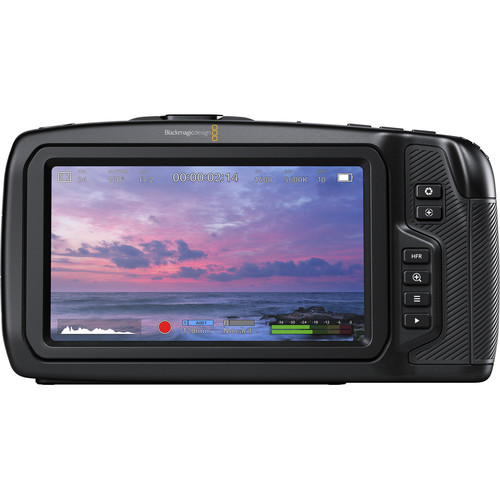
You can apply the LUT to the camera's 5-inch touchscreen and the HDMI output at the same time, therefore everyone on set will see the same colored images while the camera records clean RAW data underneath. According to B&H reviewers, one of the best features of the camera is the ability to view your footage through a LUT on the 5-inch screen, giving you much greater confidence in your color and exposure decisions during the actual shoot.
Improving Your LUT Results
Exposure and White Balance
The greatest impact to how effectively a LUT functions with your Blackmagic Pocket Cinema Camera footage is your exposure. With the camera having dual native ISOs of 400 and 3200, you have two very clean sensitivity settings to choose from, and keeping your exposure at or around one of these native values will help keep the amount of noise low.
Once you're shooting in Blackmagic Design Film mode (which you should be doing if you intend to color grade using LUTs) the footage will appear flat to the eye without a preview LUT being applied. Don't rely on this to tell you whether to overexpose the image to "brighten it up." Follow the histogram and false color overlays instead.
White balance is also important, but there is some flexibility to correct it after the fact when shooting in Blackmagic RAW. However, the closer you can achieve it in-camera, the more predictable your LUT will function, and the closer your on-set monitor preview will be to the end result.
Utilizing a Color Reference Tool
If you want your LUTs to act uniformly regardless of location and lighting condition, a color checker tool is definitely worth investing in. Take a moment to shoot a color reference frame at the beginning of every new scene and you'll have something to normalize your footage with in DaVinci Resolve prior to applying any LUTs. The X-Rite Color Checker Video is the go-to reference tool for this type of task, and Resolve contains several automatic tools for interpreting the color checker charts.
In addition to color checkers, another piece of the puzzle is lighting. Regardless of how many LUTs you have at your disposal, if you're shooting under multiple color temperatures of light (such as daylight balanced key lights and overhead fluorescent lights), no LUT is going to remove the green cast that is present due to the conflicting color temperatures. Therefore, obtaining proper lighting on set provides a solid foundation for LUTs to function off of.
Alternative Options to the Blackmagic Pocket 4K
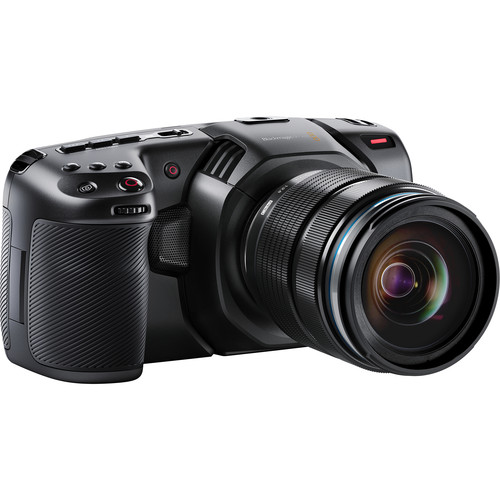
While the Blackmagic Pocket Cinema Camera 4K is an option, the Blackmagic Pocket Cinema Camera 6K G2 offers a slightly larger Super 35 sensor along with a Canon EF lens mount. Both the 4K and 6K models offer the same color science and Blackmagic RAW support, so the previously mentioned LUT applications and workflow apply equally to the 6K models as they do the 4K models. The newer Blackmagic Pyxis line of cameras take things to the next level by utilizing a full-frame sensor along with interchangeable lens mounts.
If you've come from a background of using mirrorless cameras for filming purposes, the majority of mirrorless cameras support LUT based workflows similar to the Blackmagic Pocket Cinema Camera. The overall ecosystem including Blackmagic RAW and the direct integration with DaVinci Resolve give the Pocket Cinema Camera a significant advantage when it comes to the flexibility of color grading. The Blackmagic Pocket Cinema Camera 4K is available on Amazon if you would like to compare prices from different vendors.
Frequently Asked Questions
Can I utilize LUTs directly on the Blackmagic Pocket Cinema Camera while shooting?
Yes. The Blackmagic Pocket Cinema Camera supports 3D LUTs for on-set viewing. You can upload .cube LUT files to your memory card and apply them to both the internal 5-inch screen display and the HDMI output. The LUT will only affect the on-screen preview, not the captured RAW data, allowing you to view your footage with a pre-defined color look on set while maintaining your unaltered RAW data. With the introduction of the 6.6 firmware, you can now also embed LUTs as metadata within Blackmagic RAW files for utilization in DaVinci Resolve.
What format do LUTs need to be for the Blackmagic Pocket Cinema Camera?
Both the Blackmagic Pocket Cinema Camera and DaVinci Resolve use the .cube format, which is the standard format for 3D LUTs. All major LUT manufacturers provide their products in .cube format. If you find a .cube file isn't working properly in Resolve, there are free converters available online. To ensure optimal performance with the Blackmagic Pocket Cinema Camera, verify that your chosen LUT was created for the Blackmagic Design Film or Blackmagic Design Extended Video color spaces.
Are free LUTs suitable for commercial use?
That depends on the specific project. DaVinci Resolve comes bundled with several high-quality LUTs that work well for standard Rec. 709 conversion. Many free LUTs found online can produce excellent creative looks if you select them wisely. Paid LUT packs tend to have the advantage of offering a level of consistency across varying lighting conditions and they typically include more detailed documentation. Paid LUT packs can save you a lot of time if you're producing client work where color consistency is critical.
Should I record in Blackmagic RAW or ProRes for the best LUT results?
Recording in Blackmagic RAW offers the greatest degree of flexibility because you can modify the exposure, white balance, and ISO in post-production without affecting the LUT. Recording in ProRes works well with LUTs as well, but since the data has been processed you have fewer opportunities for correction. Blackmagic RAW at a constant quality setting represents the ideal balance between file size and grading latitude if you don't have any limitations on your storage capacity. This is one reason why B&H reviewers praise the camera's lens compatibility with high-quality glass, as the quality glass captures more of the color detail that LUTs operate with.
Do I require DaVinci Resolve Studio, or can I work with the free version?
You can work with LUTs in the free version of DaVinci Resolve, just as you can with the Studio version. The primary color grading features are essentially the same in both versions. Studio does add some advanced capabilities such as noise reduction, HDR color grading tools, and collaboration features, but for the purpose of applying LUTs and performing basic color grading, the free version of Resolve is sufficient. Since the Blackmagic Pocket Cinema Camera includes a license to the Studio version of Resolve, you receive the full version with your camera purchase.
How do I create my own custom LUTs for the Blackmagic Pocket Cinema Camera?
You can generate your own custom LUTs in DaVinci Resolve by exporting any color grade you create as a .cube LUT file. Create your grade in Resolve on a properly exposed clip, and then right click on the thumbnail of your grade in the Color page and choose "Generate LUT". Resolve will compile your entire node tree into a single LUT file that you can apply to other clips or upload to the camera for on-set monitoring.
Remember, a LUT created using one lighting scenario will not immediately translate perfectly to others. The best way to develop a LUT is to create your grade on a well-exposed, correctly white-balanced clip, preferably one that includes a color checker reference chart.