
Best Video Editing Software for YouTube in 2026
Picking the right video editing software for YouTube depends on what you are actually going to be doing with your footage. A gamer that cuts together screen recording of their gameplay has completely different requirements than a filmmaker that grades Log footage shot with a cinema camera. And the price landscape is a mess, from completely free software that rivals paid alternatives to subscription based services that will charge you monthly until you die.
We looked at all of the major players and narrowed it down to five that cover the full range of YouTube workflows. DaVinci Resolve is our top pick because the free version is truly professional grade. But every editor listed here is perfect for a specific type of creator.
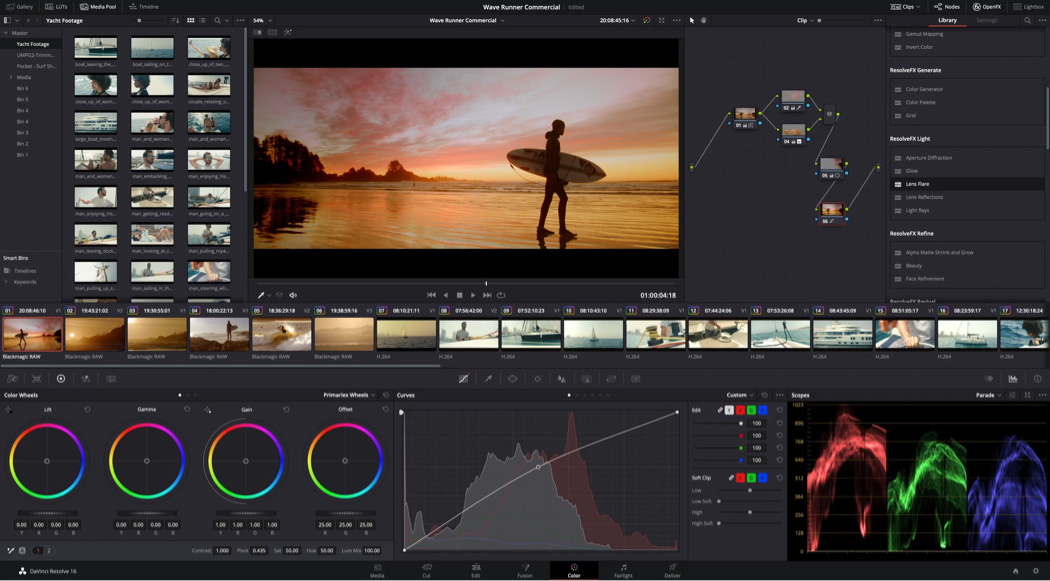
DaVinci Resolve: Best Free Video Editing Software for YouTube
DaVinci Resolve is the elephant in the room when it comes to free video editing. Blackmagic Design gives away what is essentially a full post-production suite for free, no watermark, no time limit, no crippled features. The free version has the full editing timeline, Fusion for visual effects, Fairlight for audio, and the color grading tools that put Resolve on the map in Hollywood.
You get 4K editing, multi-track audio mixing, and a node-based color grading system that professionals are actively using on real productions.
The learning curve is steep though. Resolve is not meant for casual editors. The interface is split into separate pages for managing media, editing, color, effects, audio, and delivery, with each page being essentially its own app. If you have never edited video before, you will spend the first couple of sessions figuring out where things are.
But once you get past that initial learning curve, the payoff is significant. You are learning a tool that can scale from YouTube vlogs all the way up to feature films.
Why YouTube Creators Love It
The cut page is specifically designed for rapid-fire edits, which is exactly what YouTube wants. You can rough-edit a video, add transitions, insert titles, and export to YouTube-friendly formats without ever leaving that single page. The color tools are what sets it apart from other free options. You can match shots, apply film looks, and perform actual color grading that costs hundreds of dollars per plugin on other editors.
The Free vs Studio Question
The free version handles everything most YouTube creators need. DaVinci Resolve Studio adds hardware acceleration for H.264/H.265 encoding (which means faster exports), neural engine features like speed warp and face refinement, HDR grading tools, and multi-user collaboration.
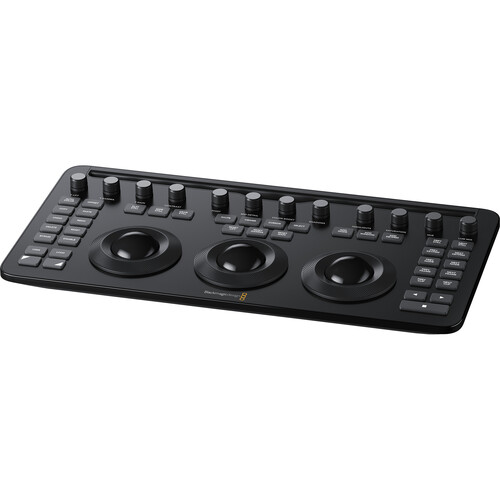
If you are editing 4K or higher resolution footage on a regular basis, the faster encoding by itself makes Studio worth looking into. You can also pick up the Speed Editor bundle which includes Studio and a dedicated editing keyboard.
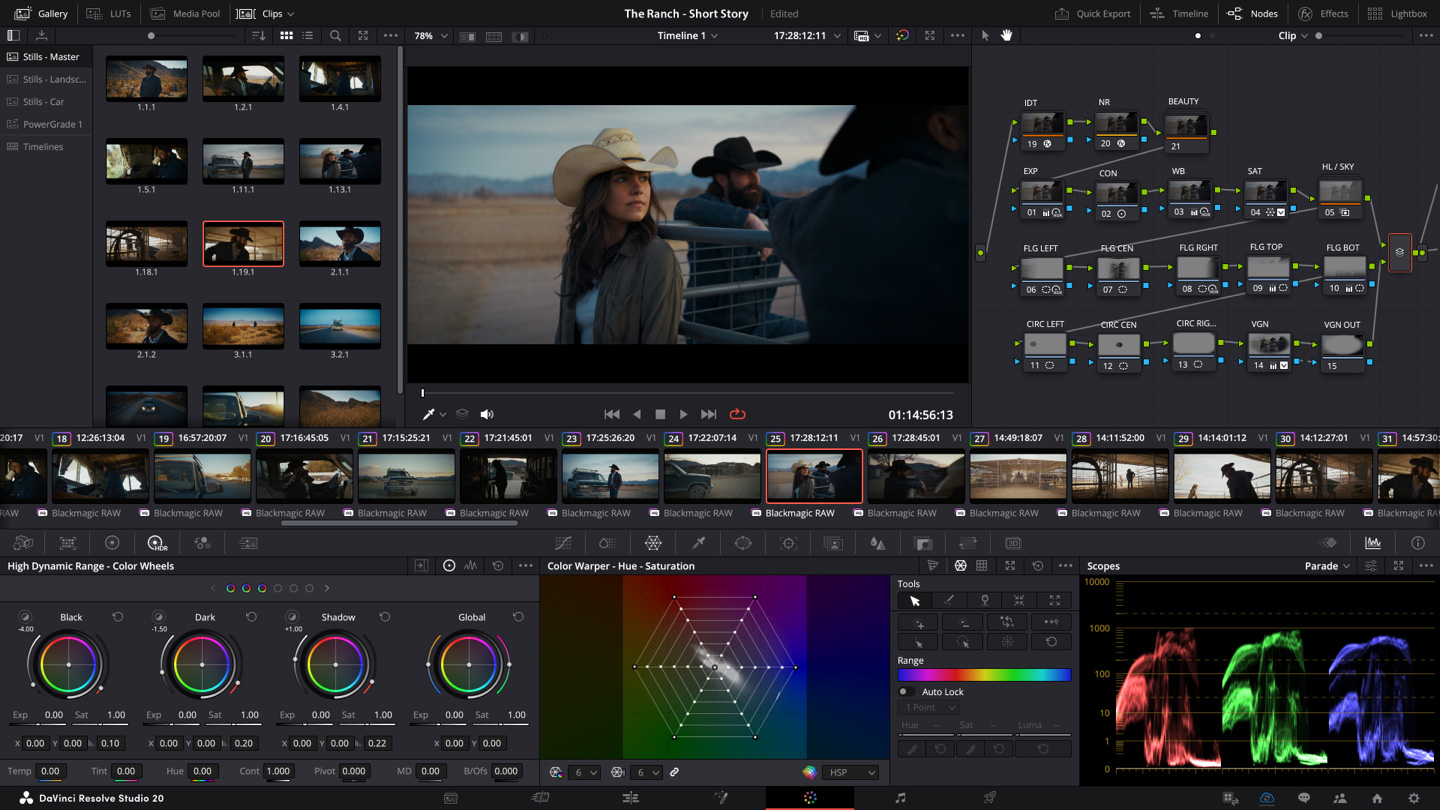
Adobe Premiere Pro: Best for Professional YouTube Teams
Premiere Pro is the industry standard for a reason. Just about every production house, agency, and professional video team uses it. Tutorials are everywhere, preset packs are in abundance, and if you ever collaborate with other editors, they are almost certainly on Premiere.
The timeline is intuitive, the effects panel is robust, and the integration with After Effects, Photoshop, and Audition means your entire post workflow stays in one ecosystem.
The drawback is the subscription model. You are paying monthly for as long as you use it, and Adobe has been progressively increasing prices. For a solo YouTube creator that is just getting started, that monthly fee adds up quickly, particularly when DaVinci Resolve does most of the same things for free.
But if you are operating a channel as a business with several editors, or you are freelancing and need to deliver Premiere Pro project files to clients, it may be impossible to avoid.
Where Premiere Beats Resolve
Premiere Pro can handle mixed media far better than nearly any other editing software. You can put H.264, ProRes, RED RAW, and phone footage in the same timeline and it simply works. The Media Encoder runs in the background, allowing you to keep editing while exports finish rendering.
This is a big deal for channels that publish new videos every day. Additionally, the text-based editing feature allows you to edit video by editing the transcript, saving you a ton of time when creating talking-head content.
Final Cut Pro: Best for Mac-Based YouTube Creators
If you edit on a Mac, and want something that feels fast and native, Final Cut Pro is difficult to compete with. Apple specifically optimized it for their silicon chips, and the performance difference is noticeable. Timeline scrubbing is silky-smooth, rendering occurs in the background, and exporting on an M-series Mac is remarkably fast.
It is a one-time purchase as well, which makes it more attractive than Premiere's subscription pricing over time.
The magnetic timeline takes some time getting accustomed to if you are coming from Premiere or Resolve. Instead of tracks, everything snaps together like puzzle pieces, which either feels incredibly efficient or incredibly frustrating depending on the way your brain works.
YouTube creators who shoot a lot of multicam content love the automatic sync and angle switching features. The organization tools with smart collections and keyword tagging are also great for channels that produce a large volume of content.
The Catch
Final Cut is Mac only. No Windows version, no Linux version, no web version. If you ever switch to a PC or need to collaborate with Windows users, you are stuck converting projects. It also has a smaller third-party plugin ecosystem compared to Premiere, although the basics are well covered. For a solo Mac-based YouTube creator though, it is arguably the quickest path from raw footage to a published video.
CapCut and Filmora: Simpler Alternatives Worth Knowing
CapCut exploded alongside TikTok and has quickly become a legitimate editing tool. The desktop version is surprisingly capable for free software, with a clean timeline editor, built-in effects, auto-captions that actually work well, and direct export to YouTube, TikTok, and Instagram.
For creators who focus on Shorts, Reels, and vertical content alongside their main YouTube videos, CapCut handles the entire workflow. The auto-caption feature deserves special attention because captions significantly boost engagement and watch time on YouTube.
Wondershare Filmora falls in that middle ground between CapCut's simplicity and Premiere's complexity. The interface is clean and easy to approach with a traditional timeline layout, drag-and-drop effects, and a massive library of built-in transitions, titles, and music. It is the type of editor where you can go from zero experience to publishing your first YouTube video in a single afternoon.
It is not as powerful as DaVinci Resolve in any individual area, but everything works without the learning curve. Filmora offers both a subscription and a perpetual license, though the perpetual license only covers one major version.
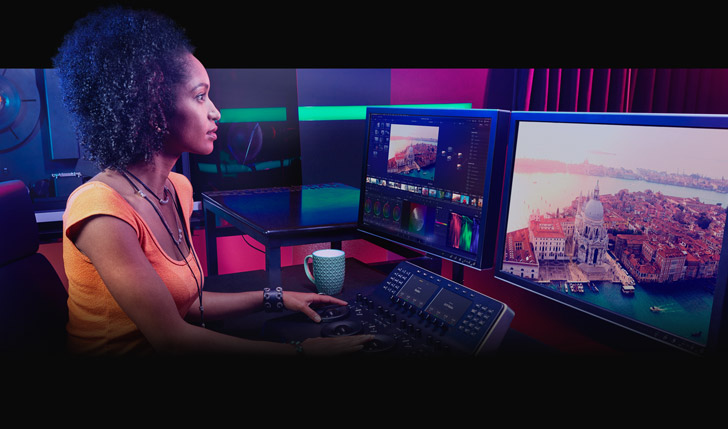
Neither CapCut nor Filmora are designed for long-form complex editing. The timelines start to feel cramped with more than a few tracks and the color grading tools are basic in comparison to Resolve or Premiere. But for creators who want simplicity or need a quick tool for social media content alongside their main editor, both are worth having in the toolkit.
Frequently Asked Questions
What is the best free video editing software for YouTube?
DaVinci Resolve is the best free video editing software for YouTube by a wide margin. The free version includes professional color grading, a full editing timeline, visual effects through Fusion, and audio mixing through Fairlight. No other free editor comes close to that feature set.
You can check out DaVinci Resolve Studio at B&H if you want the paid version with hardware-accelerated encoding.
Is DaVinci Resolve really free?
Yes, the free version of DaVinci Resolve is genuinely free with no watermarks, no time limits, and no feature lockouts on the core editing tools. Blackmagic Design makes their money selling the Studio version and hardware panels like the Speed Editor and cinema cameras. The free editor is their way of getting people into the ecosystem.
Should I use Premiere Pro or DaVinci Resolve for YouTube?
If you are a solo creator on a budget, DaVinci Resolve is the smarter choice. It is free, it has better color grading tools, and it handles everything a YouTube channel needs. If you are working with a team, need Adobe ecosystem integration, or your clients expect Premiere project files, then Premiere Pro makes more sense despite the subscription cost. You can also find Resolve on Amazon with various bundle options.
Can I edit 4K YouTube videos on a budget computer?
You can, but expect some compromise. DaVinci Resolve and Premiere Pro both support proxy workflows, where you edit with smaller files and swap in the full resolution footage for export. This makes 4K editing manageable on mid-range hardware. Resolve's optimized media feature is particularly effective at this. Final Cut Pro on Apple silicon handles 4K natively without proxies, which is one of its biggest advantages.
What editing software do big YouTubers use?
It varies widely. Many use Premiere Pro because that is what they learned or what their editors know. A growing number have switched to DaVinci Resolve, especially creators who care about color grading and editing workflow. Final Cut Pro is popular among Mac-based creators. Some of the biggest channels use multiple editors for different content types, Premiere for long-form and CapCut for Shorts.
Do I need a powerful computer to edit YouTube videos?
For basic 1080p editing with CapCut or Filmora, a modern laptop with 8GB of RAM will get the job done. For 4K editing in Resolve or Premiere, you want 16GB of RAM minimum, a dedicated GPU, and an SSD for your media storage. The more tracks, effects, and color grading you add, the more your hardware matters.