
MacBook Pro Nano-Texture Display: Is It Worth It for Video Editors?
Apple sells the same MacBook Pro screen in two finishes, and the matte one costs extra. Most people choosing options on Apple's site have never seen nano-texture glass in person, so the decision comes down to a short blurb and a guess about where they'll be working.
For video editors that guess matters more than usual. A screen that kills reflections sounds perfect until you wonder what it does to the blacks and colors you're grading, and the people who own these laptops rarely talk about the glass at all.
So here's how the etched glass works, what lab tests have found about color and contrast, where editors really use a laptop screen, and how to live with the finish once you have it.
The nano-texture display is worth it for editors working near windows or on set, but it's hard to justify if you only edit in a dim room.
While the finish eliminates harsh reflections, it introduces a slight softness and lighter blacks compared to the glossy glass. Lab tests show there is no loss in color accuracy. This trade-off makes sense for outdoor use.
What Apple Etches Into the Glass
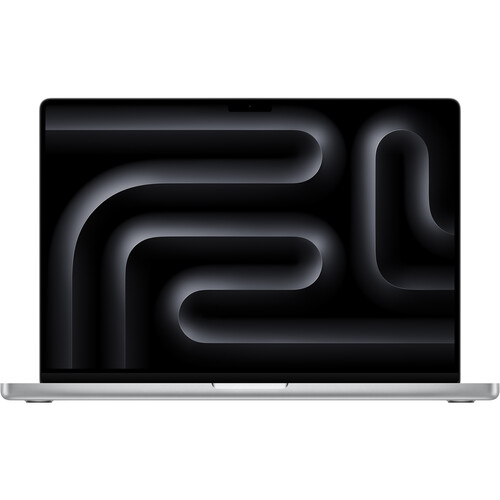
The nano-texture finish works by etching the glass itself at a nanometer scale rather than just adding a coating, which helps to scatter reflected light into a soft haze instead of a sharp mirror. This specific technique first appeared on the Pro Display XDR back in 2019, reached the MacBook Pro in October 2024, and every current M5, M5 Pro and M5 Max model offers it.
Because the surface is built into the material, you don't have to worry about a film wearing off over time as you use the laptop.
The panel features a 3024x1964 resolution and can hit 1000 nits for SDR outdoors, while it reaches 1600 nits for HDR content. It uses ProMotion technology to hit up to 120Hz, with fixed rates running between 47.95 and 60Hz when you need specific timing. Since the glass scatters the light, you can work near a bright window without seeing your own face staring back at you.
Does It Hurt Color and Contrast for Grading
While you might worry that a matte finish ruins your color work, Tom's Guide lab tests show that the nano-texture glass hits 80.2% of the P3 color space with a Delta-E of 0.19, slightly better numbers than the glossy M3 MacBook Pro it was tested against. This means the color accuracy stays very high even with the etched surface, so you won't lose precision just because you want to avoid glare.
Consumer Reports found that the screen shows natural colors and better contrast than most laptops they have tested, yet some owners of the Studio Display say the image looks slightly fuzzy or smudged when you look close.
This happens because the finish scatters light, which can make blacks look lighter compared to the deep shadows on a glossy panel. If you work in a dark room, the glossy finish might win on depth, but the nano-texture wins when you sit near a window or under bright lights.
Since HDR mastering belongs on a reference display in a controlled environment anyway, you shouldn't worry too much about how the finish affects your final grade. The ambient light is what really changes how an image looks, so you should control the room first instead of worrying about the glass. This screen is good enough for most people who need to work on the go without fighting reflections.
Where Editors Actually Use a Laptop Screen
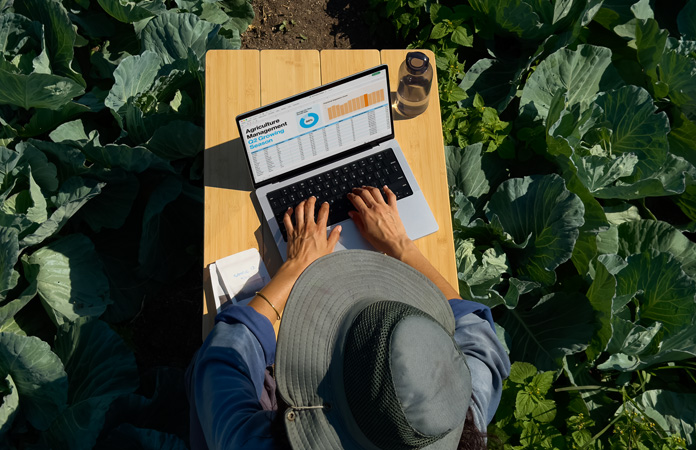
Near a bright window, in a busy hotel lobby or under harsh office lights, the nano-texture finish is the most practical way to avoid constant glare.
In Tom's Guide's test in direct sunlight, the reviewer could see trees reflected in an older glossy MacBook Pro and no reflections at all on the nano-texture screen. The etched surface scatters incoming light so you can actually see your timeline without fighting a mirror image of the room. It makes the laptop much more usable when you can't control the lighting environment.
Most buyers talk about speed instead: one verified 16-inch M5 Pro buyer says a video editing process that took five to six hours on an M2 Mac mini now takes 22 minutes, and another says exports run 30 to 40 percent faster than on their M2. Almost nobody mentions the glass, which is itself worth knowing, though one buyer says glare is virtually eliminated.
I'd tell you to tick the box for this option if you spend a lot of time outdoors or in spots with overhead lighting. You might notice the text looks a tiny bit fuzzy compared to the glossy version, but the trade-off is worth it for the lack of distractions.
Living With It: the Cloth Rule and Cheaper Ways to Kill Glare
Choose the nano-texture glass and you have to follow Apple's cleaning rules for the etched surface. Apple only ships the specialized polishing cloth with this display option, so you should use it for every single wipe to avoid damaging the finish.
For a stubborn smudge, you can dampen the cloth with 70-percent isopropyl alcohol, but don't use other liquids. If you lose the cloth, Apple sells a replacement, and the cloth itself can be hand-washed with dish soap and water and left to air-dry for 24 hours.
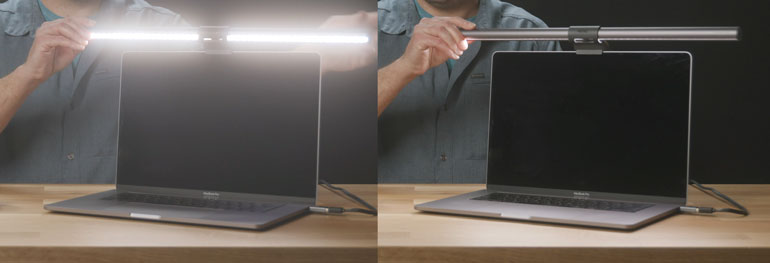
Apple's guidance mentions nothing but the included cloth touching this glass, so I'd skip screen protectors entirely. If you want to stop glare at a desk without the upgrade, you can control the light in your room or use a monitor light like the BenQ ScreenBar Halo.
In our own ScreenBar reviews in 2019 and 2022 we found the light bar lit the desk without throwing reflections onto the screen, unlike most desk lamps, and that's a much cheaper fix than a new display.
For editors who mostly work in dark rooms or don't mind slightly soft text, you can skip this expensive option entirely. The matte finish scatters light to kill reflections, but it also makes blacks look less deep compared to the glossy glass. If you aren't working under bright windows, the standard screen is probably enough for you.
Frequently Asked Questions
Is the nano texture screen worth it for video editing?
This finish is great if you work in bright or changing light environments, but it might feel unnecessary if you only edit in a dim room. The anti-reflection helps you focus on your timeline without distracting glare.
Does the nano texture glass lose color accuracy?
Lab tests show a tiny Delta-E of 0.19 and 80.2% P3 coverage, which means there is no noticeable loss in color accuracy for users. The colors remain natural and accurate for most professional tasks.
Can I use a standard screen protector on this?
Apple's cleaning instructions only cover the included polishing cloth, and nothing in them allows a protector. I wouldn't put one on it.
How do I properly clean the nano-texture display?
You should use only the included polishing cloth, though you can dampen it with 70-percent isopropyl alcohol for stubborn smudges. When the cloth itself gets dirty, hand-wash it with dish soap and let it air-dry for 24 hours.
Which MacBook Pro models have the nano-texture option?
You can find this finish on all current models, including the 14-inch M5 and the 14-inch and 16-inch versions with M5 Pro or M5 Max chips. Every machine in the current lineup offers this configuration.
Does the nano-texture display make text look blurry?
Some owners of nano-texture Apple Studio Displays describe text as a tiny bit fuzzy up close, and one returned theirs because the whole screen looked smudged. The lab color numbers don't show that effect, so look at one in a store before you order.