
External SSD for Video Editing: What to Buy and Why It Matters
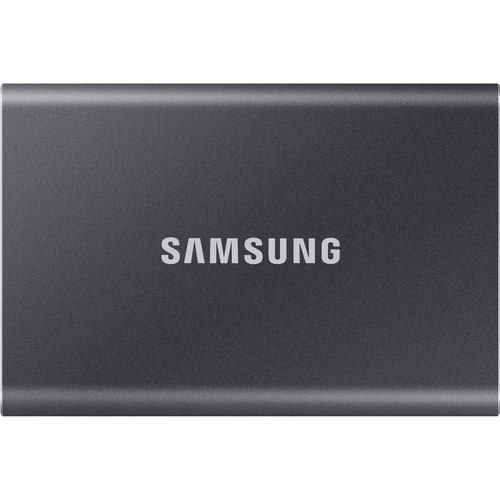
If you are creating video content on an external hard drive, you have probably felt the frustration that occurs when attempting to edit video. Slow moving through timelines, slow rendering, and slow playback are a thing of the past once you switch to an external solid-state drive (SSD). The Samsung T7 portable SSD is among many drives recommended by users in forums, and for good reason. It is small, it is fast for most video editing applications, and it has been on the market for long enough for bugs and issues to be addressed.
However, there are many external SSDs available today, and each may offer different features and specifications. The characteristics of an external SSD that will best support video editing are not always those that manufacturers advertise, therefore, it is crucial to understand the differences between various SSDs.
Why External SSDs Are Better Than Traditional Hard Drives for Video Editing
A Substantial Difference in Speed
Traditional spinning hard drives have maximum read speeds of 100-150 MB/s. This is acceptable for storing completed video content, however, this is unacceptable for video editors who require high-speed access to their raw footage. The typical amount of data required to maintain a single 4K ProRes 422 HQ stream is approximately 110 MB/s of constant throughput. Therefore, traditional hard drives will become bottlenecked when attempting to display a second video layer or when adding any additional effects.
External SSDs begin at around 500 MB/s for SATA-based SSDs and reach speeds of 2,000 MB/s or greater for NVMe SSDs. The Samsung T7 sits squarely in the middle with its rated read speeds reaching up to 1,050 MB/s. With such a large amount of overhead, the T7 provides ample room to allow for multi-camera 4K video editing. As mentioned above, numerous reviewers from B&H have stated that the T7 is able to handle their editing workloads smoothly and without any stuttering. In fact, one reviewer has utilized these drives for over six years across multiple MacBook Pros and iPad Pros and has never experienced a failure.
Physical Size Matters When Doing Field Work
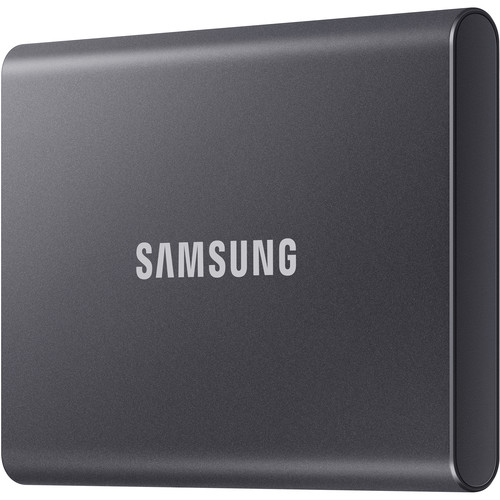
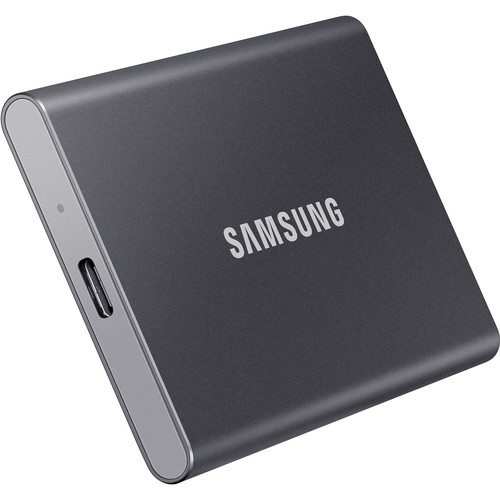
One aspect of storage that many users do not consider when utilizing external SSDs for fieldwork or on-location editing is the physical size of the storage device. The smaller the device, the easier it is to transport. The T7 is extremely small measuring approximately 3.3 x 2.2 x 0.3 inches and weighing a mere 58 grams. The T7 is easily attachable to a camera cage, can be placed in a pocket, and can be mounted to a rig without adding significant weight. Compare this to carrying a bus-powered 2.5-inch hard drive that is three times larger and slower than the T7.
NVMe vs SATA: How Each Type of SSD Impacts Your Timeline
Understanding the Bus Interface Type
This is where external SSDs get confusing, because many manufacturers choose not to disclose what technology is actually inside the enclosure. There are two primary forms of SSD technology used in external drives.
SATA-based external SSDs utilize the same interface technology as older 2.5-inch internal SSDs. They cap out at approximately 550 MB/s regardless of what the enclosure supports. These are the budget options, and although they represent a huge leap forward from traditional hard drives, they are nearing their limits.
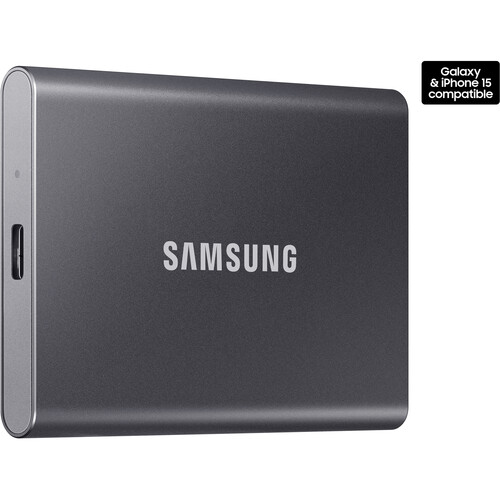
NVMe-based external SSDs utilize PCIe bus technology, which is significantly faster. The Samsung T7 uses NVMe technology internally and connects via USB 3.2 Gen 2, providing up to 1,050 MB/s reads and 1,000 MB/s writes. That is nearly twice the performance of a SATA-based SSD via the same USB connection.
Which Speed Do You Actually Need
If you are working with standard 4K H.264/H.265 media in DaVinci Resolve or Adobe Premiere Pro, then a SATA-based SSD is likely sufficient. Compressed data streams like H.264 and H.265 are typically transmitted at very low data rates, allowing you to move through your timeline quickly and render clips in your project quickly.
On the other hand, if you are working with ProRes, RAW, or multicam projects, an NVMe-based SSD will make a noticeable difference in your workflow. ProRes 4K at 60fps requires roughly 200 MB/s of continuous throughput, and adding several layers of effects or color grading will also benefit greatly from the increased bandwidth provided by an NVMe SSD. The T7's NVMe architecture provides the bandwidth you need without requiring a major investment.
Samsung T7 Specifications That Matter to Video Editors
Available sizes for the T7 include 500GB, 1TB, 2TB, and 4TB. A 2TB size is the bare minimum for any serious video editor. You can get the Samsung T7 2TB at B&H Photo and it's pretty much always in stock.
T7 Specs Overview
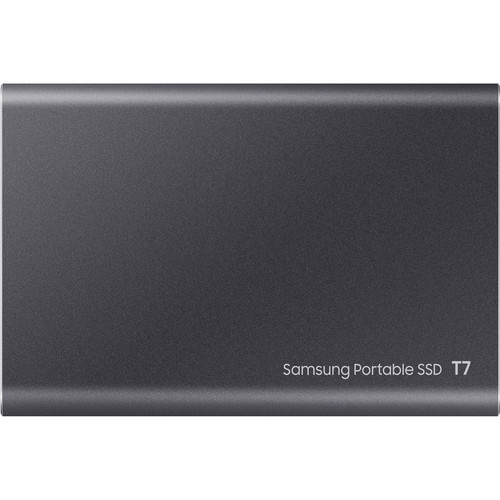
Here are the key specs for the Samsung T7:
- Read speed: Up to 1,050 MB/s
- Write speed: Up to 1,000 MB/s
- Interface: USB 3.2 Gen 2 (USB-C), backward compatible with USB 3.0 and USB-A
- Encryption: 256-bit AES hardware encryption with optional password protection
- Durability: Drop tested to 6.6 feet
- Weight: 58 grams (virtually nothing)
- Dimensions: 3.3 x 2.2 x 0.3 inches
- Included cables: USB-C to C and USB-C to A
The USB 3.2 Gen 2 interface is important because it allows for a maximum of 10 Gbps transfer rates. If your host system only has USB 3.0 ports (5 Gbps), you will be limited to roughly half the drive's theoretical transfer rate. Check the type of ports available on your host system prior to purchasing an external SSD.
B&H User Reviews Regarding Reliability
As of this writing, there were over 1,000 user reviews posted on B&H regarding the Samsung T7. Users consistently praise its reliability and compact design. Several users have purchased their second or third T7 due to the success of their previous purchases. The T7 has been proven to function flawlessly with both Mac and Windows systems as well as with the iPad Pro for proxy editing workflows.
While the Samsung T7 is generally praised by users on B&H, it does not come without issues. One reviewer reported that the T7 had severe speed degradation after only a couple of uses. This reviewer was able to complete 17 GB transfers in hours versus seconds. While this is not a common complaint in the reviews, it is something to be aware of. Sustained write loads (such as uploading an entire days worth of footage), may cause the drive to slow down or throttle until it cools down.
Setting Up Your External SSD for Editing
Format Matters
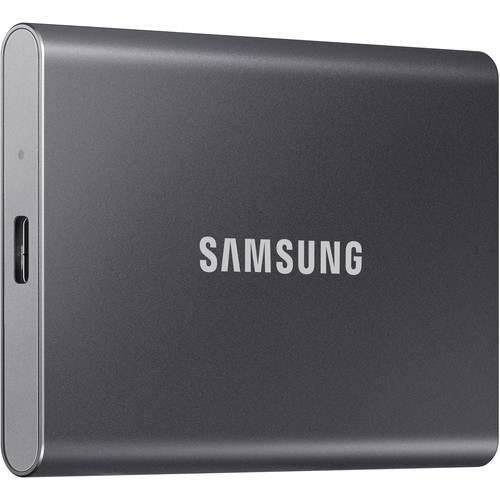
First off, when you receive your external SSD, do not just dump your footage on it. The format you put your external SSD in will affect how fast your SSD runs, how many types of file systems your SSD is compatible with, and how large your files are going to be.
So for all you Mac only users out there, go ahead and format your SSD as APFS. The reason being, APFS is the format of choice for SSDs and they do very well with the constant random reads and writes that your editing software does. Many of the B&H reviewers have formatted their T7 to APFS and are using them for Time Machine backups in addition to their editing projects.
For the rest of us who work in a cross platform environment (Mac and PC) then go ahead and format your SSD as exFAT. While it is not as fast as either of the other two formats we talked about, it will allow you to store files on a Mac and access them from a PC and vice versa without having to use any additional software. Yes you will lose some performance by using exFAT instead of APFS, but it is normally worth the trade off for the added convenience of being able to collaborate with teams that may be using different operating systems.
Optimizing Your Editing Workflow
To really optimize your editing workflow, you should be storing your project files and cache on your external SSD in addition to your original footage. To do this, in Adobe Premiere Pro, you simply need to tell Premiere Pro to place its media cache on the external SSD. In DaVinci Resolve, you simply need to select your external SSD as the location for your cache and gallery. This will make a huge difference in your ability to edit. The main reason for this is because your editing software is constantly accessing and modifying small amounts of data for your preview, thumbnail generation, and render caching.
The Samsung T7 is a great little portable editing package when paired with an on-camera monitor. And this is a great little package for editing on location with your MacBook Pro.
Alternatives Worth Considering
As mentioned above, the Samsung T7 is the safest bet. However, there are other options based on what you are looking for in a portable SSD.
Samsung T7 Shield
If you are doing outdoor or rough location filming, the Samsung T7 Shield offers the same 1050 MB/s speeds plus IP65 rated water and dust resistance. It features a rugged rubberized exterior that absorbs drops better than the standard T7. Costs a bit more, but if you are doing run and gun documentary style filmmaking, the extra protection is worth it.
Samsung T9
If you need faster speeds for your editing workflow, the Samsung T9 offers up to 2000 MB/s using USB 3.2 Gen 2x2. That is almost double the speeds of the T7. Keep in mind, however, that your laptop will need to have a USB 3.2 Gen 2x2 port to achieve these speeds. Most laptops currently do not have USB 3.2 Gen 2x2 ports. If you have a laptop that does have a USB 3.2 Gen 2x2 port, the T9 is genuinely faster for heavy 4K and 6K editing workflows.
SanDisk Extreme Pro Portable SSD
The SanDisk Extreme Pro is the T7's closest competitor with similar speeds, form factor, and pricing. It does offer built-in IP65 water resistance that the standard T7 lacks. Some editors prefer the Extreme Pro's carabiner loop for clipping the drive to their bag or rig. You can also find the SanDisk Extreme Pro on Amazon if you want to compare prices.
LaCie Rugged SSD Pro
If you are a professional editor who needs Thunderbolt 3/4 speeds, the LaCie Rugged SSD Pro offers up to 2800 MB/s. It is overkill for most workflows, but if you are working on 6K BRAW or 8K Red footage, this is the type of drive that keeps up. We have reviewed the LaCie 2big Dock before as a desktop RAID solution, and their portable SSD lineup is just as solid for on the go editing.
Common Mistakes to Avoid
A few mistakes trip people up when buying an external SSD. First, do not confuse the USB port type with the USB speed standard. Just because your computer has a USB-C port, that does not mean it supports USB 3.2 Gen 2 speeds. Some USB-C ports only support USB 2.0 speeds (480 Mbps), which would limit any SSD to approximately 60 MB/s.
Second, do not underestimate how much capacity you need. A 500 GB SSD fills up fast with 4K footage. An hour of 4K ProRes 422 takes up approximately 100 GB of space. For any serious video editing, 2 TB is a good starting point, and 4 TB gives you room across multiple projects.
Finally, avoid buying the cheapest no name SSD you can find. Budget SSDs typically use QLC NAND, which will degrade rapidly under prolonged write operations. For a complete editing workstation, you will also want a good 4K editing monitor to pair with your external storage.
Frequently Asked Questions
Can you edit 4K video from an external SSD?
Yes, and it works very well. An NVMe external SSD such as the Samsung T7 has a read speed of 1,050 MB/s. This is more than enough bandwidth for 4K H.264, H.265, and ProRes editing. You will have a smooth playback and responsive scrubbing in Premiere Pro, DaVinci Resolve, and Final Cut Pro. In fact, the editing experience is virtually indistinguishable from editing from an internal SSD for most 4K workflows.
Is USB-C fast enough for video editing?
It depends on which USB-C standard your port supports. USB 3.2 Gen 2 (10 Gbps) handles up to about 1,000 MB/s, which works great for most editing. USB 3.2 Gen 1 (5 Gbps) caps at about 500 MB/s, still usable but you lose some of the drive's capabilities. Thunderbolt 3/4 ports support up to 40 Gbps and are the fastest way to connect to an external SSD.
How much storage do I need for video editing?
For 4K video editing, 2 TB is a practical minimum. One hour of 4K ProRes 422 footage takes up roughly 100 GB of space, so a day of shooting can fill 500 GB to 1 TB. If you are working on multiple projects at once or shooting in RAW, then 4 TB gives you much greater flexibility.
Does the Samsung T7 work with iPad Pro for video editing?
Yes. The Samsung T7 is compatible with iPad Pro models that have USB-C ports. You can plug it in and edit footage in apps like LumaFusion. B&H reviewers confirm it also works with iPhone 15 Pro for recording ProRes video directly to the drive at 4K/60 FPS.
NVMe or SATA external SSD for video editing?
NVMe if your budget will permit. SATA external SSDs max out around 550 MB/s, whereas NVMe drives like the Samsung T7 reach 1,050 MB/s or more. For compressed 4K codecs (H.264/H.265), SATA is adequate. But for ProRes, RAW, and multi-camera editing, NVMe gives you the sustained bandwidth you need. The cost gap between SATA and NVMe externals has shrunk significantly, making NVMe the better value for editing work.
Will an external SSD slow down my renders?
An external SSD can affect render times, but typically it is not the limiting factor. The CPU and GPU do most of the heavy lifting during rendering. Where the SSD makes the biggest difference is during the read phase (pulling source clips) and the write phase (saving the rendered file). A fast external SSD keeps these phases from becoming the bottleneck, especially when you are rendering to the same drive you are editing from.