
Does the Apple Thunderbolt Display Work with a New MacBook Pro?
Apple's old Thunderbolt Display was built to last, and plenty of them are still sitting on desks, perfectly usable, next to new MacBook Pros that don't have a matching port. It's a shame to throw away a big, good-looking screen just because the plug changed.
There is a way to connect them, and owners have had good results with it, but it has limits and a price, and for some people the money is better spent on a newer display.
Below is the one adapter that works, what the connection gives you, when to buy the Studio Display instead, and the caveats.
You can connect your older Thunderbolt Display to a modern MacBook Pro using the Apple Thunderbolt 3 to Thunderbolt 2 adapter since it's the only product of its kind available to bridge that gap. While this small tool is a bit pricey, it saves you a lot of money compared to buying a completely new backup drive or monitor.
For something more modern, the Apple Studio Display is the clean step, and one owner has loved that it's a single cable and done. Otherwise, the adapter path is the answer.
The Adapter: Only Choice, and It Works
One buyer has pointed out that this is the only product of its kind, so there isn't much choice. An owner has had two units work perfectly every time, though they failed on the new Neo line. Another has called it the perfect adapter for the job and has connected a 2026 MacBook Pro to a 27-inch Apple display with it, which is exactly the question this article answers.
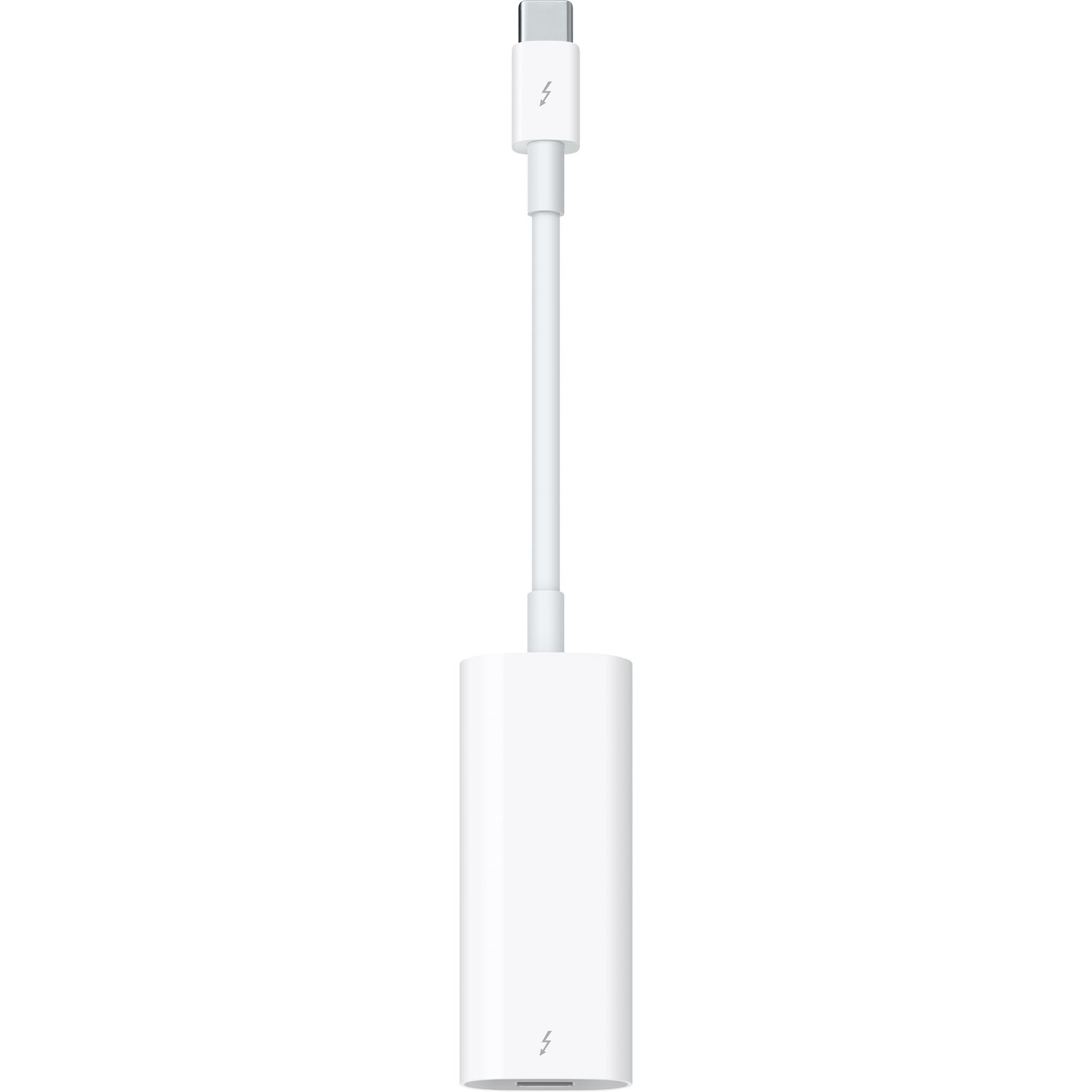
A reviewer has noted that connecting an older Mac screen to their MacBook Air was so easy, which made their daily work feel much simpler than it was when they struggled with the setup.
Another user with an M4 Pro found it stayed stable and worked immediately without any weird glitches. One owner has found the cable good quality and working, but too expensive for what it does, and another has connected an old Thunderbolt Display to a 16-inch M4 Pro MacBook Pro and had it work right away.
While the cost might seem a bit high, it remains a whole lot cheaper than buying a completely new backup drive or a high-end monitor for your desk setup. You save money by using the adapter, even if you have to pay a premium for it right now. If you want to keep your old gear, you've got the only path forward for most people.
The piece bridges the gap between old ports and modern hardware. The interview-kit workflow and the gimbal field guide both ride the same accessory chain - and B&H's adapter stock prices it.
What the Connection Gets You
Using this small adapter to link your old Mac screen to a new computer is a huge win, because it lets you keep using that large display without spending money.
One buyer has found that connecting the monitor was easy, and it made work simpler. Another owner has said it worked great and they're glad to use the big screen again. No struggle, no new purchase.
Keeping the old display beats the replacement math, especially since the hardware is already on your desk. The ports changed. The display didn't have to, and No Film School's desk guides cover the same keep-your-gear logic.
While some might want the latest tech, repurposing an old Thunderbolt display allows you to build a workstation for a fraction of what a new setup costs.
The setup helps you stay productive, because you have the screen space you need. Having that extra view changes how you focus, as you can see more at work. The older investment stays useful - which is the entire point of a thirty-dollar bridge between ports.
When to Buy the Studio Display Instead
One owner has called it one of the best upgrades they've made to their workspace, with an incredibly sharp 5K Retina screen, a tilt stand that works perfectly and a single cable to connect. One reviewer says the colors look great, though they wish it had a network card or extra ports. It feels like a big step forward, which helps any person who needs high detail for their work.
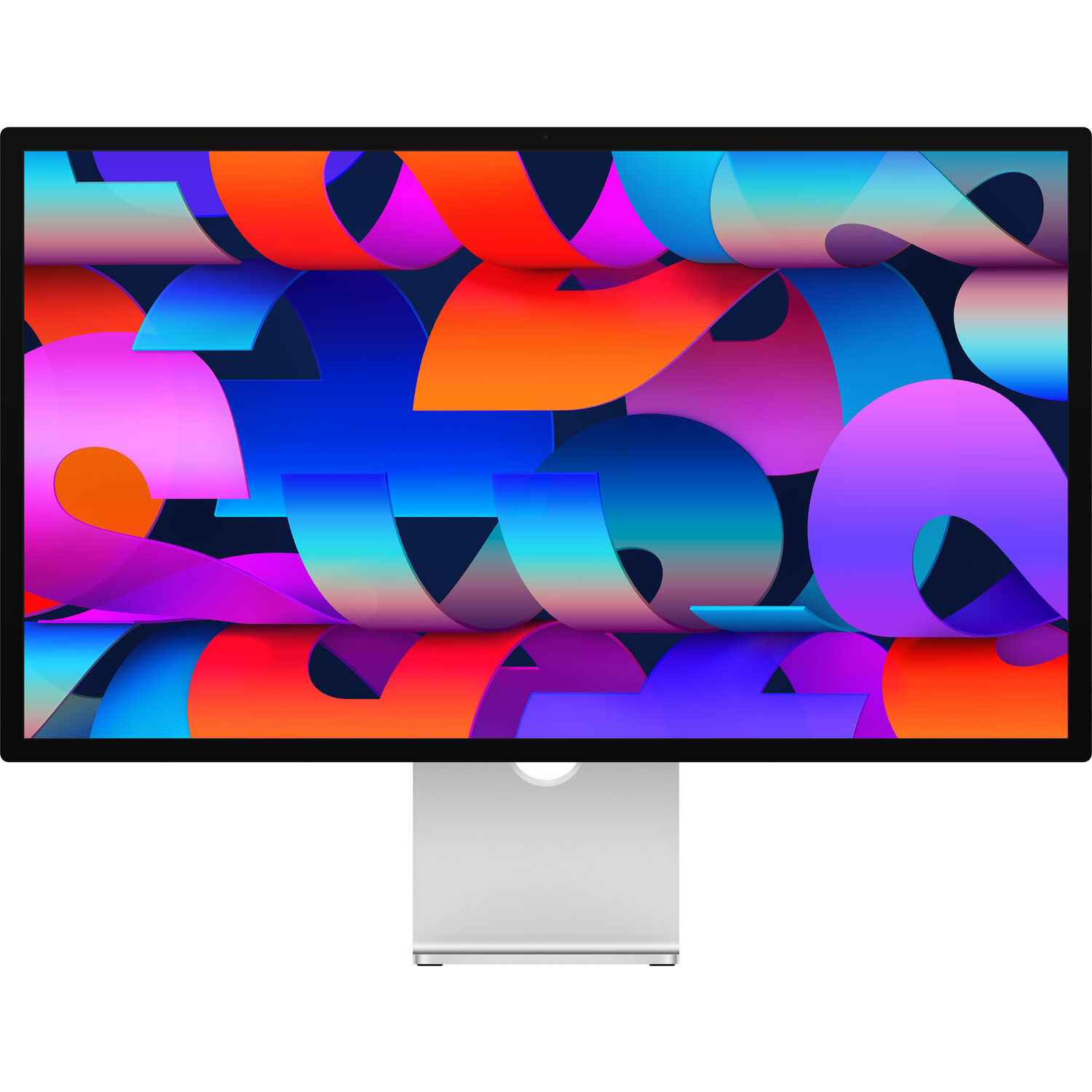
A buyer wishes the stand adjusted up and down and doesn't understand why the ports are placed where they are, but has still found it a little pricey yet worth the cost. Still, the design fits well with a Mac setup, since it looks like it belongs in that family.
Even though the cost is high, this screen is certainly worth the money if you want the best tech that Apple makes for your daily work right now. The image shows the thin frame on a modern desk. Skip the adapter and get something fresh, though one reviewer has pointed out that it isn't four or five times better than cheaper screens.
The Caveats
While the adapter helps connect your old screen to a new Mac, you should know that it fails to work on the brand new Neo-line hardware, which is a big shame.
Some buyers say the part is just too expensive for what it gives, especially since it only carries data and video. This little tool is passive, so it won't send power to the MagSafe port on your old display at all. You'll need to plug the monitor into a wall outlet to keep it powered up while you work.
With a display from the 2011 era, the image quality might not be worth the cost of the adapter just to make it work with a modern laptop. It feels like a waste.
The old pixels look thin against modern screens - sometimes the honest answer is replace, not adapt, and the everyday-tier comparison runs the same logic. PetaPixel's display coverage reads the same keep-versus-replace decision from the photo side. Save the money for a sharper screen instead.
Frequently Asked Questions
Does it work at full resolution?
The Thunderbolt Display functions at its full native resolution when you connect it to a modern laptop using the correct hardware piece. Users get the sharp image they expect for their creative work without any blurring or distortion.
Which adapter?
You need the official Apple Thunderbolt 3 to Thunderbolt 2 adapter to bridge the gap between the old monitor and your new laptop. This specific piece is the only option available for this connection at this moment.
M-series Macs?
Modern M-series chips like the M4 Pro connect to these older displays immediately without any issues once the adapter is plugged in. It's a stable connection that stays up while you're working on long video projects.
Studio Display worth it?
The Studio Display offers a significant upgrade for anyone who wants a sharp 5K screen and a single cable setup for their desk. It costs more but the build quality is very high for professional editors.
Cheaper alternatives?
Using your existing monitor with an adapter is much less expensive than buying a brand new screen or a high-end display system today. This method saves mid-range money while keeping your old gear in use for years.