
Computer Hardware for Video Editing: What Actually Matters
Each year, the battle for the most impressive specs sheet in video editing gets worse. We see more cores, more VRAM, and generally, more of everything else. Yet each year, editors continue to purchase machines that have numbers that look fantastic on paper, yet in practice, those numbers do little to shorten the amount of time they spend editing.
When it comes to computer hardware for video editing, most editors are spending money in the wrong places. Whether you're considering purchasing a machine such as the Apple Mac Studio M4 Max or building a custom PC tower, the priority list of items that will truly help you to edit faster doesn't resemble what you've read in marketing materials.
So let's simplify things. Below is the order of importance for computer hardware used for video editing, from highest to lowest based on how much the item affects your timeline.
CPU: The Starting Point of Almost Every Edit
Your processor does all of the heavy lifting on almost everything except for tasks that utilize your GPU. Tasks such as playing back your timeline, moving the play head around your timeline, mixing audio, creating conformations, exporting media, and stabilizing media in many applications. For general video editing performance, your processor is the number one most important component and arguably the least understood.
Core Count vs. Clock Speed
Here's the issue. Many NLEs don't take full advantage of all of the cores you purchased. For example, Premiere Pro has historically been very poor at utilizing multiple cores for timeline playback. While DaVinci Resolve has been shown to be somewhat better at utilizing additional cores, you'll still encounter diminishing returns.
The core count that is far more important for responsive timeline behavior is the processor's single threaded clock speed. In terms of responsiveness in your daily workflow, a processor that has 12 cores at a 4.5 GHz clock speed will be more responsive than a processor that has 24 cores at a 3.2 GHz clock speed.
However, if you plan on producing batches of deliverables all day long, having more cores will ultimately save you time. However, if you're planning on simply editing (scrubbing, cutting, etc.) the clock speed of individual cores is the deciding factor.
Apple Silicon vs. x86
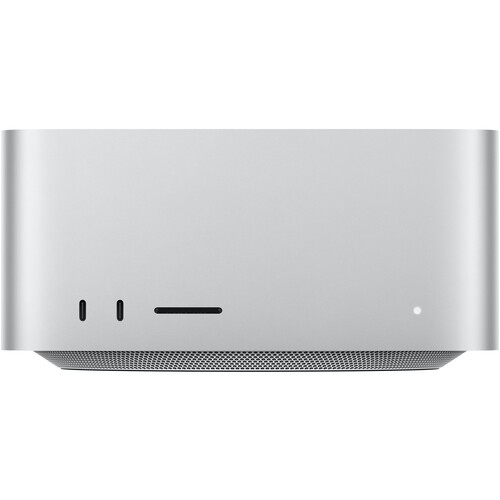
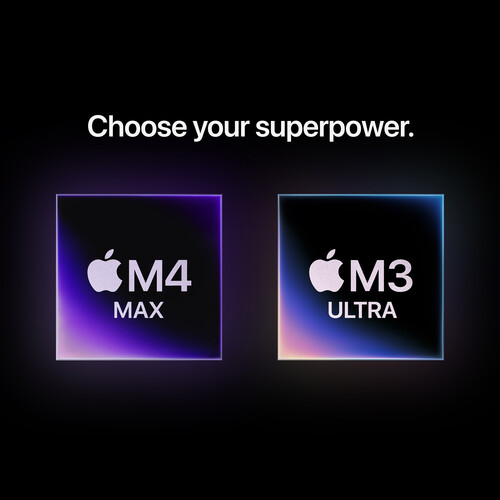
The M4 Max in the Mac Studio has essentially changed this debate. The 16-core CPU in the M4 Max utilizes a unified memory architecture. This allows the processor to directly access video frames, eliminating the memory pool transfer that occurs between the CPU and GPU.
The B&H reviewers who transitioned from a PC to the M4 Max report zero lag in 4K video editing and one reviewer who edited a full 6K RAW feature film on an older M1 MacBook Air (using proxies), reported that the M4 Max allowed him to go from unusable to nearly real-time speeds for machine-learning visual effects in Resolve.
In terms of PCs, the AMD Ryzen 9 7950X and Intel Core i9-14900K are both top-notch for video editing. The Ryzen tends to perform better in multi-threaded environments, while the Intel chip has a slightly better single-threaded performance. Regardless of the choice you make, you want to opt for a processor with at least 12-16 cores with a clock speed of at least 5 GHz.

GPU: It Matters Less Than You Think (For the Most Part)
Many editors are wasting money on their GPU. Unless you're spending most of your time in DaVinci Resolve's color tab or compositing in Fusion or AE, your GPU is probably idling most of the time during normal editing operations. Timeline playback, trimming, adding transitions, etc., are all CPU-based processes in most NLEs.
When Your GPU Really Matters
Your GPU really starts to matter for certain video-related tasks. Color grading with numerous nodes in Resolve, using Lumetri scopes and effects in Premiere, GPU accelerated effects such as noise reduction, AI powered upscaling, and hardware accelerated encoding and decoding of H.264, H.265, and ProRes, etc.
If you find yourself frequently performing any of these tasks, then your GPU matters greatly. One B&H reviewer mentioned that their VFX partner was able to reduce CGI model baking sessions from 20+ hours on a PC down to just a few hours on the Mac Studio's 40-core GPU.
Choosing the Right GPU
If you are building a PC, an NVIDIA RTX 4070 Ti with 16GB of VRAM is the sweet spot for video editing. You won't need an RTX 4090 unless you are also working on serious 3D projects or editing at 8K resolution.
The extra VRAM is more beneficial for video tasks than raw shader performance. AMD cards will also work great, however NVIDIA has better CUDA acceleration support in Premiere and Resolve, so that is a pretty big deal.
Mac users, unfortunately, can't select a different GPU. That being said, the 40-core GPU in the M4 Max is comparable to a mid-range discrete GPU for video work, and since the GPU uses unified memory, it can theoretically access all 64GB or 128GB for GPU tasks, which is a huge advantage.
RAM: The Real Bottleneck Most Editors Miss
When we talk about how much RAM and disk space to allocate for a video editor's editing system, we often focus on how many cores or what kind of GPU to buy. However, the amount of memory an editor allocates to their system is just as important as how much VRAM they allocate to their graphics card.
In fact, for some editors, RAM may be the more important bottleneck than the number of GPU cores.
To illustrate this, consider a recent review from B&H Photo of an M4 Max Mac Studio. One detailed B&H reviewer who tracked their bottlenecks using the free Stats app before upgrading found that RAM turned out to be more important than GPU cores, even with heavy video editing workloads.
That B&H reviewer editing 4K on 48GB of M4 Max RAM reported zero lag. Another reviewer who edited a 6K RAW feature film specifically chose 128GB over more GPU cores because RAM was the actual bottleneck.
How Much Memory Do You Need?
Below are some guidelines for determining how much memory you'll need based on the type of project you're editing and the level of complexity involved:
- Basic cuts only (1080p): 16GB to 32GB
- Multicam timelines, moderate effects (4K): 32GB to 48GB to 64GB
- Heavy VFX, color grading (6K or 8K), or multistreaming: 64GB+
- Large language models and AI upscaling tools: 128GB+
The Mac Studio's unified memory architecture is particularly interesting here because the GPU and CPU share the same memory pool. So that 64GB isn't split between system RAM and VRAM like on a PC. It's all available to whatever needs it most at any given moment. On a PC, you need to budget separately for system RAM (DDR5) and GPU VRAM, which means a 64GB DDR5 kit plus a GPU with 12-16GB VRAM to get similar total memory access.
Storage: The Upgrade That Makes the Biggest Difference
If you're still editing off of a traditional SATA SSD or even worse, a spinning hard drive, the first thing you need to do is upgrade your storage to an NVMe SSD. There are two reasons why this is the case.
First, storage is going to be the biggest bottleneck in your system for as long as you're editing. Second, there are few ways to improve performance in a system that's already slow, so improving the storage is the most likely way to see a significant increase in performance.
NVMe is Non-Negotiable
Traditional SATA SSDs read at a maximum of 550 MB/s. NVMe SSDs, on the other hand, read at a minimum of 5,000 MB/s. To put that in perspective, a single stream of 4K ProRes 422 HQ requires a read speed of approximately 110 MB/s.
Add a multicam timeline with six different angles, add your project files, add your cache, add your operating system, and so forth. What happens is that the SATA drive gets overwhelmed. With an NVMe SSD, however, you've got the bandwidth to not even worry about it.
The Mac Studio ships with a built-in NVMe drive, but it's not user-upgradeable. PC builders should go with a PCIe Gen 4 drive at minimum. Samsung 990 Pro, WD Black SN850X, or similar. Gen 5 drives are faster on paper but the real-world difference for video editing is minimal, and they run hotter.
Storage Architecture
One of the biggest mistakes editors make when it comes to configuring an editing system is putting everything on the same drive. Specifically, putting your OS and application files on the same drive as your project files. What ends up happening is that your project files and your OS end up competing with each other for bandwidth, and that slows down your entire system.
Ideally, you'd have three separate drives: one for your OS and applications, one for your current project files, and one for your library or archive. That way, your project files aren't fighting with your OS for bandwidth.
For external storage, a Thunderbolt 4 or Thunderbolt 5 enclosure with an NVMe drive inside will give you portable performance that's almost as fast as internal. Check out our guide on external SSDs for video editing for specific recommendations. If you're working with massive RAW files across multiple projects, a Thunderbolt RAID setup is worth considering.
Pre-Built vs Custom: Making the Call
This used to be a straightforward argument. Build your own PC, save money, get better specs. That's still true on the raw price-to-performance ratio, but the gap has gotten smaller, and the Apple Silicon machines have complicated things significantly.
The Mac Studio Argument
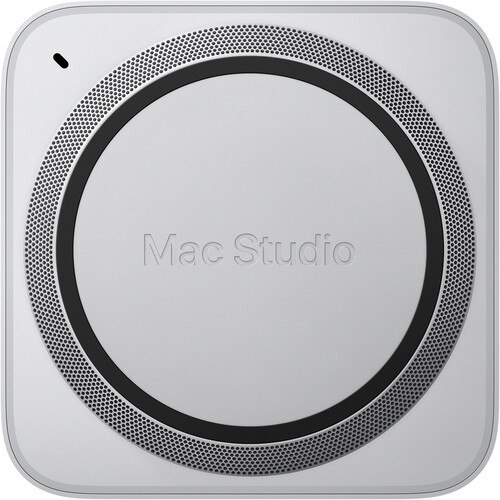
The Mac Studio with M4 Max starts with a 14-core CPU, 32-core GPU, and 36GB unified memory. The 16-core, 40-core, 64GB configuration that most serious editors will want sits at a higher price point, but you're getting a machine that can handle 18 simultaneous streams of 8K ProRes video playback in a box that's 7.7 inches square and weighs 6 pounds.
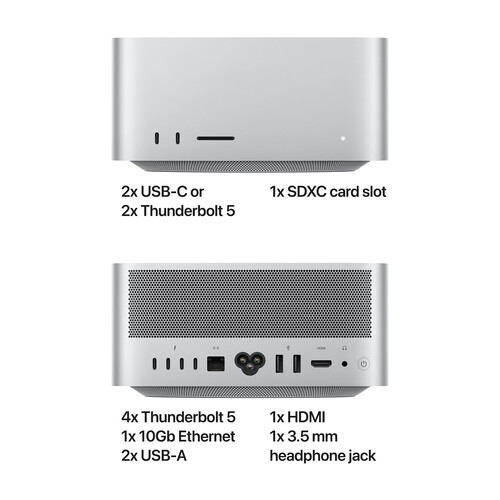
It has four Thunderbolt 5 ports, 10 Gigabit Ethernet, an SD card reader, and it runs nearly silent. B&H reviewers give it a perfect 5.0 rating across 74 reviews, with editors specifically praising its ability to handle 4K and 6K workflows without breaking a sweat.
The downsides are real though. No user-upgradeable RAM or storage. You're locked into what you buy. And the price climbs fast with configuration upgrades. But if you're a Final Cut Pro or DaVinci Resolve user on macOS, it's genuinely hard to argue against it for the form factor and performance combination.
Building a PC Workstation
For PC editors, a well-configured video editing workstation lets you pick exactly what you need and upgrade components individually over time. A solid editing PC build right now looks something like an AMD Ryzen 9 7950X or Intel Core i9-14900K, 64GB of DDR5 RAM, an NVIDIA RTX 4070 Ti with 16GB VRAM, a 2TB NVMe for your project drive, and a 1TB NVMe for the OS.
You can find those components on Amazon or at B&H, and the total cost will be competitive with or lower than a similarly-specced Mac Studio. The tradeoff is you're building and maintaining it yourself, and you need a dedicated GPU that draws real power and generates real heat.
For editors choosing a monitor for their editing station, color accuracy should be the priority over resolution. A well-calibrated 4K editing monitor will serve you better than a cheap ultrawide.

Frequently Asked Questions
How much RAM do I need for 4K video editing?
32GB is the practical minimum for comfortable 4K editing in Premiere Pro or DaVinci Resolve. 48GB or 64GB is much more comfortable if you're working with multicam timelines, heavy effects, or with codecs such as BRAW or ProRes RAW. B&H reviewers editing 4K on 48GB of M4 Max RAM report zero lag in their timelines.
Is a dedicated GPU necessary for video editing?
Not always. Integrated graphics in modern CPUs can get by for simple cutting and assembling edits. However, a dedicated GPU with at least 8GB VRAM is highly recommended for color grading, GPU accelerated effects and transitions, hardware encoding and decoding, and for any video editing workflow that utilizes AI or machine learning tools. The sweet spot for most editors is an NVIDIA RTX 4070 or RTX 4070 Ti.
Is Mac or PC better for video editing?
Both platforms have their strengths. Mac has the upper hand if you use Final Cut Pro (Mac only) and the M4 Max's unified memory architecture provides unique advantages for memory-intensive workflows. PC has the upper hand due to better upgrade options, better raw price-to-performance ratios, and support for NVIDIA CUDA in Premiere Pro and Resolve. Ultimately, the decision to go with Mac or PC depends on your NLE, budget, and whether you prefer a compact, self-contained system or a customizable platform with greater flexibility.
What is the most impactful upgrade for a slow editing computer?
Storage. If you're still using a SATA SSD or a traditional spinning hard drive, the single most impactful upgrade you can make is to switch to an NVMe SSD. Once you've done that, the next bottleneck is typically more RAM. Finally, if you're using a non-dedicated GPU for color work or VFX, then you'll need to upgrade your GPU as well.
Can I edit 4K video on a laptop?
Yes, but with limitations. Modern laptops with Apple M3 Pro or Max, or Intel and AMD processors and a discrete GPU can handle 4K editing. The primary limitation is thermal throttling, as prolonged editing sessions will cause your laptop to throttle back to avoid overheating. Additionally, battery life will suffer during prolonged editing sessions. If portability is a requirement, a laptop for shooting and rough cuts paired with a desktop such as the Mac Studio for finalizing your edits is a viable solution.
How important is the CPU for video editing compared to the GPU?
The CPU controls how quickly your timeline plays back. Per-core clock speed is much more important than the total number of cores for responsive scrubbing and playback. The GPU becomes increasingly important when you begin adding a large number of GPU accelerated effects and transitions, or when you begin exporting footage and utilizing hardware acceleration for tasks such as encoding. Spend your money accordingly. A powerful CPU with a mid-range GPU will provide faster day-to-day editing performance than a less capable CPU with a high-end GPU.