Best Webcams for Twitch Streaming: From Plug-and-Play to Cinema-Look
The best webcam for Twitch streaming is whatever one can survive in your bedroom with your room's lighting. Most reviewers assume you are using a "soft key" setup and there is a white wall directly behind you. In reality, most Twitch streamers use an overhead single-bulb, a window that varies from bright to dim during a session, and a ring light pointing at their head from an odd angle. This affects what webcam will really perform better than others.
Below we'll examine how each of the five webcams listed below handles such conditions. Our number one recommendation for most users looking to upgrade beyond their default Logitech C920 would be the Elgato Facecam MK.2. Next is the Logitech Brio 4K (for those on higher end hardware), then the Insta360 Link 2 (with its AI auto-tracking features), then the Sony ZV-1F (for a true camera feel), and lastly the Razer Kiyo Pro (the lowest cost option above stock laptop cameras).
Elgato Facecam MK.2: The Best Default Upgrade
The Elgato Facecam MK.2 is my best default upgrade for all of my Twitch streaming clients when compared to their Logitech C920. It can shoot 1080p video at 60 frames per second (fps), it uses a Sony Starvis 2 sensor, and comes equipped with a fixed 24 mm equivalent f/2.4 lens.
The Facecam does not have an auto-focus system that will "hunt," nor does it come equipped with artificial intelligence (AI) to make sure you're framed correctly. This also means there is less overhead associated with software, as you simply plug the Facecam into your computer and use Camera Hub to adjust the exposure, white-balance, and ISO settings to match how you would normally use a real camera.
I intentionally capped the resolution at 1080p60. While many ingest devices for Twitch have limits set at or below 1080p60, most encoders also need to scale-down higher-resolution sources (such as 4K). Scaling-down takes up valuable bitrate and can soften your image. By using a 1080p source and feeding it into a 1080p60 ingest device, you'll be able to maintain crispness in the areas where it really matters.
The true onboard High Dynamic Range (HDR) capabilities of the Elgato Facecam MK.2 are what drive its cost. Unlike other webcams available today, the Elgato Facecam MK.2 is designed to handle backlight issues (the infamous "window-behind-you" problem) much better than anything else in this class.
In fact, reviewers consistently mention that using an Elgato Facecam MK.2 allowed them to capture backlit scenes without needing additional light equipment. Some users also mentioned that they were able to resolve blowout in windows behind them after making the switch from their previous Brio by simply adjusting the exposure slider on the Elgato Facecam MK.2.
While some users may agree with these statements, others might disagree. For example, the Elgato Facecam MK.2 lacks an integrated microphone, although this was clearly a design decision rather than an oversight due to technical limitations, so anyone expecting a webcam to do everything out-of-the-box is going to run into trouble.
Others point out that while the cable connecting the Facecam MK.2 to your computer is detachable, it's only intended to be removed during shipping or cleaning. Once installed, it remains in place forever, which makes replacement difficult should it fail.
Finally, while the wide-angle view provided by the Elgato Facecam MK.2 is one of its strongest features, it also creates potential problems for people sitting very close to the lens, which causes distortion. Based upon user feedback, sitting approximately 18 to 24 inches from the lens produces the best results.
Logitech Brio 4K: The Old Reliable Workhorse
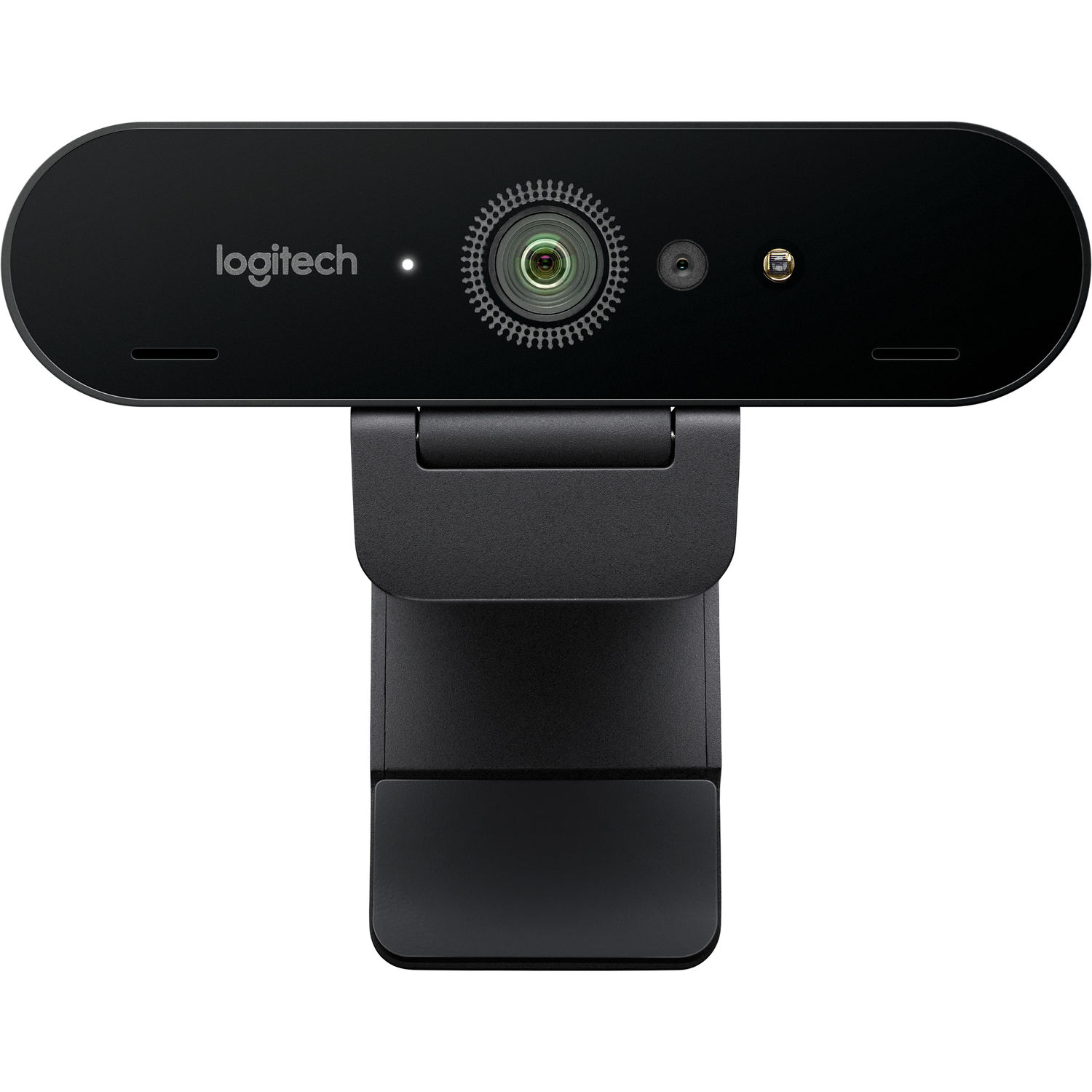
The Logitech Brio 4K was the go-to 4K webcam for years. Reviewers keep recommending it over time as it simply just works. It can shoot true 4K at 30 frames per second (the best resolution) and 1080p at 60 fps.
It also comes with three different Field Of View (FOV) options, 65, 78, and 90 degrees. If you are using the Brio for live streaming, use the FOV setting of 65 degrees. This will give you a larger image of your head while keeping fisheye out of the shot.
Brio also features High Dynamic Range (HDR) and low light adjustments which perform fairly well in average lighting conditions. Many reviewers claim the Brio performs better in bright lights (such as a single overhead light) than many other webcams priced similarly to it.
One area where the Brio falls behind the Facecam MK.2 is fine-tuning. While Logi Options+ includes some manual controls, there are less sliders for users to manipulate their settings. A common complaint about the Brio's software is that it often defaults to automatically adjusting something that you were trying to lock into place.
If you want the latest version of the Brio platform, the Logitech MX Brio is the newer 4K model with an 8.5MP Sony sensor and Show Mode for desk capture. It is the better choice for people who do both streaming and serious video meetings, but for pure Twitch use the older Brio 4K is still a fair pickup, especially when it goes on sale.
Insta360 Link 2: AI Tracking and 4K PTZ
A key aspect of the Insta360 Link 2 is that it is the only PTZ (Pan-Tilt-Zoom) unit in the line-up with a mechanical pan and tilt mechanism. This makes it ideal for streamers using an IRL (In Real Life) type streaming method because it will move as you move, allowing you to walk around the space when needed or use a hybrid type system in which you can switch from sitting down to standing up during a broadcast.
The larger 1/2-inch image sensor used by the Insta360 Link 2 provides better low-light performance compared to the sensors used by the Logitech Brio and the Razer Kiyo Pro. The 4K AI tracking feature on the Insta360 Link 2 is accurate and smooth. It doesn't have the delay associated with other PTZ cameras. Streamers report that the tracking features transition smoothly enough so they don't appear distracting on their stream.
However, there are some limitations. Reviewers commonly comment that the motorization is audible and could be picked up by your audio if your microphone is close to your webcam. In addition, several reviewers note that the AI may lock onto background subjects such as other individuals walking into view while being filmed. Also, like most of the Insta360 products, the software is full featured, however, the user interface is cluttered and difficult to navigate.
For pure Twitch streaming where you sit in one chair, the Link 2 is overkill. For streamers who do variety content, host in-person guests, or want a cleaner moving shot, it earns the price. The Link 2 is also available at B&H if you prefer that channel.
Sony ZV-1F: When You Want a Real Camera Look
The Sony ZV-1F is a 1-inch-sensor compact camera with a fixed f/2 20mm equivalent lens. As such, you cannot use it as a webcam by simply plugging it into your computer via USB-C, unless you're using Sony's Imaging Edge Webcam software. However, you could use an HDMI capture card to achieve cleaner output. In terms of video quality, it will be similar to the type of image you would get from a streamer who uses one of the Sony A7 series cameras, however for roughly 1/3 of the price.
The reason to choose the Sony ZV-1F is obviously its ability to create a shallow depth of field. At f/2, a 1-inch sensor produces visible subject separation from the background. This is the "cinematic" feel that many find appealing when viewing Twitch streams.
Reviewers state that the autofocus has proven to be very fast and reliable with face detection. Focus does matter since the depth of field created by a 1-inch sensor at f/2 is quite shallow.
There are some drawbacks to consider here. First off, there needs to be an HDMI capture card used to produce the cleanest output. Since the ZV-1F is powered internally through batteries, there is no way to use this camera without either purchasing a dummy battery or connecting directly to a USB-C power supply to ensure that you do not lose signal during long streaming sessions. Lastly, the 20mm focal length provides a very wide angle view that requires you to be very close (in addition to requiring additional lighting).
If you believe that having high-quality visuals will help enhance your brand, then this is probably the correct choice. If you simply wish to connect a USB cable and begin broadcasting, then this is most definitely the incorrect choice.
Razer Kiyo Pro: The Budget Streamer Option
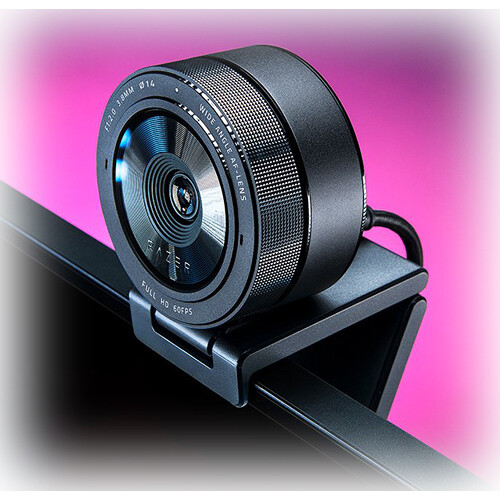
While the Razer Kiyo Pro offers lower cost compared to other options reviewed here, the Razer Kiyo Pro will provide significantly higher quality than a standard laptop's camera. The Razer Kiyo Pro will capture 1080P resolution at 60 frames per second utilizing a Sony Starvis sensor. Additionally, the Razer Kiyo Pro utilizes an Adaptive Light System designed to pull usable video from dimly lit environments such as in bedrooms.
Utilizing USB 3.0 exclusively for capturing an uncompressed 1080p60 HDR signal is one of the few things unique to the Razer Kiyo Pro. This detail is important since most inexpensive webcams produce compressed video, and the artifacts created during compression can be visually noticeable when using the compressed video for encoding purposes in a stream. The unprocessed output of the Razer Kiyo Pro is clean enough that the final compressed output appears better than a 4K webcam producing compressed video.
Low-light performance was praised by reviewers as being excellent considering the low-cost price point. Commonly, viewers mentioned how, even though some users have been using their own monitors as the primary light sources, they were able to obtain usable images and video out of the Razer Kiyo Pro while users were unable to achieve similar results with the C920 they had previously used.
Reviewers commonly commented positively about the very large (and wide) 103 degree angle of view provided by the Razer Kiyo Pro. On one hand, many reviewers liked the fact that it allows them to show off all of their equipment. However, others complained about it because of its excessive distortion around the edges, especially for those sitting close to the camera.
Common issues for a product priced so low include a lack of auto-focus tracking capabilities and a fixed focus that requires adjustment via the Synapse software. In addition to poor audio quality and not having anyone use it for live streaming, there is also criticism regarding the Synapse software wanting to control much more than just the camera.
If you are looking for a product that is affordable but provides a professional look for your streams without spending what the Facecam MK.2 costs, this is the right pick. If you can stretch to the MK.2, do that instead.
Frequently Asked Questions
What is the best overall webcam for Twitch streaming?
For nearly every Twitch streamer out there, the Elgato Facecam MK.2 represents the best overall choice. This is due to its ability to hit 1080p60 while having onboard HDR, as well as real manual control through Camera Hub. In addition, this model has the advantage of handling backlit setups better than any other available option at this price point. While there are many webcams with variable lenses, with the Facecam MK.2 we get a fixed lens, which is important because it eliminates the autofocus hunting on stream that typically ruins the immersion factor of most webcam streams.
Is 4K worth it for Twitch streaming?
Twitch caps ingest at 1080p60 for most partners. Therefore, regardless of whether you have a 4K source it will be downscaled before it begins to stream. While the down scaling process may create a slightly sharper 1080p image than using a webcam with a native 1080p setting, it is unlikely that the average viewer will be able to discern a difference. On the other hand, a 4K webcam is definitely beneficial if you plan on doing YouTube videos or recording archives at full quality. Therefore, for the purposes of pure Twitch streaming, a 1080p60 webcam with excellent low-light performance will always beat a 4K at 30 fps.
Do I need an external microphone with these webcams?
Yes. There isn't a single one of the webcams listed above that have mics that could compete with even a budget dedicated USB mic. The Facecam MK.2 doesn't even come with a microphone. For streaming purposes, a USB condenser such as the Elgato Wave 3 or Shure MV7 will far exceed any webcam mic in terms of quality. Since audio is likely going to be the most easily tolerated or bailable feature for your viewers, you would be wise to invest in either of those two options.
How does HDR work on a webcam for streaming?
HDR on a webcam allows for compensation for the extreme contrast found between very bright background elements (windows, monitors, ring lights) and your face. When HDR is absent, without some form of compensation, the camera will meter based upon whatever area is brightest and your face will appear as dark or vice versa (the windows will be blown out white). The Facecam MK.2 and the Logitech Brio 4K both have onboard HDR processing that addresses the most common problems caused by bedroom lighting. This isn't magic, it simply reduces about 80% of cases where you would require a key light.
Will these webcams work with OBS?
All five work with OBS Studio as standard webcam sources. The Sony ZV-1F is the only one that benefits from being captured through an HDMI capture card instead of USB, because USB Imaging Edge limits resolution and adds latency. For the four USB webcams, OBS sees them as a regular video capture device and you can apply filters, scenes, and transitions like any other source. The best OBS settings for streaming cover the encoder configuration you want once you have the camera plugged in.
Is the original Logitech C920 still good enough for Twitch?
The C920 is fine for starting out, but you will hit its ceiling fast. It tops out at 1080p30, has no real HDR, and the autofocus pumps during streams. The Razer Kiyo Pro is the smallest upgrade that gives you 60fps and better low-light performance, and the Facecam MK.2 is the upgrade that lasts. If you stream more than once a week, replacing the C920 should be near the top of your gear list.