
Best Green Screen Video App for iPhone: Do Ink, Emart, and UBeesize
Green screen used to need a studio, but a phone and an app can now drop you in front of almost any background. That's the promise, anyway, and it works well right up until the edges of your hair start to flicker and patches of the wall show through.
The app is only half of it. What's left is physical: a backdrop that's smooth and big enough to fill the frame, and light that hits it evenly, because no app can key out a background that isn't one clean color.
Below are the editor, a collapsible backdrop, a budget stand kit and a ring light, and how they fit together.
While the Do Ink app is powerful, it only provides half the solution because a digital editor paired with a physical Emart backdrop always beats any simple app-only trick for creators.
You'll move, rotate, and resize elements through the export flow while the hardware keeps everything stable. The T-shape kit and the UBeesize ring light finish the chain, because even lighting is what makes the key clean. The app promises you can move, rotate and resize elements any way you want, and the backdrop is what makes that true.
The Editor: Do Ink
Because you can move, rotate and resize elements any way you want, mistakes get fixed in place instead of starting the clip over. The background goes behind you in two taps, and the edit feels natural for any solo creator.

Since the app uses a layered composite, you can stack different videos and images on top of each other to create complex scenes with just a few simple taps now. The green cloth hides, the new world shows, and each layer stays separate while you work, so you can watch the shot build up live.
The export-video flow is the last tap: the export button, video output selected, and the file lands where the platform wants it. The app saves as you go, so the work survives the interruption, and the file comes out clean.
The Backdrop: Emart Collapsible
One owner received theirs badly damaged, was told by Amazon to keep it, repaired it, and has used it for over five years since. A few dollars of hardware has lasted half a decade.

One owner who shoots pickup shots for other productions in their garage has called it easily the best solution they've found. Another has liked that it comes in a case, installs easily and travels well, and has found it sturdy, though it leans forward a little. The setup needs one small adjustment, but the screen performs exactly as it should for most mobile film projects.
While some people prefer large cloth versions or screens that stick to chairs, this collapsible model offers a solid alternative for creators who need to move gear quickly without heavy weight.
The material is strong enough to hold its shape, even if you find the frame a bit heavy to carry alone. One owner uses it daily during the week and has found it easy to set up, use and put away.
A second buyer has found it nicely packed, super easy to use and put away, and has said the screen performs exactly as it should
The Budget Kit: Emart T-Shape
This T-shape stand is exactly what they claim it is so it isn't a rip off, even though the steps to build it were nonexistent when you first opened the box to start building it up.
A buyer who keys in OBS has called it great value, quick and easy to set up and reasonably stable
While the kit is clearly top heavy, it doesn't feel that cheap because the materials are decent and the stand provides a solid green screen if you use the right light for your shots.
The fabric isn't high quality, and without the right setup and lighting you can see objects through it, one reviewer warned.
The Light: UBeesize Ring
An owner has used it every single day, for makeup and for content creation
The tripod feels stable and the light folds down, so it packs away quickly. It's easy to adjust for different kinds of content.
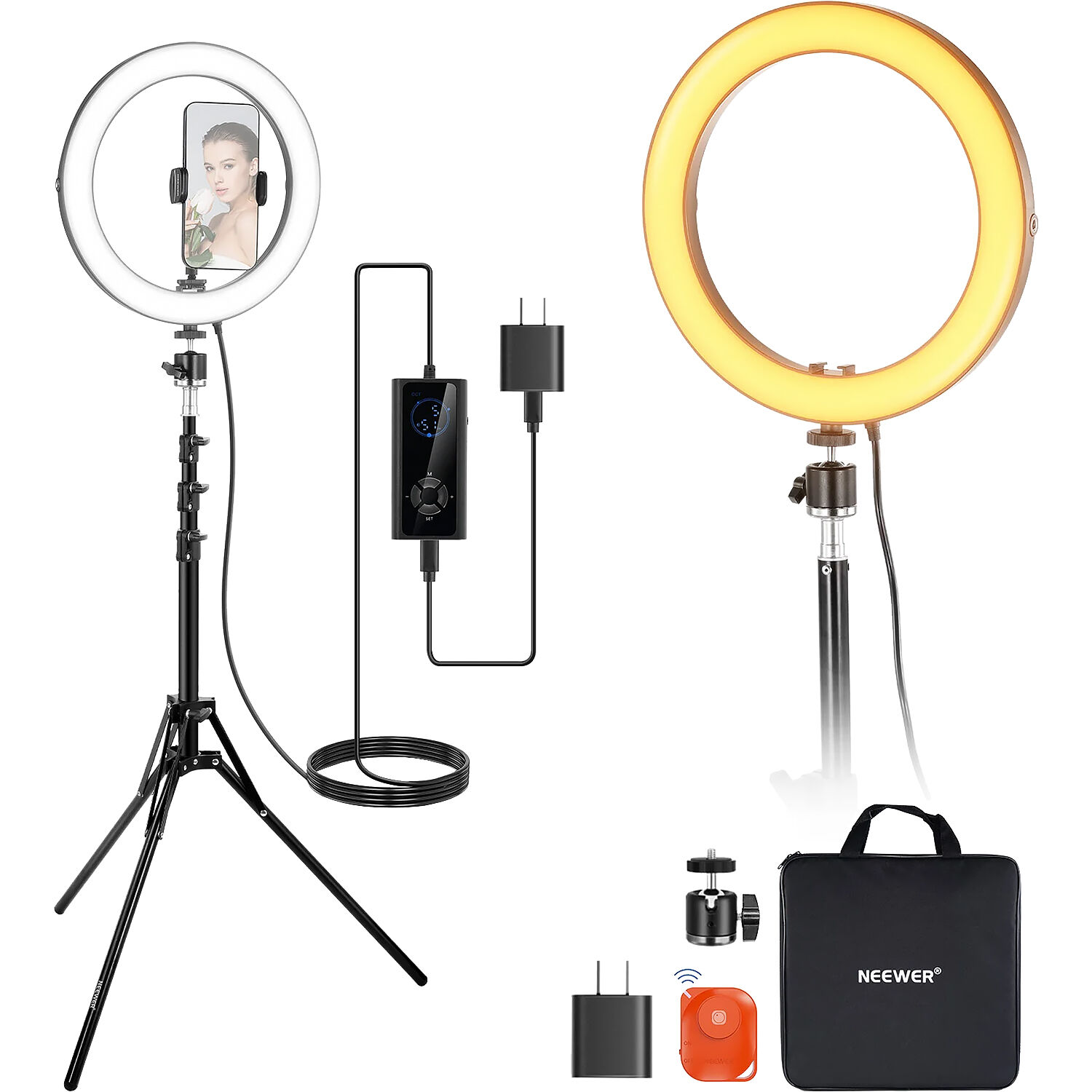
Even though one reviewer has noted the plastic parts might not hold up after four years, it still works well and remains worth the money for any budget creator. One reviewer has called it bright, easy to use, adjustable and a great price, and another has said the bright, even light makes a huge difference.
Frequently Asked Questions
Can I use just the Do Ink app without a physical green screen?
While the Do Ink app handles the layers, a physical backdrop remains necessary to provide the clean edges needed for professional keying. Relying solely on digital effects often results in messy edges around the subject in your video. Having a real surface makes the software work much better.
Which green screen backdrop is best for beginners?
The Emart collapsible screen is a great choice because it comes in a transport case and stays easy to install for anyone. You might find the T-shape kit slightly top heavy but the assembly is very quick. It is a sturdy option for a home studio setup.
How much light do I need for good keying?
Using the UBeesize ring light provides bright and even illumination which helps eliminate shadows that usually ruin the green screen effect process. Proper lighting helps the software distinguish the subject from the background without glitches. You can adjust the brightness to fit your specific environment.
What is the quality of the exported video files?
The app features a smooth export video flow that maintains high quality after you have finished editing your layers and elements. You will get clear results that look professional on various social media platforms. The final files stay sharp when viewers watch them.
How long do these products actually last?
The collapsible screen worked for over five years even though it arrived in a demolished state during shipping, one user reports.
The wear question has the clearest data in the set: the collapsible screen ran five years after arriving demolished, the ring light hit its plastic-part limit at year four, and the T-shape kit's fabric showed through at the first thin patch
One middle-of-the-road review has called the adjustment easy but a bit confusing, the value for money okay, and the sturdiness and material good.
The everyday-tier comparison applies: buy the tier of failure you can live with. The green screen for video editing page covers the desktop side, the interview workflow pairs the audio, and No Film School's chroma-key guides explain the keying itself.
PetaPixel's composite work shows the same layering from the photo side. Check B&H's green screen stock before the shoot.