PTZ Camera Setup for Church Live Streaming: Complete Guide to Wiring, NDI, and Presets
First service with a new PTZ setup? Don't wing it.
I've watched too many churches discover on Sunday morning that their presets are off, the audio isn't routing, or the Cat6 run is too long. The camera itself works fine, it's the prep work that breaks.
Start with the Cable Run
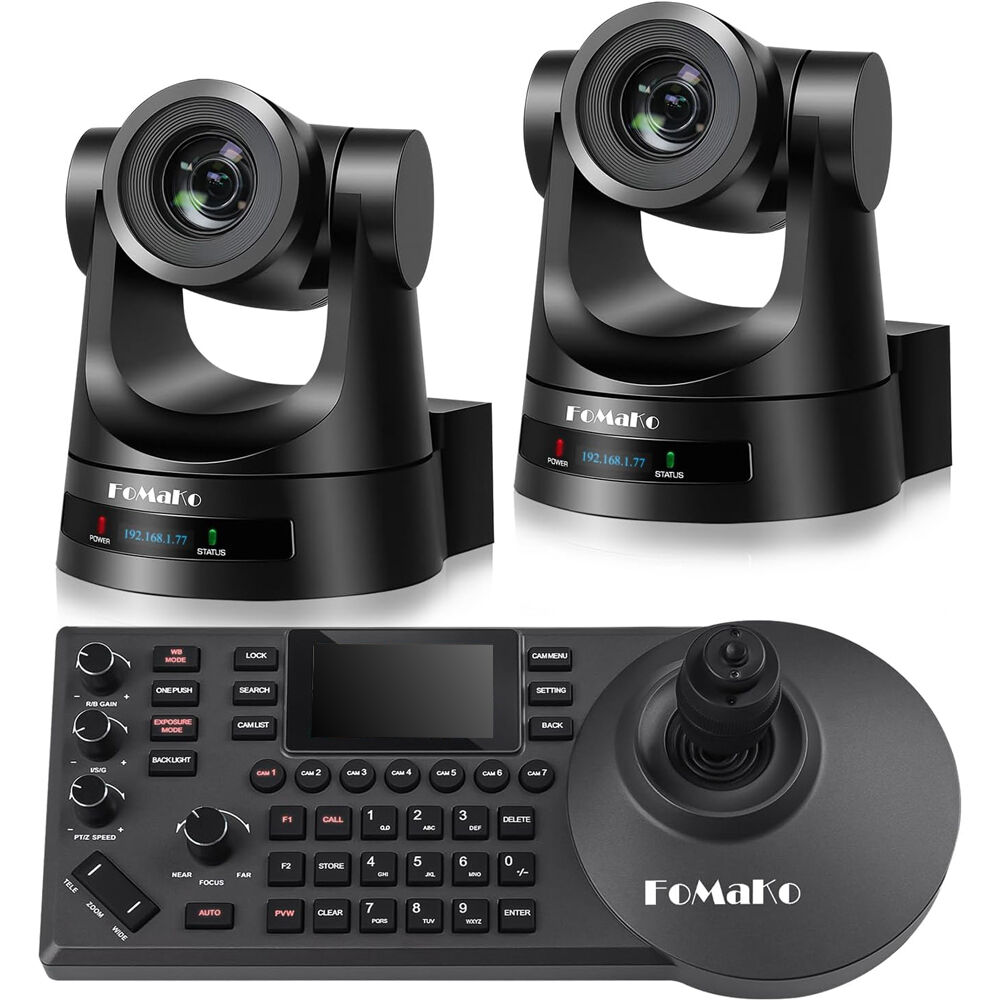
When you unpack your PTZ camera (the PTZOptics Move SE 20x is a popular church pick), there will likely be several parts to assemble. These typically include the camera itself, any necessary mounting pieces, instruction manuals and possibly even an entry level joystick. Some PTZ systems don't come with a joystick, so you may need to buy one separately.
You will most likely never need the power cord supplied with your PTZ system.
Firstly, ensure all of the required cables were provided. You will need a long Cat6 cable to pull from your camera location back to your network switch. When purchasing Cat6 cables make sure they are rated for at least the distance you plan to run them. Additionally, ensure they are properly shielded, especially when running them close to electrical sources.
Modern PTZ systems used in churches are often equipped with Power Over Ethernet + (PoE+) capabilities. What this means is that you can send both video and control information down the Cat6 cable, while also powering your PTZ camera. Therefore, you will only need to pull one cable to each PTZ camera location.
To start installing the physical components of your PTZ system, you need to determine how you are going to lay out your cabling. This includes determining where you will locate the Cat6 cable to connect to your camera mount and then to your network switch/switches located in an equipment closet. Typically this involves pulling the Cat6 cable through walls, ceilings or conduit.
After you have pulled your Cat6 cable into place, you will need to connect it to a PoE+ enabled switch port. Not all PoE enabled switches support PoE+ (802.3at). PoE+ enables the supply of up to 30W of DC power to end devices. A standard PoE enabled switch (802.3af) supplies no more than 15.4W of DC power, so it would not be sufficient to support a PTZ system.
Verify that your switch supports PoE+ before attempting to install. In addition, if you have purchased a managed switch, you can easily verify the amount of power being delivered to each port via the switch management interface. The PTZ system should turn on automatically when it detects the presence of a valid PoE+ signal.
In cases where your switch does not support PoE+, you will need to either purchase a separate PoE+ injector for each PTZ system or replace your existing switch with a PoE+ supported model. While a single PoE injector is relatively easy to set up and use, things quickly become complicated with multiple PTZ systems.
Configure Network Settings and NDI
You will also need to set up the camera's networking options. All PTZ cameras are shipped with a default IP address, which can cause issues when you try to connect two cameras on the same network. It is recommended that you assign a static IP to the camera so you know where to look for it once you have assigned it to a preset.
The first thing to do is enter the camera's IP address into a web browser. Log into the camera using the default username and password. The most common combinations used are admin/admin or admin/password. It is highly recommended that you change these default usernames and passwords as soon as possible.
When choosing your method for live streaming your church services, NDI is one of the fastest and easiest ways to get started. NDI sends video signals over your local network, which reduces cabling costs and delivers much lower latency than traditional methods.
The biggest advantage of NDI is that professional video tools like vMix and OBS support it natively. For more information visit NDI.org.
Enabling NDI
- Connect to the camera via the web interface.
- Click on the tab for "network" or "streaming".
- Turn on NDI output.
- Choose your desired bitrate (the higher the bitrate, the better the quality but it requires more bandwidth).
- Take note of the NDI Name. This will be required to locate the camera in your preferred streaming application.
In vMix, all devices that support NDI will display under Input Devices, including PTZ cameras. In OBS, there's an additional step, install the NDI Tools plugin. When connected, you should be able to view your camera feed and operate it fully within the software application.
Most churches are doing this incorrectly. You should create pre-programmed positions before starting the service, not during it. Walk through your normal service flow and identify which positions you will require for your typical service.
Some examples of common preset positions for church services include:
Pulpit/Podium: Use this position for sermons and announcements. Frame your speaker from just below their waist up, with sufficient space above them. Make sure focus is locked on the subject. Adjust your exposure based upon the lighting at the time.
Choir/Worship Team: Create a preset that frames your choir or worship band. Depending on how many people are playing, you may need to zoom out further and adjust your angle slightly to capture all members of the team in shot.
Wide View of the Entire Sanctuary: Use a wide preset shot that shows your entire sanctuary. This type of shot makes viewers feel as though they are part of your congregation. A good use is shooting a wide view for opening and closing segments.
Special Occasions: Create presets for communion, baptisms, and other special moments. Some shots will be unique for occasions you only use sporadically, but you want them ready when the moment comes.
How to save a preset on a PTZ camera:
- Move to the desired position with your joystick or remote software.
- Adjust zoom, focus, and exposure as needed.
- Save the current position to a preset number.
- Provide a description for your preset (if allowed by your camera system).
Test each preset multiple times to verify they are positioned properly. Pay attention to how quickly the camera moves between presets. You can usually adjust the speed to smooth out transitions.
Joystick Controller Setup
Using a PTZ joystick controller gives you much more precision than software alone, especially in real-time during a service. The joystick connects to your streaming PC via USB or ethernet and gives you an intuitive interface for panning, tilting, and zooming.
First you will have to set up your joystick by physically plugging it into your computer, install any necessary drivers if needed (most controllers come pre-installed with drivers), then customize the joystick sensitivity and speed.
Next practice moving as fast as possible from preset to preset using the joystick. Ideally you want to be able to click a button and immediately switch to any preset desired, and smoothly transition between presets. Learning how to use a joystick takes longer than simply clicking presets in software, but it's well worth the time.
Common First-Sunday Mistakes
Common mistakes made during your first Sunday are often due to lack of experience preparing for a live streaming event. Below are some common mistakes I've seen and suggestions on how to avoid them:
Audio routing. The camera will stream video fine, but if the audio isn't routed to the streaming computer, viewers hear nothing. Connect your church's audio system to the streaming computer before service and test the levels. Don't rely on the camera's built-in mic, which won't pick up the room.
Record-to-disk backup plan. In case of loss of internet connectivity during your live streaming event, always have a plan for recording your live feed to disk. Even if you weren't able to complete your streaming session, you will still be able to post the recorded version at a later date. Both vMix and OBS allow you to simultaneously record the live event while continuing to broadcast.
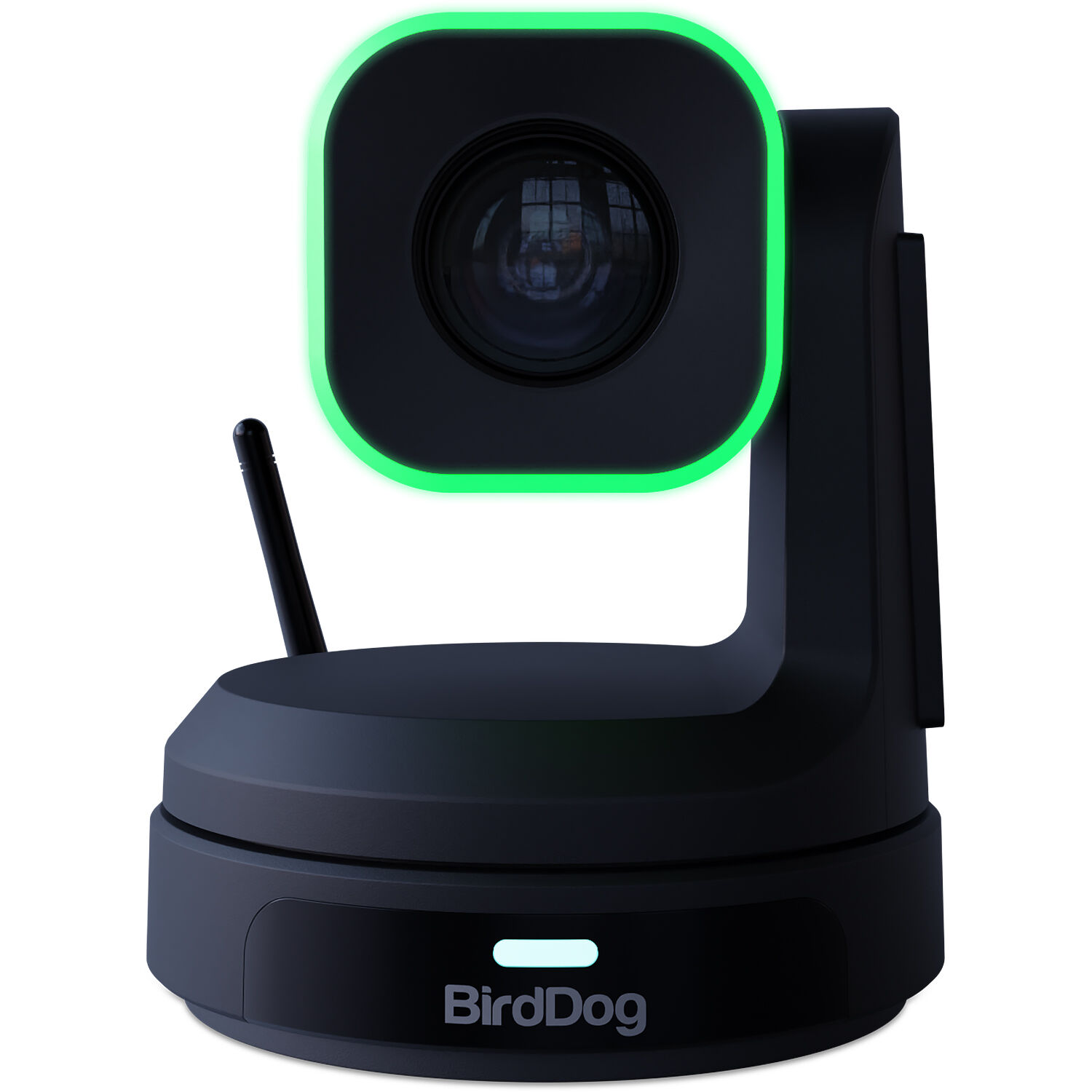
Tally light system. Speakers and performers need to know when the camera is live. Without tally lights, someone may start talking before their cue or drift off mid-sermon assuming they're off-camera.
Many PTZ cameras include built-in tally LEDs. If yours doesn't, add a separate tally light system.
Preset testing. Don't assume your presets work just because you saved them. Lighting changes through the day, so a preset dialed in at 10 AM may be overexposed at 6 PM. Test presets at the exact time you plan to hold services.
Bandwidth limitations. High-quality streaming requires significant bandwidth. Even if you're using NDI for your cameras, it could potentially drop frames or significantly lower your overall quality if other applications or devices consume excessive amounts of bandwidth on your network. Make sure your network has enough bandwidth available for both the streaming application and any additional camera feeds you plan to use.
Before proceeding with your live streaming event, run a complete test that simulates every aspect of conducting a real-time service:
- Start recording and verify you're capturing good quality.
- Test moving between each preset position smoothly.
- Verify that audio levels are balanced across all input sources.
- Have someone watch the stream from another location to verify quality.
- Simulate a network outage and verify that recording continues.
Document all settings and preset positions so you can easily revert to previous versions if something goes wrong. Take screenshots of the camera configuration and save them somewhere easy to access.
Choosing the Right PTZ Camera
PTZ cameras are not all created equal. Consider these elements when purchasing a camera for church live streaming:
- Optical zoom range: The size of your sanctuary will dictate how much optical zoom (10x to 30x) you require. Digital zoom reduces image quality, so rely on optical zoom.
- Video resolution and frame rate: Many church live streams do well at 1080p 60fps, but 4K is increasingly common. The higher the video resolution, the greater the amount of required bandwidth and processing power.
- Low light performance: Since many churches experience difficult lighting conditions during their services, it's essential that the camera has acceptable low-light performance.
- Camera control methods: Make sure the camera accepts the control options you wish to use such as presets, joystick, software, or some combination.
- Cost/value ratio: PTZ cameras range from budget to professional pricing. Most churches find a mid-range PTZ camera offers the ideal cost/value ratio.
To see a comparison chart of different models, check our roundup of the best PTZ cameras for church live streaming. PTZOptics also publishes resources for house of worship setups which provide information on placing cameras in the appropriate location and control systems.
Frequently Asked Questions
How much does a PTZ camera setup cost for a church?
Your costs will depend upon what level of camera quality you want along with the type of controller you plan to purchase. Many churches have found that a basic PTZ camera system is a good place to start. Mid-range priced cameras and joystick controllers tend to be a common combination. Be sure to add the additional cost of a new switch if needed due to needing PoE+ in order to connect all your PTZ cameras.
Can I use a PTZ camera without a joystick controller?
Yes, many PTZ cameras allow users to control them solely via computer interface. Most PTZ cameras come equipped with a built-in web interface, and the majority also integrate directly into popular streaming applications such as vMix and OBS. However, using a joystick controller will give you significantly greater control over your PTZ camera than on-screen controls, particularly when trying to follow moving subjects, including clergy members during services.
Do PTZ cameras work with OBS and vMix?
Yes, virtually every major brand of PTZ camera functions properly with OBS and vMix. In fact, almost every PTZ camera available today supports NDI. As long as your version of OBS has the NDI plugin installed, you should be able to receive the stream from your PTZ camera. Both OBS and vMix have the capability to accept and send PTZ control commands through their own interfaces.
How far can I run Cat6 cable for a PTZ camera?
Cat6 cable generally runs up to 100 meters (or 328 feet) before beginning to degrade. To extend beyond that, you would likely need to use fiber optic cabling or purchase a powered cable extender. Plan the placement of your PTZ cameras so they do not exceed the maximum distance from your existing network infrastructure.
What's the difference between PTZ and regular security cameras?
Unlike standard security cameras, PTZ cameras for live streaming are built specifically with the needs of video production in mind. This means these cameras typically provide better image quality, lower latency, smoother motion control, and superior overall performance compared to general-purpose security cameras. Additionally, PTZ cameras for live streaming often include features like NDI compatibility and various professional video transmission standards which aren't present on typical security cameras.
Can I control multiple PTZ cameras from one joystick?
Most standard joystick controllers allow users to operate more than one PTZ camera. Typically this is achieved by assigning each camera to its own specific button on the controller. However, some higher-end joysticks will enable you to operate more than one camera at once, which is ideal for multi-camera setups.
Setting up a PTZ camera for church live streaming takes time and testing. Once everything's dialed in, you'll have professional-quality video that makes your online congregation feel like they're there with you. Take your time with the setup, test thoroughly, and don't rush that first service.