
How to Record Lectures on iPhone: Mics That Make It Usable
Recording a lecture on your phone sounds like the easiest study trick there is: hit record, put the phone on the desk, and listen back later. The problem shows up in playback, when the professor's voice is buried under room echo, a heater, and every cough and chair scrape nearby.
The phone's camera is rarely the weak link. Its microphone is, and a small external mic, clipped close or aimed well, can turn an unusable recording into one you can actually study from.
Battery and timing matter as much as the mic. A long day of classes can drain a phone that's recording for hours, so a power bank and a simple way to sync separate audio belong in the kit too.
Below is the built-in baseline, a clip-on lav upgrade, a mic for big rooms and concerts, and how to keep everything synced and charged.
You should certainly record your lectures on the iPhone you already own, but the microphone decides whether the result is usable, and the SmartLav+ is the upgrade one owner has said makes their videos way better.
The Shure MV88+ kit offers a significant improvement for school concerts since it adapts to how you work while providing crisp sound. The VideoMic Me-L is the plug-in gamble, since one reviewer has found it won't stay attached to the Lightning port, and the case question is real. The tiers below pick the winner for you.
The Built-In Baseline
Capturing a lecture with just the tools on your phone means relying on the Voice Memos app for audio and the camera app for video. This method works for quick notes. It fails when the room gets noisy - heating hum, chair scrapes, the back-row whisper - all of it lands in the recording at equal volume.
You can start a recording in seconds - that matters when the professor starts talking before you're ready. The disappointment comes later, in playback.
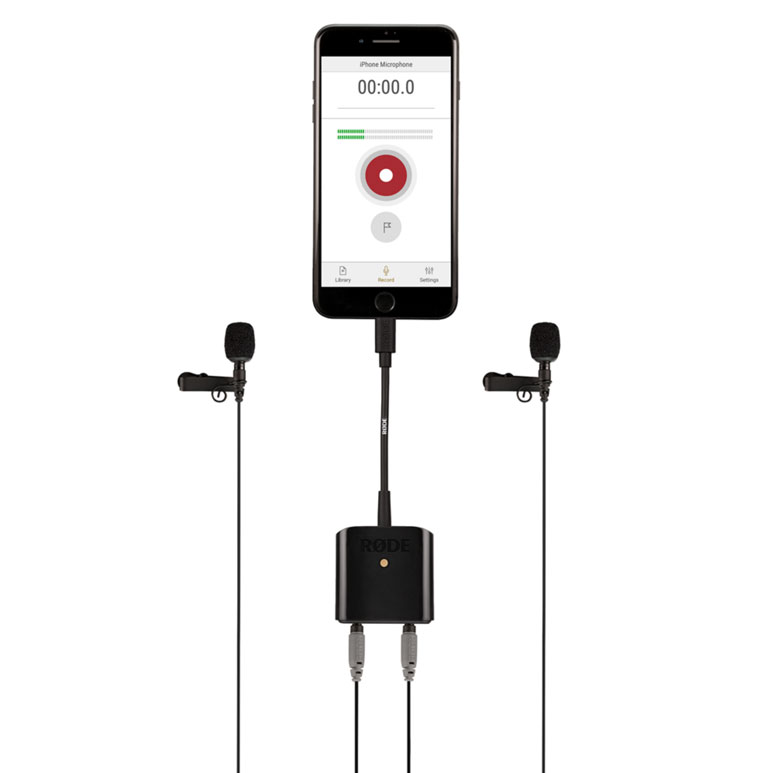
One reviewer tested this setup by running a mock interview inside their office using an iPhone 8 and a small lightning adapter to see how the native video quality handled the task. That owner has pointed out that a great-looking video still looks terrible with lousy sound, and the mock interview showed exactly that: the video looked sharp and the audio felt cheap.
Relying solely on these built-in tools often means you'll miss important details because the internal microphone picks up too much background noise and echoes from the room. You'll rewatch clips constantly just to decipher one phrase, and the study time burns while the audio stays bad. Notes full of static are the failure mode, so upgrade before finals week, not after you discover it.
The Lav Upgrade: SmartLav+
For tutorial videos, clear sound is critical, because a great-looking video still looks terrible when the audio is weak. One tutorial maker has tried four other lav mics, wired and wireless, and has found this Rode by far the best. Another has called it unreal for voice-overs and podcasts, because it allows high-quality work on a phone, tablet or laptop.
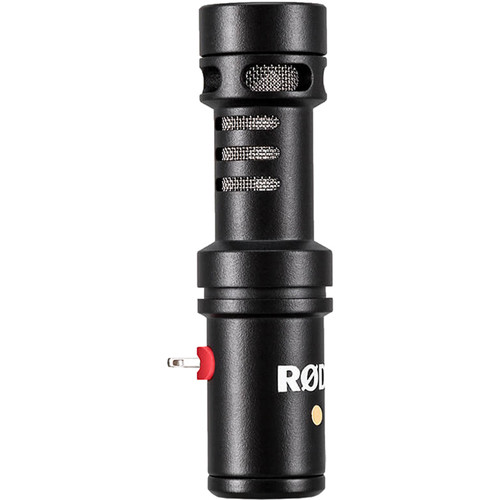
That buyer tested it on an iPhone 8 Plus with a 3.5mm Lightning adapter during a mock interview in their office. The adapter caveat matters for newer phones without a headphone jack, and No Film School's audio guides cover the adapter landscape.
One review noted the cable is really thin, for a tool that is used very often. One owner has bought a six-meter extension so they can record while standing, and another has agreed the cable is a little short but an extension solves it.
When you record audio separately from your video and sync it in post, you'll find the sound quality of the lav+ is great for your project. The image shows how the small clip sits on clothing. The lav focuses on the voice and nothing else, and that's the whole point.
The Concert-Hall Tier: Shure MV88+
One owner has used it to record school concerts and has called the improvement huge, with really great audio quality compared with what the built-in mic could manage. The audio quality stays great because it captures the sound in a large room without losing the fine details. The same owner has found it works really well for capturing audio in a large room.
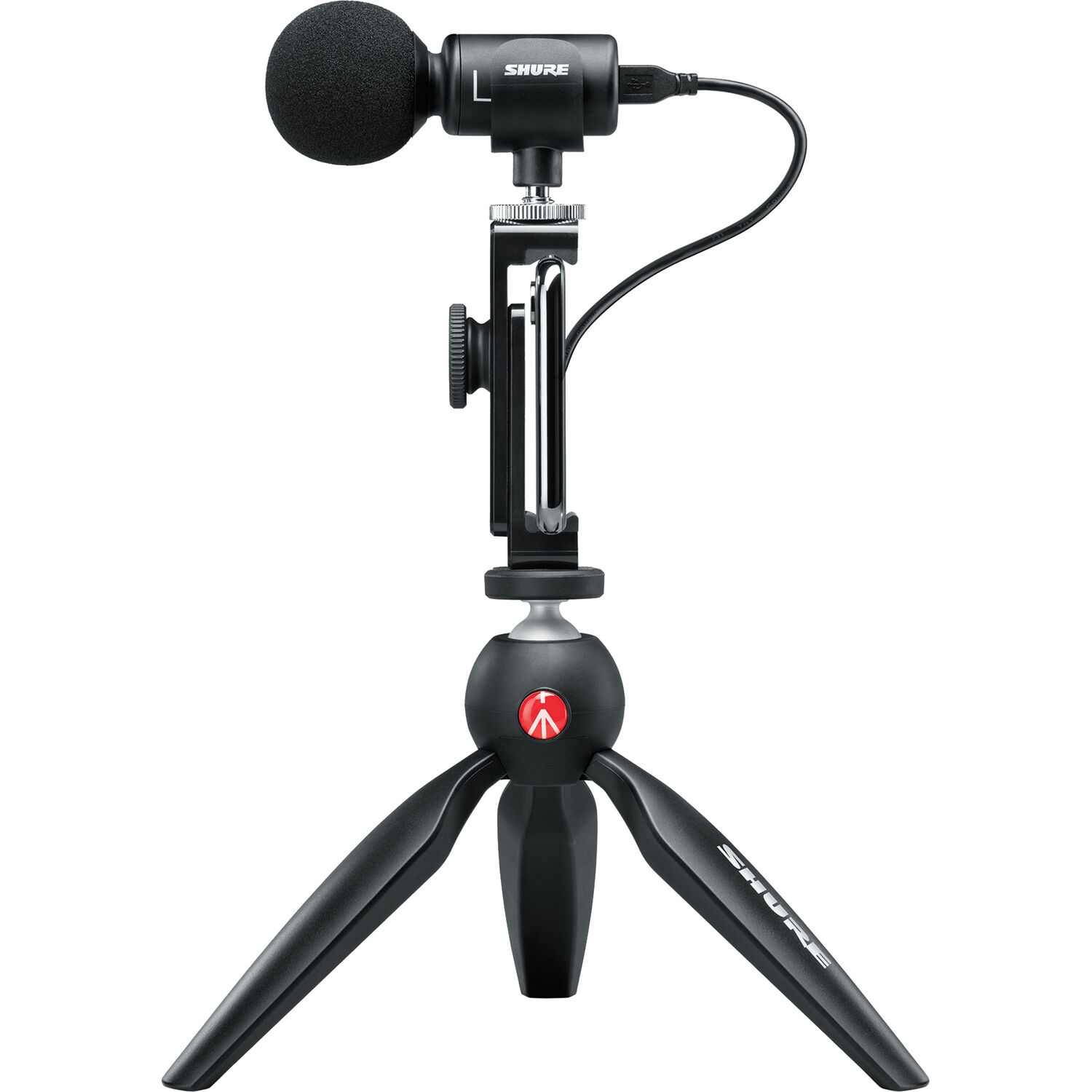
An owner has used this kit for nine months now for live music and says they would give it ten stars if they were actually able to do so
The user has found it fairly easy to mount, plug in and start recording within 15 minutes, with super crisp sound and an intuitive app
Using this kit means you won't have to worry about thin sound when you're filming a show or a lecture in a very large open space.
You'll save time during editing because the audio is already clear right from the very start. One owner who runs webinars has praised its vocal clarity for podcasts and webinars and has found USB power super convenient. The front-row sound is the point: the recording carries the room.
Frequently Asked Questions
Built-In vs External Mic?
The built-in mic captures basic audio, but it picks up too much background noise and room echo. The lav's clarity is the difference between notes and noise, and PetaPixel's audio coverage reads the same trade from the photo side.
Lav vs Shotgun for Lectures?
A lav stays near the mouth. A shotgun reaches across a hall.
The Shure's own buyers split the same way: the concert tester has found it works really well in a large room, and an events company has used it twice a week. Match the tool to the distance, and the everyday-tier comparison logic applies to audio too: buy for the job in front of you. Check B&H's mic stock for the tier prices.
Battery?
A high-capacity power bank keeps the iPhone alive through a three-hour seminar block, and one Anker owner has found it recharges from empty in just over an hour with a fast charger, while the desk-side audio kit rides the same battery math. The same owner has gotten about 20 hours of charging from one full charge.
Sync in Post?
Record audio separately and align the tracks in post, which is exactly how one live-event buyer works. A single clap at the start makes the sync point obvious - the same discipline the interview-kit workflow runs on bigger rigs. The two tracks land matched.
Which Tier to Buy?
Choose the lav for clear speech, the MV88+ for rooms. Skip the plug-in until the firmware story resolves, since one unhappy buyer has called the hissing, static and muffled sound without the cover just bad news.
One frustrated owner who has always loved Rode mics has said it improves the sound when it works, and that isn't something you can build a semester on, and PetaPixel's gear coverage reads the same love-then-frustration arc from the photo side.