
Best Monitors for Color Grading in 2026
Color grading on a monitor that cannot produce an accurate representation of what you are doing is completely worthless. However, many filmmakers are still using whatever monitor they bought for everyday viewing, and then wonder why everything they do looks so different on every screen.
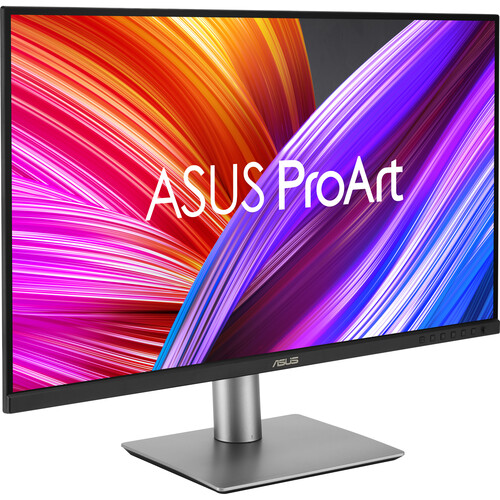
To properly achieve the correct color for your footage, you need a monitor that provides the color gamuts you need, holds a proper calibration, and does not lie to you about what your footage actually looks like. The ASUS ProArt PA279CRV has become one of the top choices for filmmakers looking for accurate color without breaking the bank, and after going through over 100 B&H user reviews and comparing them against other monitors in the market, it's easy to understand why.
However, there are several factors involved in determining the best monitor for color grading. These include the type of color work you're doing, the color space you're working in, the level of faith you have in a factory-calibrated monitor, and how much you're willing to spend on a hardware calibrator. So let's outline what matters when shopping for a grading monitor, and which monitors meet those requirements.
Gaming Monitors vs. Grading Monitors: The Specs That Matter
When searching for a grading monitor, ignore the refresh rate and response times. Those are gaming specs. The things that matter when shopping for a grading monitor are color accuracy, color gamut coverage, color depth, and panel uniformity. Below is what to look for.
Delta E is the largest factor when considering color-accurate monitors. Delta E represents how closely a monitor reproduces the color it is designed to display. A Delta E of two or less means the differences are virtually impossible for the human eye to distinguish. Most color-critical monitors ship with calibration reports including Delta E values, but those numbers can fluctuate over time. This is where hardware calibration comes into play.
Color gamut coverage represents what color spaces the monitor can display. For video work, you need at least 95% DCI-P3 coverage since that's the cinema standard. sRGB coverage matters for web delivery, and Adobe RGB matters if you're doing print work alongside video. The best grading monitors cover all three at 99% or better.
10-bit color support allows the monitor to display 1.07 billion colors rather than the 16.7 million colors displayed by an 8-bit monitor. In terms of color grading, 10-bit color support results in smoother gradient representations and less banding in transition areas, which is exactly what you want to happen when you are moving colors around in DaVinci Resolve or Premiere.
Panel uniformity refers to variation in brightness and color temperature across different parts of the screen. Professional monitors provide uniformity compensation to minimize these variations, but cheaper panels typically ignore this issue altogether.
ASUS ProArt PA279CRV: Best Overall Value
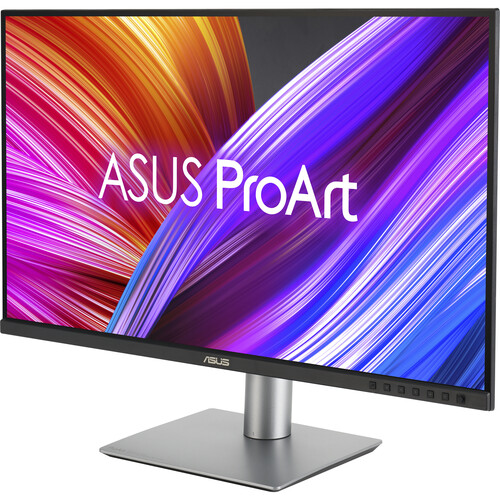
The ASUS ProArt PA279CRV is a very versatile monitor that is available at a competitive price. It's a 27-inch 4K monitor that uses an IPS panel to provide color gamut coverage of 99% DCI-P3, 99% Adobe RGB, and 100% sRGB. It has a Calman Verified certification that includes a factory calibration report indicating that the monitor has a Delta E of less than 2.
It is also capable of displaying HDR10 content at 400 nits, which is ideal for previewing HDR content. And the PA279CRV is equipped with USB-C that supports Power Delivery at 96W, allowing you to connect your MacBook Pro via a single cable and receive both video and power simultaneously.
What Users Are Actually Saying
There are over 100 user reviews on B&H for the PA279CRV. Most of the user reviews praise the monitor's color accuracy out-of-the-box. Many users comment that the monitor is "gorgeous," has crisp, clear images, and that the color is amazing.
There are several users who purchased the PA279CRV for professional color work, with one user commenting that he found it to be exactly what he needed for his Adobe RGB 1998 requirements at a reasonable price.
B&H reviewers also highlight the value proposition repeatedly. One user who already owned the higher-end ASUS ProArt OLED PA32UCDM was impressed enough to buy the PA279CRV for a second workstation, praising the color accuracy, brightness, and port stability. The USB-C connectivity with 96W Power Delivery is also a major advantage for laptop users since you can run a single cable to your MacBook for video, data, and charging.
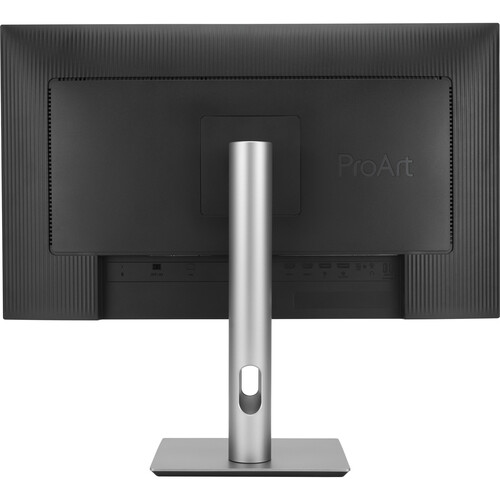
While the PA279CRV receives a great deal of praise, some users have noted limitations in terms of calibration compatibility. Some users have commented that the monitor cannot be calibrated with the Calibrite ColorChecker Display calibration device. As such, users may need to purchase the ASUS ProArt Calibration solution or another compatible calibration device.
Additionally, some users have complained that the monitor occasionally has timing issues and becomes unresponsive. However, this appears to be an isolated issue and is not a widespread problem with the PA279CRV.
Users generally praise the build quality of the monitor. However, one user reported that the VESA mounting plate was faulty, and B&H quickly replaced it. For the price, users agree that the PA279CRV delivers significantly more than expected in terms of color-critical performance.
Alternatives Worth Considering
The PA279CRV is the best overall choice for most filmmakers. However, based on individual preferences and budgets, the following alternatives offer unique benefits.
BenQ PhotoVue SW272U
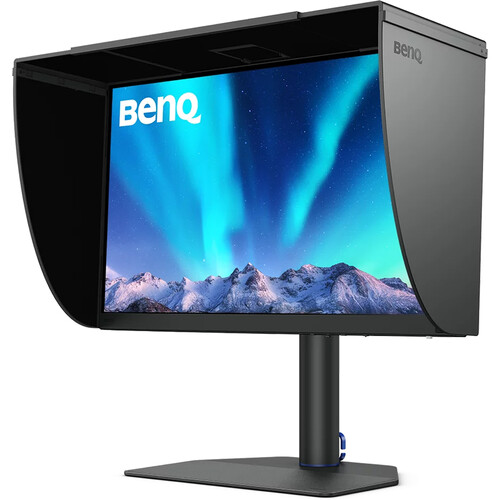
The BenQ SW272U is the preferred monitor among photographers that works equally well for videographers. It covers 99% DCI-P3 and 99% Adobe RGB with hardware calibration built right in through BenQ's Palette Master Ultimate software.
The SW series has long been the go-to monitor for many photographers due to the color accuracy and uniformity, and this 4K model brings that same precision to video grading workflows.
What sets the BenQ apart is the included shading hood. It comes in the box, not as an expensive add-on. If you're working in a room with ambient light hitting your screen, that hood makes a real difference in how accurately you perceive shadow detail and color. The SW272U also supports HLG for HDR preview, which is useful if you're delivering HDR content.
One drawback of the BenQ is that it lacks the USB-C connection with Power Delivery as seen in the ASUS, and it costs more. You're paying for the BenQ reputation for producing highly color-accurate displays and the integrated hardware calibration process. Check the BenQ SW272U at B&H.
EIZO ColorEdge CS2740
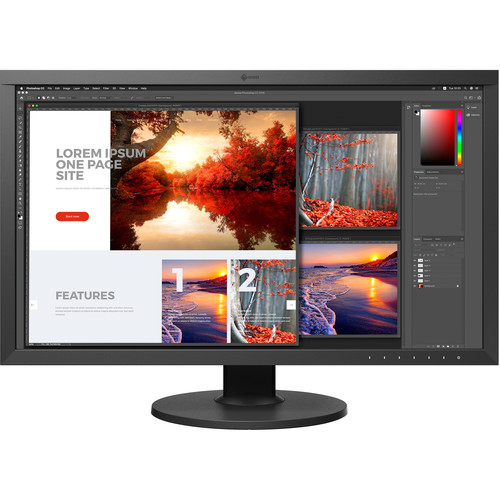
EIZO is the name you hear in post-production houses and broadcast facilities. The ColorEdge CS2740 is their more accessible 27-inch 4K option, and it's still built to a standard that most consumer monitors can't touch. EIZO's ColorNavigator software handles hardware calibration, and the company's reputation for panel consistency and long-term reliability is basically unmatched in the industry.
The CS2740 covers 100% sRGB and 99% Adobe RGB. Its DCI-P3 coverage sits around 90%, which is lower than the ASUS and BenQ options. For pure video grading work in DCI-P3, that's a meaningful gap. But where EIZO wins is in build quality, uniformity compensation, and the knowledge that this thing will hold its calibration reliably for years.
If you're comparing it to the Apple Pro Display XDR, the EIZO occupies a sweet spot between prosumer and broadcast-grade reference monitors. It costs more than the ASUS but you're paying for build quality and long-term color stability that the competition struggles to match. See the EIZO ColorEdge at B&H.
Dell UltraSharp U2725QE
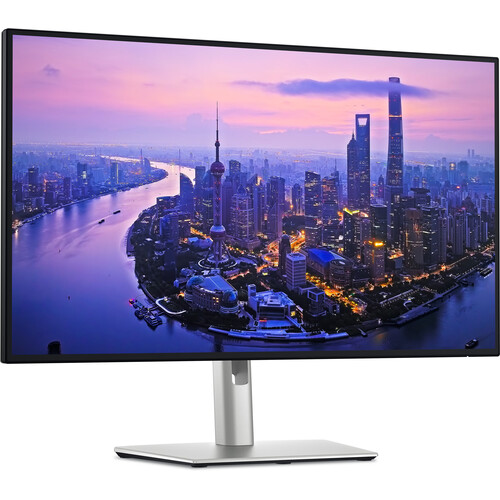
The Dell UltraSharp U2725QE is the budget-friendly option that's surprisingly capable for color work. Dell's UltraSharp line has always targeted content creators, and this 27-inch 4K panel covers 98% DCI-P3 with a 120 Hz refresh rate. That higher refresh rate doesn't matter for color accuracy, but it does make your timeline scrubbing and UI interactions feel much smoother.
Where the Dell makes the most sense is as a secondary monitor or as a first step into color-accurate displays. It's great if you need a solid USB-C hub monitor that also happens to be color accurate enough for initial grading passes. But it lacks the factory calibration certification and the specialized color management software that the ASUS, BenQ, and EIZO options provide.
If you're working with a colorist or delivering to broadcast standards, you'll want one of the dedicated options above. For YouTube and web delivery work, the Dell is more than capable and often the most affordable of the bunch. Compare prices on Amazon.
Hardware Calibration: Don't Skip This Step
Here's the uncomfortable truth about color grading monitors. Factory calibration is a starting point, not a destination. Every panel drifts over time as the backlight ages and components settle. If you're serious about color accuracy, you need a hardware calibrator.
A colorimeter like the Calibrite ColorChecker Display or the X-Rite i1Display Pro measures what your screen is actually outputting and builds a correction profile. The process takes about five minutes and should be done monthly if you're doing professional color work.
Some monitors, like the BenQ SW272U and EIZO CS2740, have built-in calibration engines that store the profile in the monitor's hardware rather than in your operating system. That means your calibration follows the monitor regardless of which computer you plug into it.
The ASUS ProArt PA279CRV supports hardware calibration through the ProArt Calibration app, but as B&H reviewers have pointed out, it's picky about which calibration devices it works with. Make sure your existing calibrator is compatible before you buy, or budget for one that is. It's an annoying extra step, but skipping it basically defeats the purpose of buying a color-accurate monitor in the first place.
If you're using an on-camera monitor in the field and then coming back to grade on your desktop display, having both monitors calibrated to the same standard is the only way to ensure consistency from set to post.
IPS vs OLED for Grading
You might be wondering about OLED panels for grading work. OLED monitors like the ASUS ProArt PA32UCDM offer infinite contrast ratios and perfect blacks, which sounds ideal for grading. And in many ways it is.
But OLED grading monitors come with serious caveats. They're significantly more expensive, they can suffer from burn-in if you leave static UI elements on screen for extended periods (which is exactly what happens in DaVinci Resolve), and the brightness limitations of current OLED technology mean HDR grading workflows aren't always straightforward.
For most filmmakers, a well-calibrated IPS panel like the ProArt PA279CRV gives you accurate enough color for professional work at a fraction of the OLED cost. For indie films, corporate video, documentaries, YouTube content, and wedding films, IPS gets you there. Check ASUS ProArt OLED monitors at B&H.
Setting Up Your Grading Environment
The monitor is only part of the equation. Your room setup matters just as much for accurate color perception. Here are the basics that a lot of people overlook.
Ambient Lighting
Grade in a controlled lighting environment. That means no windows throwing daylight across your screen, no overhead fluorescents with weird color temperatures, and ideally a bias light behind your monitor set to D65 (6500K). The BenQ ScreenBar Halo is a popular option for desk lighting that won't contaminate your color perception. Bias lighting reduces eye strain and helps your eyes perceive contrast more accurately on screen.
Monitor Placement and Color Space Settings
For a 27-inch 4K display, your eyes should be roughly 24 to 30 inches from the screen. The monitor should be at eye level or slightly below, and tilted back about 5 degrees.
Set your monitor's color mode to match your delivery format. If you're grading for web, use sRGB mode. For cinema, use DCI-P3. For HDR content, use the Rec. 2020 or HDR10 preset. Don't grade in one color space and deliver in another without understanding the conversion, because that's how you end up with oversaturated skin tones on YouTube or crushed blacks on Netflix.
Frequently Asked Questions
What's the minimum gamut coverage I need for professional color grading?
For video work, you want at least 95% DCI-P3 coverage. All four monitors in this roundup hit that mark except the EIZO CS2740 at around 90% DCI-P3 (though it covers 99% Adobe RGB). For web-only delivery, 100% sRGB is sufficient, but you'll outgrow that quickly if you start doing any cinema or broadcast work. The ASUS ProArt PA279CRV covers 99% DCI-P3 which is more than enough for most professional workflows.
Do I really need hardware calibration, or is factory calibration good enough?
Factory calibration is good enough to get started, but it drifts over time. B&H users report that the ASUS ProArt holds its factory calibration well for the first several months, but for ongoing professional work you should calibrate monthly. Budget around an extra few hundred for a quality colorimeter if you don't already own one.
Can I use a gaming monitor for color grading?
Technically yes, but you'll be working blind. Gaming monitors prioritize response time and refresh rate over color accuracy. Most gaming panels cover sRGB reasonably well but fall short on DCI-P3 and Adobe RGB coverage, and they typically ship without any factory calibration for color-critical work. You can calibrate them, but you can't calibrate a gamut the panel physically can't display.
Is 27 inches big enough for color grading?
For a desktop grading setup, 27 inches at 4K is the sweet spot for most editors. You get enough resolution to see fine detail without the pixel density dropping so low that you see individual pixels. Larger displays like 32-inch panels work well too, but they need to be 4K or higher to maintain pixel density. If you're setting up a dedicated grading suite with a client monitor, that's a different conversation since you'd want a larger reference display like the Atomos Neon for client viewing.
What's the difference between a grading monitor and a reference monitor?
A reference monitor (like something from Sony or Flanders Scientific) is designed exclusively for critical color evaluation and typically costs thousands. It provides broadcast-legal accuracy with built-in scopes and LUT management. A grading monitor like the ones in this article is a high-quality desktop display with wide gamut coverage and good calibration that you use for both editing and grading. For indie and mid-level production work, a well-calibrated grading monitor gets you 95% of the way there at a fraction of the cost.
How often should I recalibrate my monitor?
For professional color work, calibrate every 2 to 4 weeks. If you're doing occasional grading, monthly is fine. The EIZO ColorEdge monitors have built-in self-calibration sensors on some models that handle this automatically. The BenQ and ASUS options require an external calibrator, but the process is quick once you have the hardware. Find calibration tools on Amazon.