Best Monitor Stand for Editing Desks: Top Picks for Video Editors

Until the time comes when your (very) affordable monitor arm collapses due to the weight of a large (32 inch) color display, your monitor arm is far more important than the leg you have it sitting on. Once your arm starts to droop as a result of your long editing sessions, you will find yourself tilting your head in an unhealthy manner and disrupting your workflow within approximately a week. A good monitor arm or riser from B&H will resolve this problem without ruining the rest of your workspace.

This article focuses on monitor arms and risers designed for video editors doing color critical editing. This includes 27 to 32 inch panels and possibly two panels. These arms also include the ability to support the weight of larger panels and provide the level of adjustability required when transitioning between standing grading sessions and seated cuts. B&H's user reviews clearly state which products keep their panels securely held in place while those that sag after a month do not.

Monitor stand for editing desk with color-critical display mounted

What Really Matters When Buying a Video Editing Desk

When working with colors, you tend to be very focused on the screen. When you're scrubbing through a long timeline, you tend to lean back. A good desk should allow you to move the monitor to the correct viewing angle without having to drag the entire desk with you. The height of the stand is the first item you'll want to look for when buying a stand. If a stand doesn't go low enough for seated work, or rise high enough for standing work, you'll compensate by leaning your head, which will eventually ruin your back.

The second thing you want to look at is the weight capacity. A 32" IPS monitor weighs much less than a 32" IPS monitor with a color calibration puck attached. Many "cheap" arms rated at "up to 30 lbs." will begin to float when you add even 5lbs. More than once I've seen B&H reviewers mention this. Make sure you buy a stand rated higher than your monitor and make sure the VESA pattern is compatible. Most professional monitors are 100x100 VESA, however many 32" monitors use 200x100 and many inexpensive stands won't accommodate either.

Cable management seems like a luxury feature, until you're trying to manage HDMI cables, DisplayPort cables, USB-C docking cables and power lines coming directly from your monitor to a Thunderbolt hub. A stand with cable channels helps organize all of these cables from being strewn across your desk and from showing up in frame when you decide to record a live video piece from your desk.

Riser vs Monitor Arm

Monitor risers sit flatly atop your desk and elevate your monitor away from keyboard clutter. They are generally less expensive than a full-motion arm, they do not require clamping onto your desk edge and they are stable. However, risers offer very limited motion options. What you get is what you got.

Full-motion arms clamp onto the edges of your desk and provide the option to pull your monitor toward you, push it back toward your body, tilt it downward for standing work or rotate it into portrait mode for reviewing scripts. While full-motion arms typically cost more money and may create micro-wobble when typing rapidly, for people who have two monitors or frequently switch between positions throughout long editing sessions, an arm is the best way to go.

Ergotron LX and HX Desk Monitor Arms: The Industry Standard

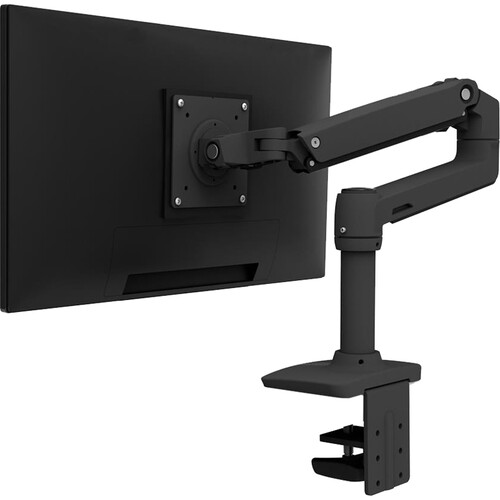
The Ergotron LX and HX Desktop Monitor Arms represent the best of the best when it comes to arms from Ergotron. However, they each support two different types of desks. The Ergotron LX is the most commonly seen "industry standard" in editor stations, radiology departments and corporate environments around the globe. This arm supports displays up to 34 inches and 25 pounds. It utilizes the same Constant Force Pivot technology as the other Ergotron arms, and there is always an abundance of stock on hand. If you have one display (standard or ultrawide) that weighs less than 25 pounds, then the Ergotron LX is where you should begin.

Ergotron LX desk mount monitor arm on an editing desk

On the opposite end of the spectrum is the Ergotron HX desktop monitor arm. This is the heavy-duty brother to the LX. It provides for very heavy color critical displays up to 42 pounds (across both 100x100 and 200x100 VESA configurations), making it the go-to solution for larger reference monitors that the LX cannot handle. Be aware however that the HX is often a special order SKU, therefore it may take longer to receive once ordered. Be sure to check availability prior to placing an order. Each of the Ergotron arms maintain their position and eliminate the micro wobble that would cause a 10-hour editing marathon to become unbearable.

Ergotron HX monitor arm holding a large display

B&H reviewers repeatedly refer to the construction of both arms as being solid. Many users have reported using them in multiple office spaces and maintaining their positioning perfectly. Other areas that reviewers praise include the ability of these arms to accommodate very large screens (some users report utilizing 38 inch and 40 inch ultra widescreens successfully with the HX).

While there are certainly negative aspects associated with both arms (cost, etc.) reviewers state that installing either arm takes a little bit of elbow grease. Reviewers also stated that not all SKUs shipped with a grommet mount (be sure to verify what shipped in your box). A few reviewers stated that the heavy duty pivot on the HX was slightly stiff when first installed and required a period of time to get accustomed to. While not ideal, this should not be a deal breaker. Both the LX and HX are also available on Amazon for comparison shopping.

Gabor DMS-200: Affordable Riser Done Well

Not everyone needs a full-motion arm. If your monitor position is currently optimized and you simply need to lift the panel and get your keyboard tucked underneath, the Gabor DMS-200 desktop monitor stand is a simple solution that won't break your bank. It's a wooden finished riser with three height adjustments that can hold a single monitor up to 44 pounds.

Gabor DMS-200 monitor riser stand for editing desk

Users love how simple the Gabor DMS-200 desktop monitor stand is to assemble. Reviews indicate that assembling it was easy and that the wood finish looked nicer in person than in images. Reviewers complimented it on its stability saying that even with a heavy 32" display there was zero flex when typing on the desk surface. Several reviewers also mentioned that the open shelf underneath would fit a wireless keyboard plus a small audio interface or control surface. This is beneficial for edit bays where space is precious.

Several reviewers complained that since the height adjustment was done via fixed spacers there was no adjusting on-the-fly. Some reviewers reported that they were able to ding/dent their wood finishes by dropping heavy equipment on it. At least for now, at that low price many reviewers agree that it's worth it if you don't need motion capabilities.

Who Should Choose the Gabor Over an Arm

If you are always seated, never move your monitor location and need to store keyboards underneath then choose a riser. If you switch posture frequently, need two monitors or need to pivot your monitor for collaborative reviews then choose an arm. Ultimately think about how you actually use your video editing desk before investing in motion capabilities you may never utilize.

Kensington SmartFit Extra-Wide: For Ultrawide Panels

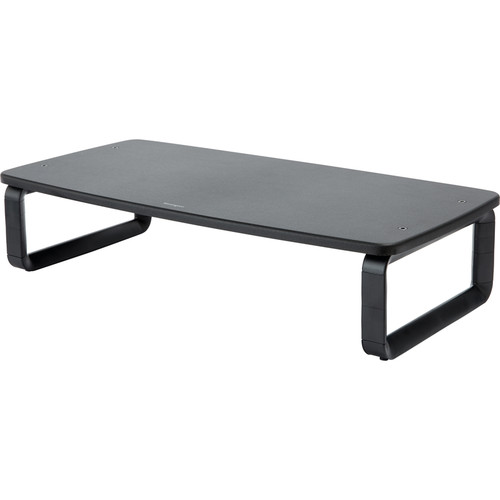
When working on a 34-inch or wider ultrawide for your NLE, many generic risers are too narrow to provide adequate support for the display, causing the display to tip forward due to its weight. Kensington's SmartFit wide monitor stand is designed to address this issue. Unlike most risers, this stand is wider to accommodate a 34-inch or 38-inch ultrawide panel and features the color-coded SmartFit guides to allow for easy setting of your preferred viewing position.

Kensington SmartFit extra wide monitor stand with ultrawide display

Reviewers on B&H praise the stability of the stand with ultrawide panels. Reviewers also comment that the stand has a wide footprint preventing the front-heavy tilt experienced by less expensive risers when used with a 34-inch or 38-inch display. One reviewer mounting a 38-inch display reported it was perfectly level with no shimming required. Reviewers have differing opinions about the usefulness of the SmartFit height guides. Some users stated they found the guides to be extremely helpful in achieving proper ergonomic settings, while other users did not utilize them at all.

Negative comments regarding this product are generally minor. Reviewers stated that the plastic construction does not have the same high-end quality as the Gabor and that the color-coded sticker on the guides may appear low-quality when viewed closely. A couple of reviewers commented that the stand appears to have been created primarily for corporate use, therefore, the style would be best suited for an "office park" environment versus a high-end boutique edit suite. If aesthetics are important to you, consider this when making your decision.

Mount-It MI-2781B Dual-Monitor Stand: For Two-Panel Arrangements

Using two screens is very commonplace within any professional editing arrangement. Typically, one screen is dedicated to displaying the timeline while the second screen provides access to program output. The Mount-It MI-2781B desktop dual-monitor stand accommodates two monitors (each measuring between 19 and 32-inches) via a single clamp that leaves ample space on top of your desk and allows for both screens to be positioned at approximately the same viewing height.

Mount-It MI-2781B dual monitor desk stand

B&H reviewers praised the cost-effective nature of this product. Users reported that despite being inexpensive, the quality of the build was superior to what they expected and that the design of the dual-arm allowed each arm to adjust independently, allowing users to position one display towards a client chair during review meetings. A user also complimented Mount-It on how well the clip-based cable management kept their HDMI cables organized which is important when there are multiple cables connected to two displays.

Both positive and negative reviews centered around weight. Multiple users noted that once two 32-inch displays were mounted to the stand near maximum capacity, slight wobbling could occur upon bumping into the desk. The arms utilized gas-spring tensioning similar to many alternative products on the market, however reviewers indicated that users needed to reset the spring tension (using a provided hex wrench) every few months. This product is also offered on Amazon for comparison purposes.

Match Stand to Desk

Prior to purchasing a stand, measure your desk width. Arm-style stands typically require a minimum of 2-inches of clearance behind each panel for the arm pivot. Therefore, a shallow desk (i.e., 20-inches deep) can become congested when housing a 32-inch display on an arm. Risers do not present this constraint. Thus, if your desk lacks sufficient width, a better option than any arm would be either the Gabor or Kensington risers.

Setup Recommendations Based on B&H Reviews

Individuals who have spent significant time utilizing these stands offer several suggestions. Firstly, install the monitor prior to attaching any components to the desk so that you are not trying to deal with both the weight of the monitor and tightening down the clamp at the same time. Secondly, secure the clamp screws in a diagonal (cross-hatching) pattern just as you would tighten lug nuts on a wheel. Many reviewers noted that this helps avoid distortion of the clamp plate over time.

For arm-style stands, set the tension based on a fully-loaded condition. If you establish tension on an empty arm it will be overly-tightened and cause the arm to snap upward when lowering it. Many reviewers reported establishing tension in this manner during initial use and needing to re-establish tension entirely.

Monitor stand setup detail with cable management routing

Multiple reviewers pointed out that the included hex wrench is necessary and should be stored where you can easily locate it since you will undoubtedly need to utilize it again.

Frequently Asked Questions

Must I Purchase a VESA Adapter for My Monitor?

Possibly. Virtually all mid-range and professional-grade monitors possess standard 100x100 VESA mounting holes on their backsides. However, some curved displays, consumer-grade monitors, and numerous ultrawide monitors lack such holes and you'll need to acquire a VESA adapter plate for these models. Check your monitor's specification sheet. If VESA mounting is not listed, then assume it is lacking. Budget accordingly for an adapter. B&H offers adapters for nearly all commonly-used monitors, so search B&H for your exact model before committing to an arm.

Can I Trust the Weight Rating of a Monitor Arm?

Trust your manufacturer's ratings but factor in additional safety margin. If an arm supports 30 lbs and your monitor weighs 28 lbs, then it will likely hold your monitor, however, you will lose most of the possible adjustments due to having set the tension at its absolute limit. Choose an arm capable of supporting at least 10 lbs above your actual monitor weight. B&H reviewers repetitively emphasize this recommendation citing instances where users chose not to follow it, ultimately resulting in loose or "drifting" arms after just a few months of usage.

Are Single Monitor Arms Sufficient for Video Editing?

Yes – for many editors. A single 32-inch 4K display typically affords sufficient room for viewing timelines and dropping full-screen program outputs onto a secondary device (such as a reference monitor) can be more clean and efficient than using two computer monitors. Nevertheless, two-panel configurations remain the norm for heavier NLE applications and the Mount-It dual-monitor stand represents a viable solution for obtaining this configuration without breaking the bank.

Will Using a Monitor Arm Damage My Desk?

Monitor arm clamps may potentially dent softer woods over time. The majority of manufacturers (including Mount-It) include a rubber pad attached to the clamp plate to prevent this from occurring. Additionally B&H reviewers confirm this method works effectively on laminate and hardwood surfaces. To ensure protection of solid wood or paint-covered surfaces, place a thin piece of felt or leather underneath the clamp for added assurance. Grommet-type mounts require drilling into your desk surface, so proceed with caution – especially if you purchased your desk and intend to retain ownership.

Do Monitor Stands Include Cables & Power?

No – a monitor stand merely positions your monitor(s), it does not power nor manage signals. As with any monitor installation, you will continue to require your existing HDMI, DisplayPort, USB-C, etc., cables (or whatever combination of cabling you currently employ). Some arms provide cable channels or sleeves to route cables up along the arm. If managing cables is critical to you – verify whether this is included before making your purchase. A large number of budget-priced Amazon-listed arms exclude this feature.

How Do I Determine Whether My Desk Can Support a Clamp?

Verify your desk thickness. Most arms will attach securely to desks ranging from 0.4 inches (thinness) to 3.5 inches (thickness). Desks composed of glass, hollow core, particle board coated with thin laminate coating may fracture or collapse under a heavy arm with a 30 pound monitor installed upon it. B&H reviewers advise against applying any type of clamp to hollow core tops manufactured by IKEA unless reinforced in some fashion. In cases where you're unsure – consider acquiring a heavy-duty riser-style stand instead.